Integrating PayPal lets your customers make payments, purchases, and renewals through PayPal. Follow these steps to connect your PayPal account and activate payment features.
To successfully link your account, you will need the following two pieces of information from your PayPal Developer portal:
'Client' ID: A unique identifier for your application.
'Secret': A private key used to securely authenticate your integration.
To obtain these credentials, you will need to access your PayPal Developer account dashboard to retrieve specific API keys. This process involves navigating to your application settings to find the 'Client' ID and 'Secret' key required for a successful connection.
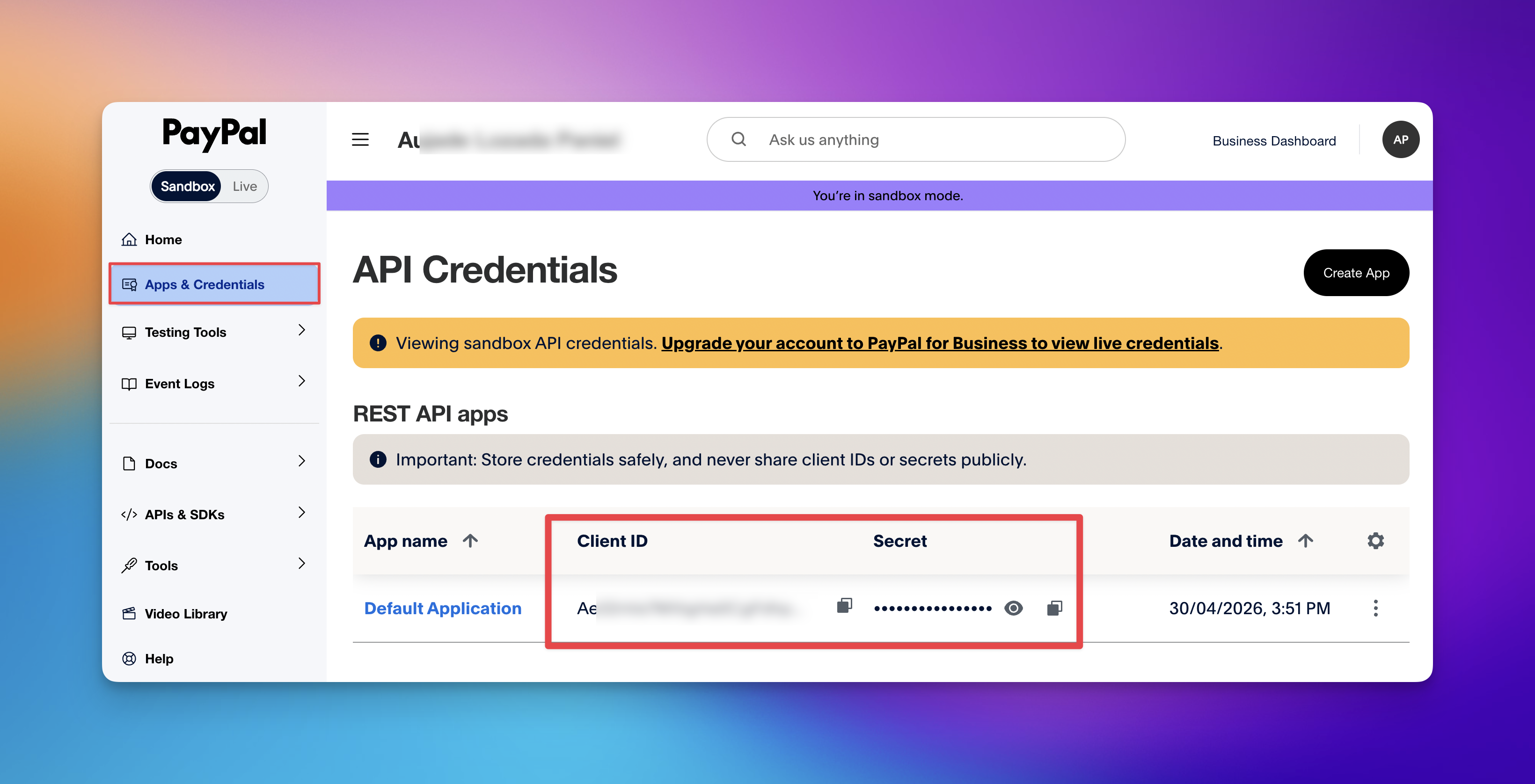
Log in to the PayPal Developer Dashboard.
Go to the 'Apps & Credentials' section.
Select the app you want to use (or create a new one) for the integration.
Copy the strings found under Client ID and Secret.
Once you have your credentials ready, you can link them to your dashboard to enable payment processing for your customers. Follow these steps to complete the integration:
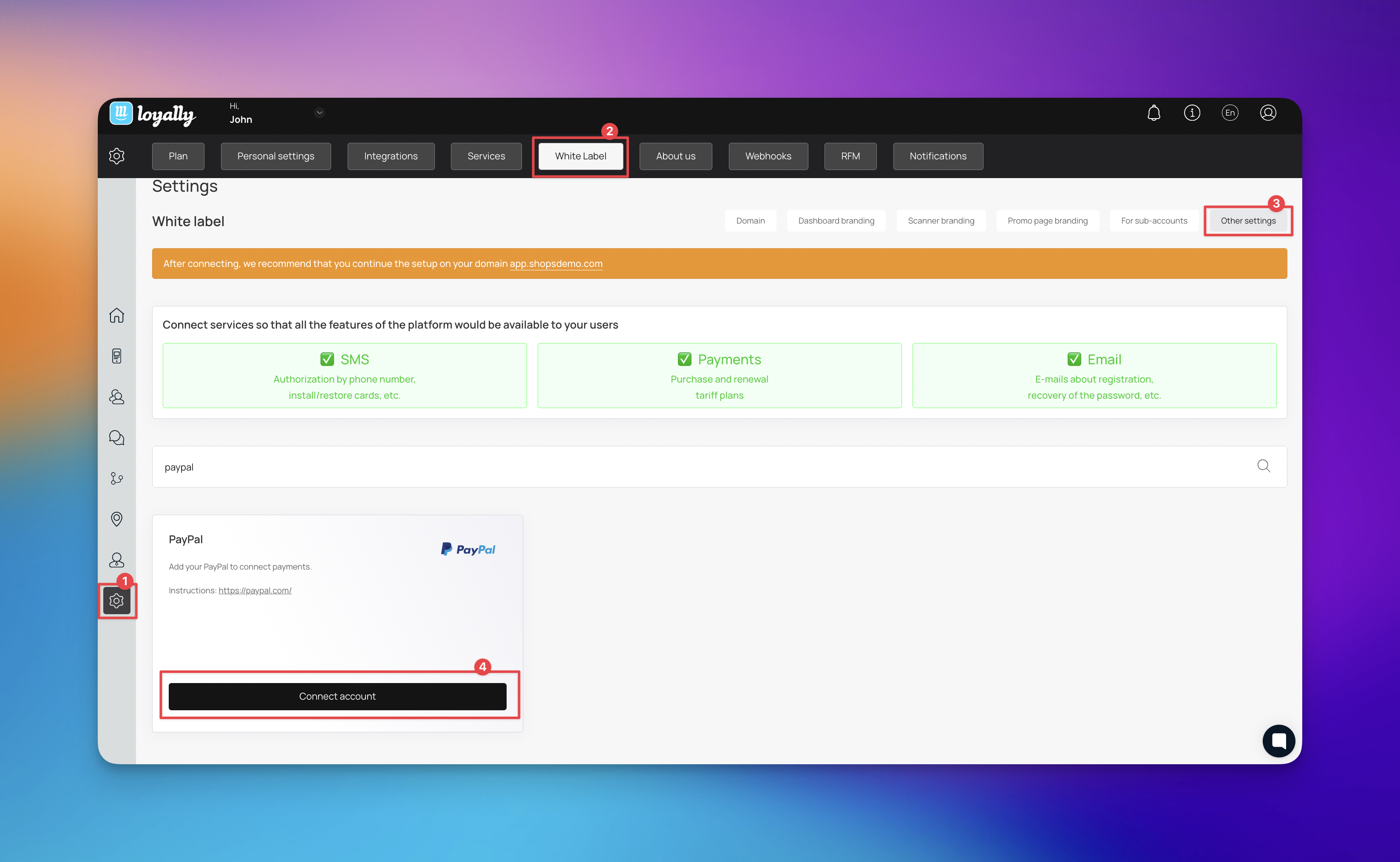
Log in to your Loyally.ai account.
Select the gear icon to open the 'Settings' menu.
Select the 'White Label' tab.
Select 'Other settings'.
Locate the PayPal section and select 'Connect account'.
In the pop-up window, enter your Client ID and Secret key.
Select 'Connect' to finalize the integration.
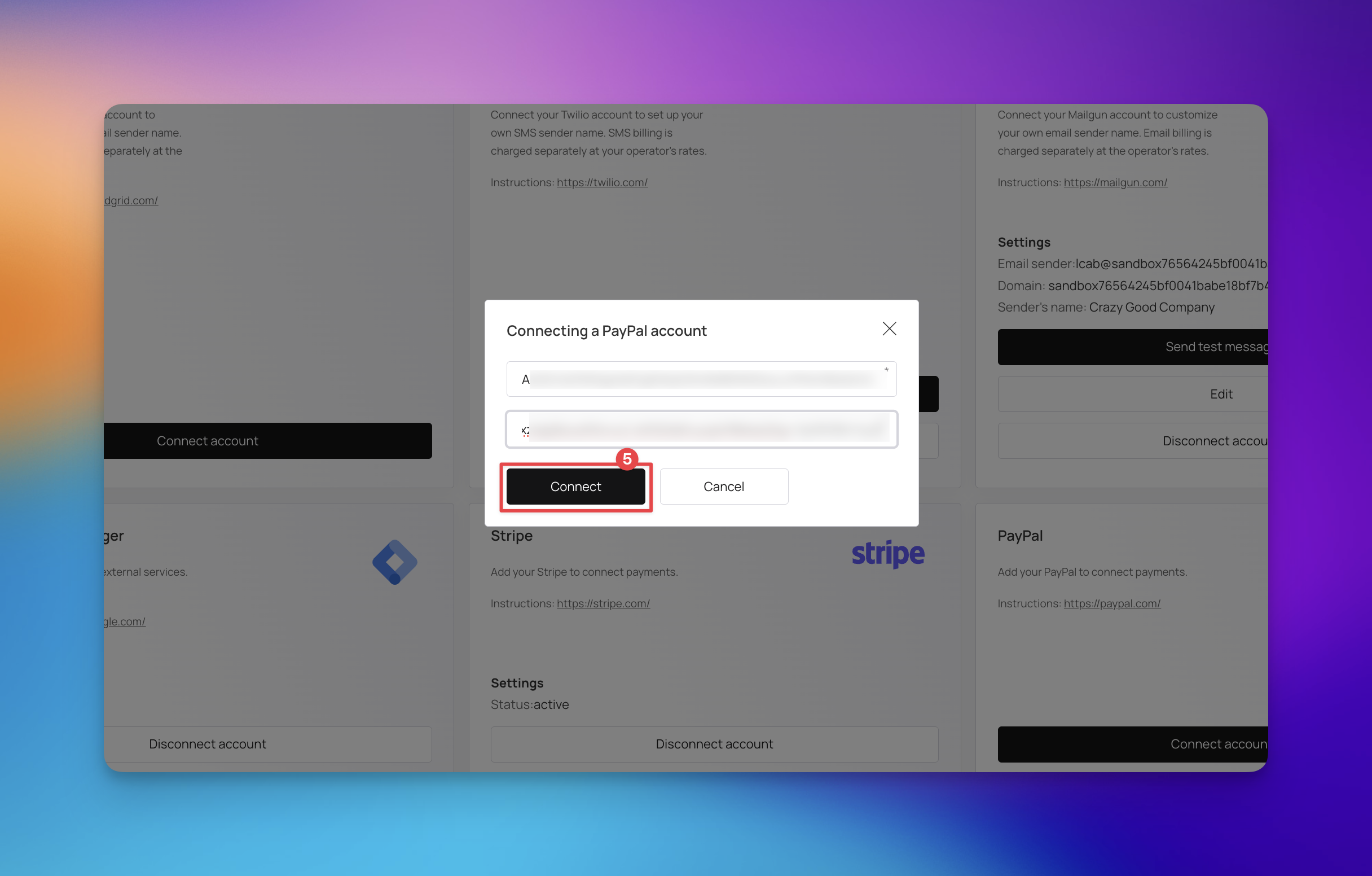
After following these steps, your PayPal integration will be active, allowing you to manage transactions and subscriptions from your customers. If the connection is successful, you will see an updated status in your settings indicating that the account is now linked and ready for use.

Error | Cause | Workaround |
Invalid Client ID or Secret | The credentials entered do not match those in the PayPal Developer portal. | Re-copy the keys directly from the PayPal dashboard to ensure there are no missing characters or extra spaces. |
Connection Failed (Sandbox/Live mismatch) | Attempting to use Sandbox credentials in a Live environment or vice versa. | Switch to the correct environment toggle in the PayPal Developer portal and generate the corresponding keys. |
Unauthorized Header | The PayPal account has restricted API access or hasn't been fully verified. | Log in to your PayPal Business account and ensure your email address is verified and the account is in good standing. |
Permission Denied | The PayPal app created does not have 'Checkout' or 'Transaction Search' permissions enabled. | Go to your App settings in the PayPal Developer portal and ensure all necessary "Features" are checked. |
Connecting Stripe to Your Loyalty Program
Learn to securely link Stripe for seamless loyalty program payments