Start a paid plan, change your plan or billing cycle, or cancel—right from ⚙Settings → Plan.
The button shown on your Plan page depends on your current account status:
Extend / Add — You’re on a trial or haven’t added a payment method yet. Use this to start a paid plan.
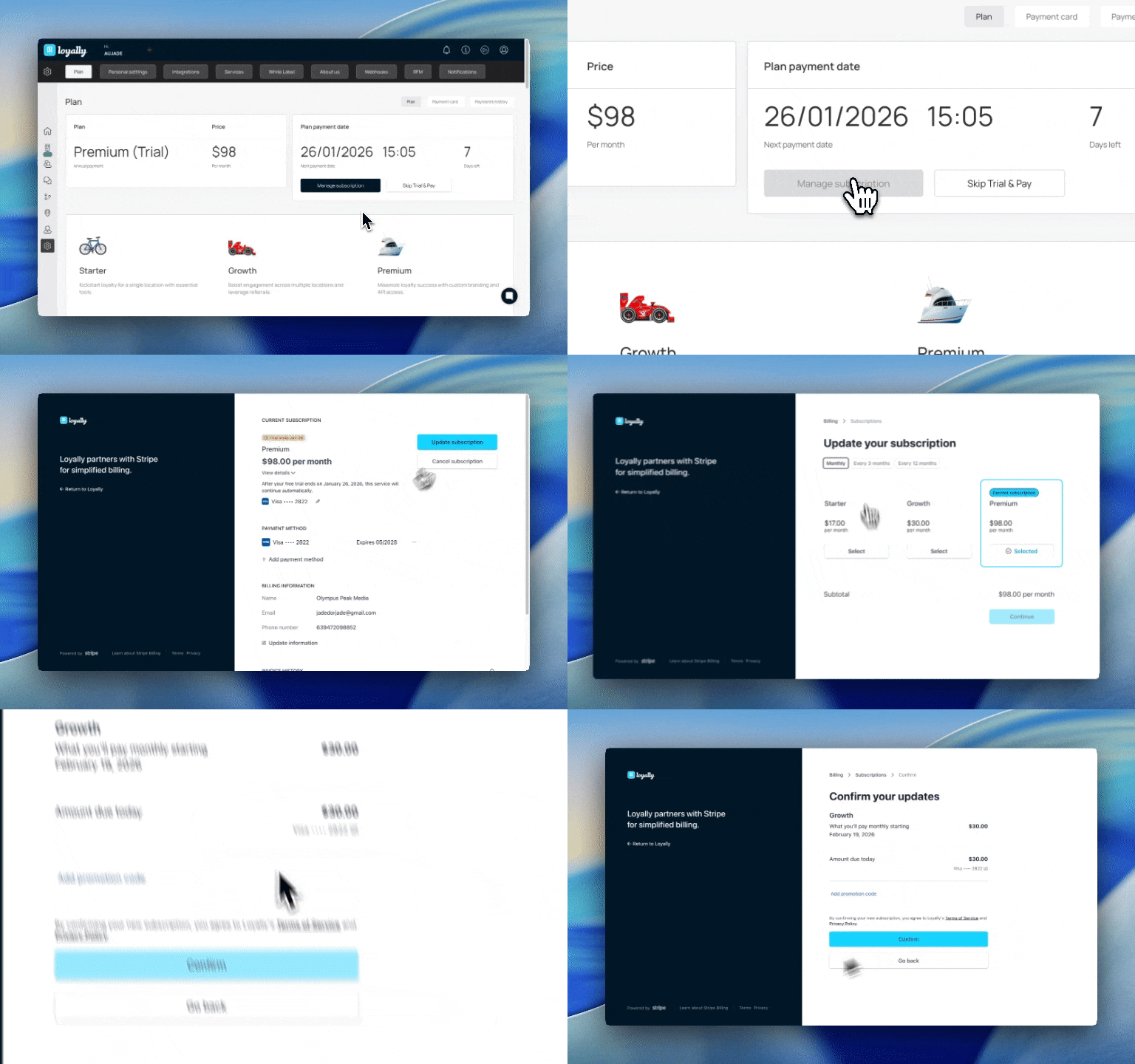
Skip Trial & Pay — You’re on a trial and want to start your paid plan immediately.
Manage subscription — You already have a paid plan. Use this to change plan/billing cycle or cancel.

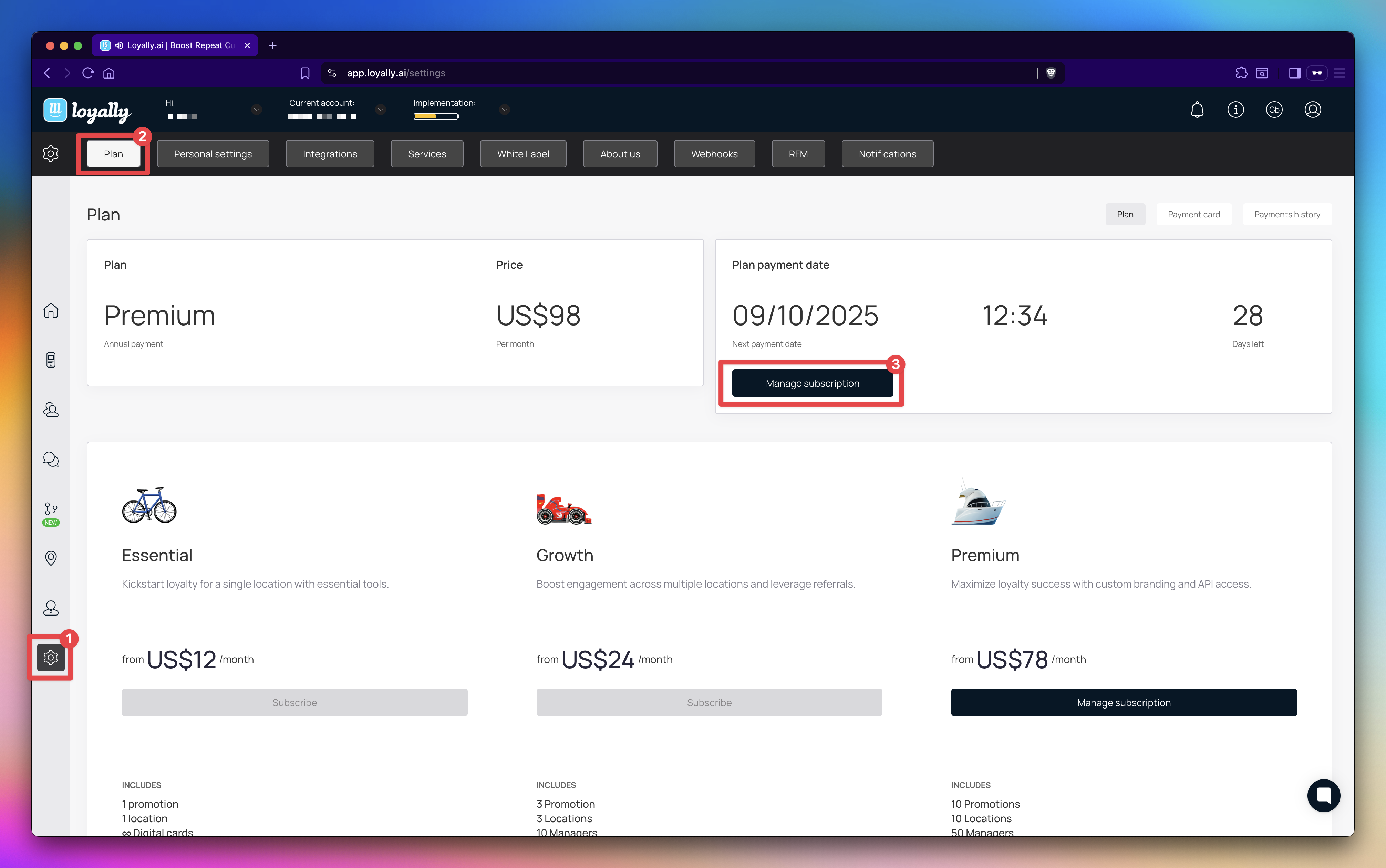
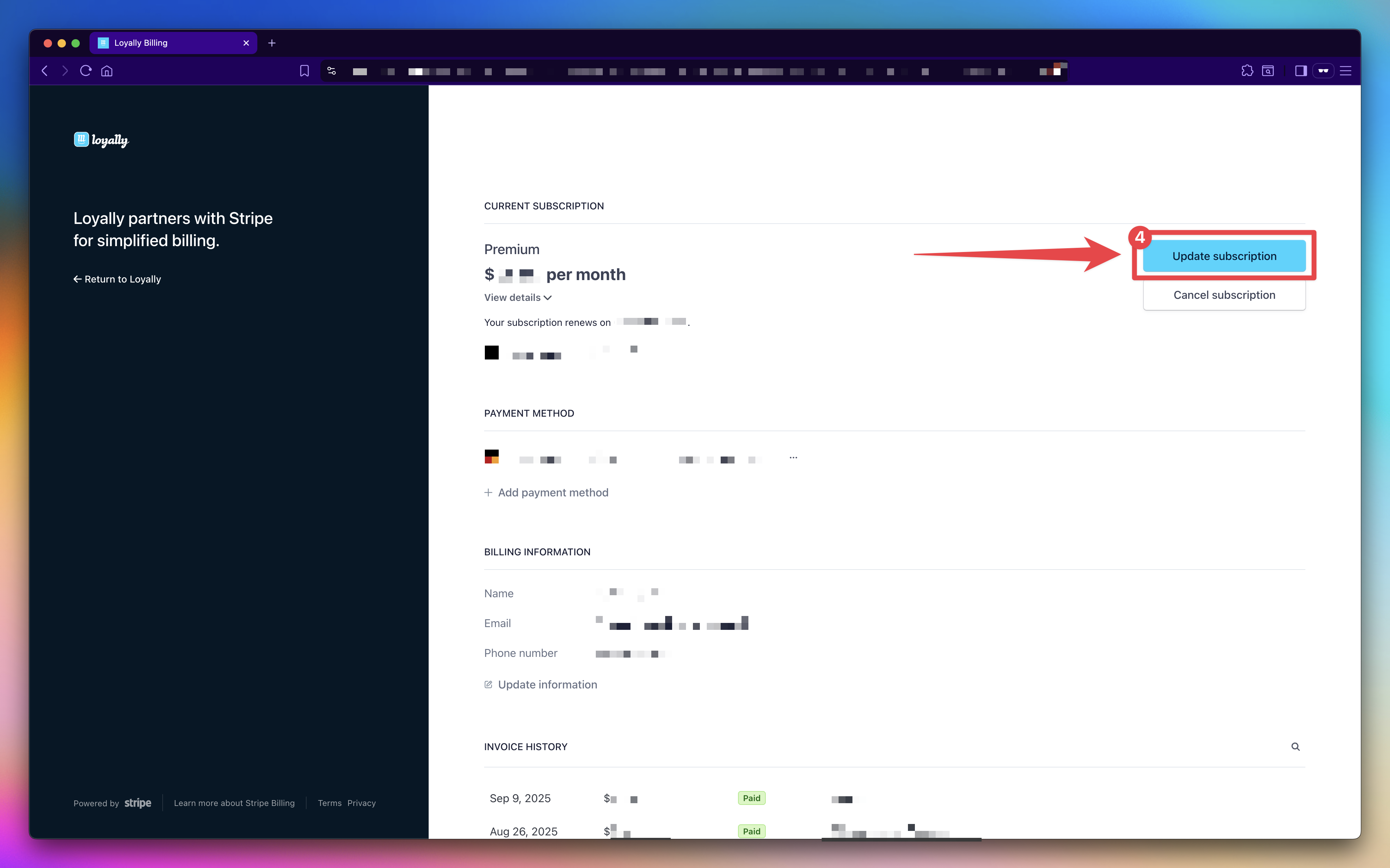
Want to move between plans (e.g., Starter, Growth, Premium) and/or switch how often you’re billed (monthly, every 3 months, annually)? Changes are handled in Stripe’s secure billing portal — Stripe shows the exact amount (including any proration) before you confirm.
Sign in to Loyally.ai and go to ⚙ Settings → Plan.
Click Manage subscription.
In the Stripe Billing Portal, click Update subscription.
On the update screen, select:
Your new plan (Starter, Growth, Premium).
Your preferred billing cycle (Monthly, every 3 months, or annual).
Click Continue and confirm.
Billing note: Changes take effect immediately. Stripe prorates and invoices immediately; any credits apply to future invoices.
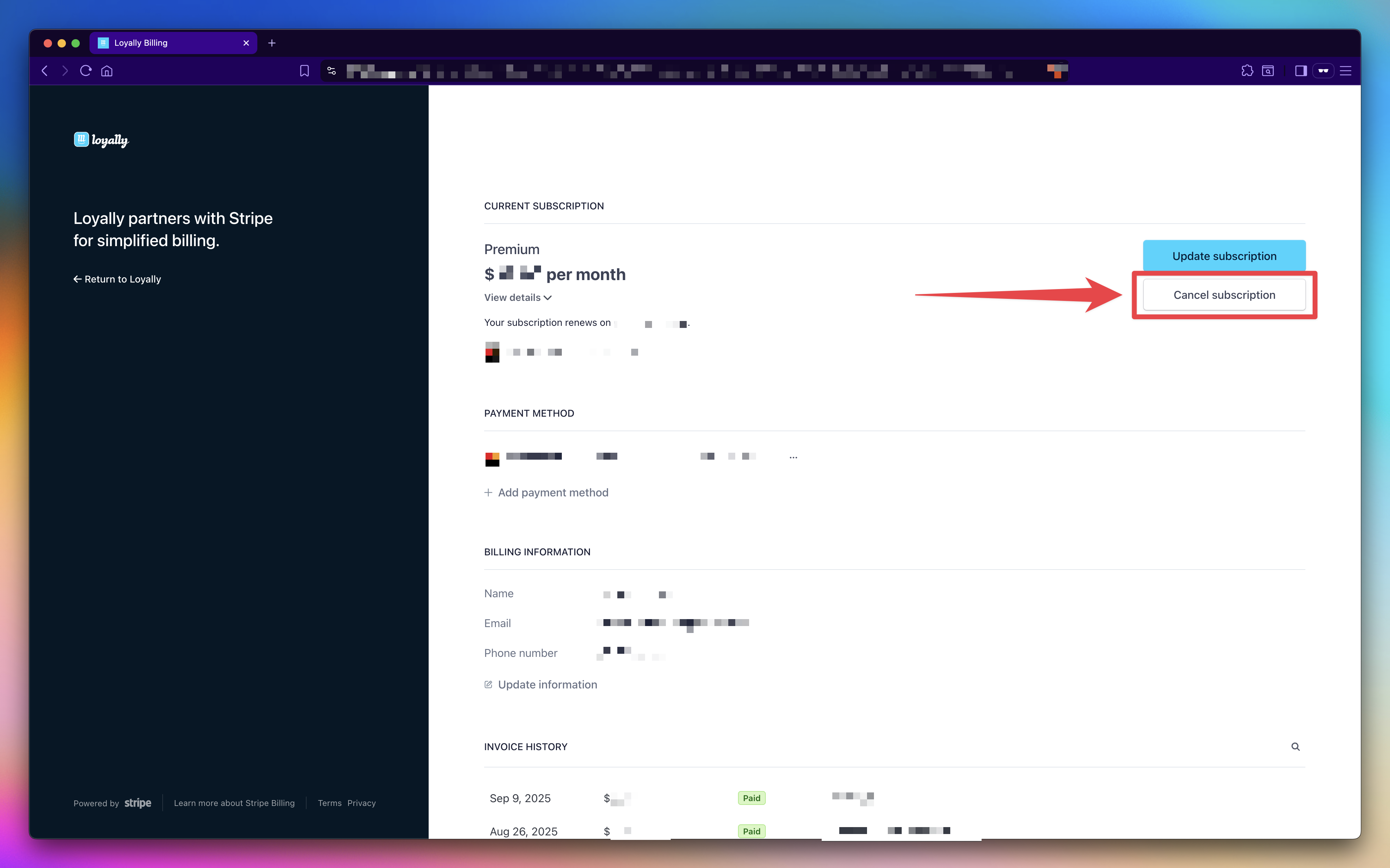
Canceling stops future renewals. Your account stays active until the end of the current billing period, and you won’t be charged again after that.
Sign in to Loyally.ai and go to ⚙ Settings → Plan.
Click Manage subscription.
In the Stripe Billing Portal, click Cancel subscription (just below Update subscription).
Confirm cancellation.
Your plan will remain active until the end of the current billing period, and you won’t be charged again.


When your trial has ended or you skipped adding a card at signup. You’ll confirm your plan and billing cycle in a popup.
Sign in to Loyally.ai and go to ⚙Settings → Plan.
The plan details are shown in two sections: "Plan" and "Payment History".
"Plan" displays your current subscription plan and its price.
"Plan Payment Date" displays your next payment date, time, and "Days Left".
Click "Extend" to renew/continue your plan. Choose your:
Plan
Billing Cycle
Promo Code (if any)
Payment method
Click 'Pay' to confirm.
Your subscription starts immediately if the trial ended, or at the trial end date if trial time remains.
If you find that your current plan no longer fits your needs, you can easily downgrade or upgrade to a different tier at any time through your account settings.
Log in to your Loyally.ai dashboard and navigate to the Settings menu. Under the “Plan section”, locate and click on “Manage Subscription”.
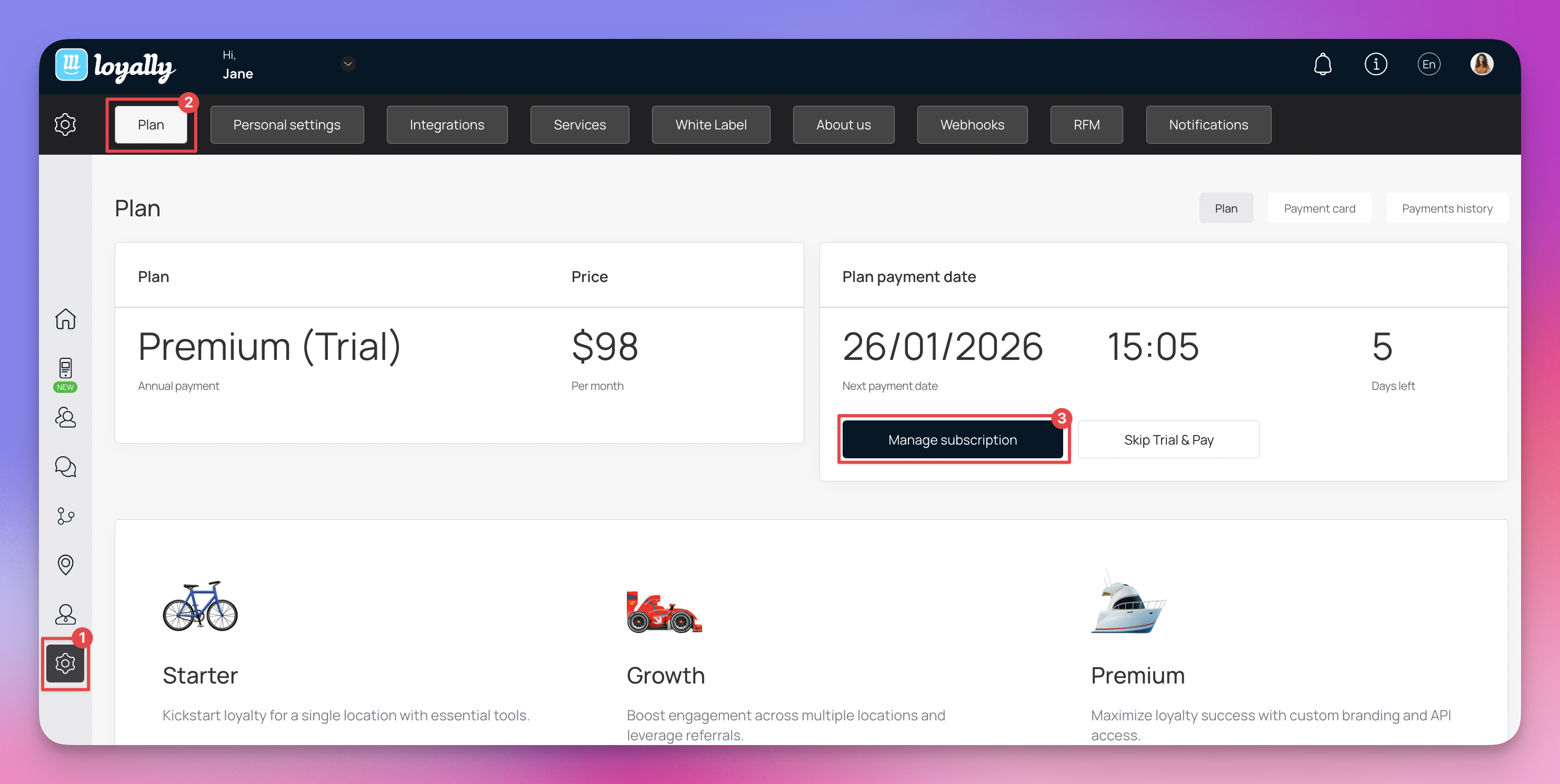
Once you are redirected to the subscription management page, click the “Update Subscription” button. This will display all available plans.
Review the list of available tiers. Choose the plan you wish to downgrade/upgrade to and click “Continue”.
Review the new billing details and the effective date of the change. If everything looks correct, click “Continue” to finalize the update.
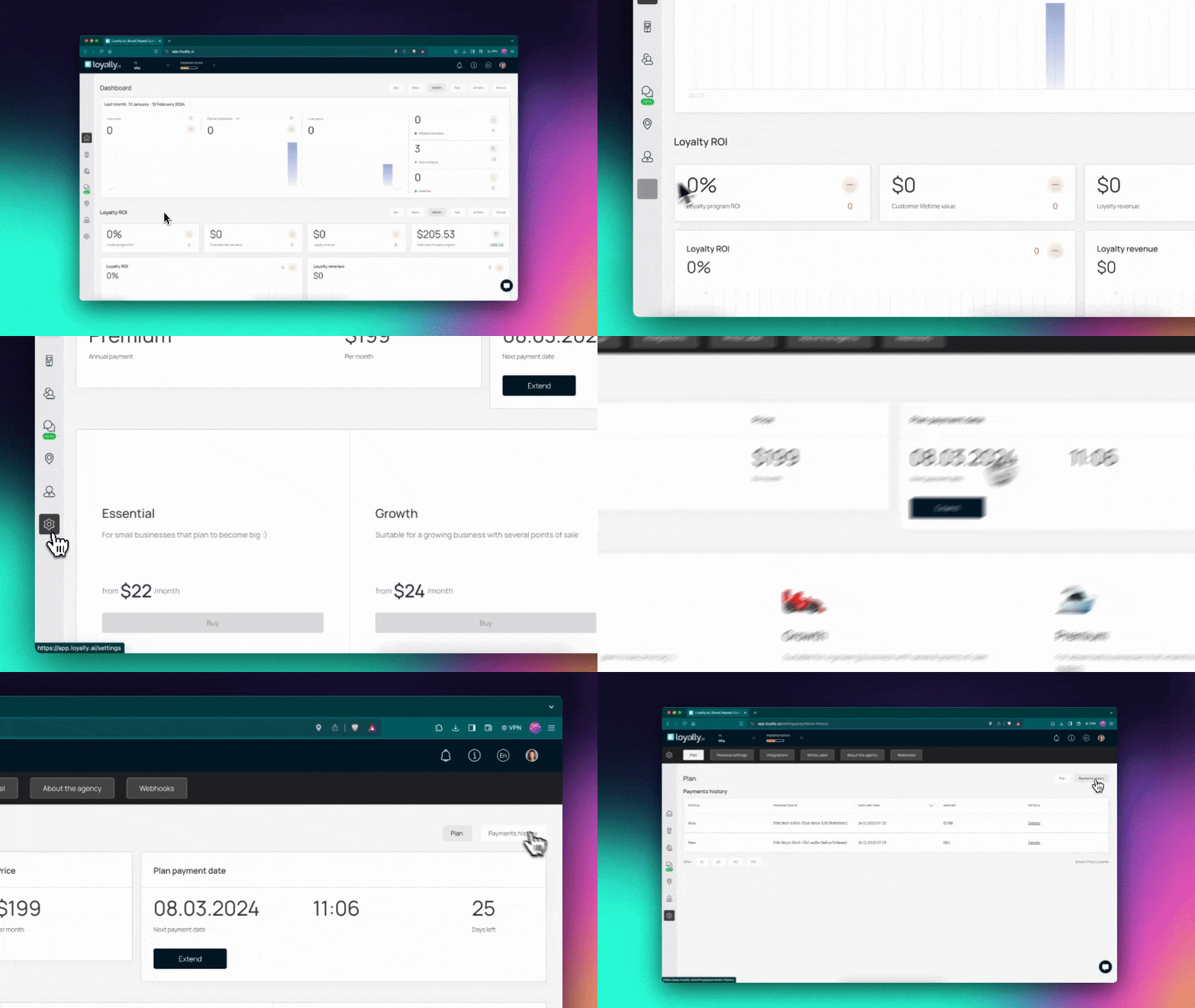
To view payment history, click the 'Payments History' button at the top-right.
All historical payments are listed here with details such as Status, Transaction ID, Date and Time, Amount, and Details.
This usually happens when your subscription isn’t currently active (for example: a payment failed, your subscription ended, or you canceled). In these cases, the Plan page may not be able to open Stripe to collect billing details.
Fix it in Stripe (pay what’s due or start a new plan)
Log in with the same email used for this Loyally.ai account/workspace.
In Stripe, do one of the following:
If you see an unpaid invoice / past-due payment: update your card and pay the open invoice.
If you don’t see anything to pay / no active subscription: choose a plan (Starter, Growth, Premium) and start a new subscription.
Confirm, then refresh Loyally.ai.
Tip: If Stripe shows the wrong account or nothing at all, you’re probably logged into a different email or workspace than the one that originally subscribed.
If your subscription isn’t currently active, the Plan page may show limited options.
Fix it in Stripe
Log in with the same email used for this Loyally.ai account/workspace.
If you see an unpaid invoice, pay it. If not, start a new subscription and pick the plan you want.
Refresh Loyally.ai.
This Stripe portal link works only for accounts that have previously started a trial or paid plan (so a billing profile already exists).
If you’ve never signed up before, create your account here:
https://app.loyally.ai/registration
Send support a screenshot of your Settings → Plan page and the Stripe page you see after opening the portal link, plus the email you used to log in.