Learn how to view and manage customer details for Gift Card–based loyalty programs in Loyally.
The Customer Profile provides a full overview of each customer’s card data — including current balance, status, expiration, and more. From here, you can manually adjust balances, manage card settings, and send personalized push messages.
From a customer’s Gift Card profile, you can:
View detailed card and balance information
Manually add or subtract gift card value
Modify expiration dates
Manage card status (installed / deleted)
Copy installation and referral links
Send targeted push notifications
Review feedback and customer info
Each Gift Card customer profile includes key details about their card and activity:
Field | Description |
LTV (Lifetime Value) | Total purchase value generated by the customer. |
Current Balance | The available balance remaining on the gift card. |
Status | Displays if the card is Installed, Not Installed, or Deleted. |
Card Expiration Date | The date the card will expire (editable). |
Card Valid From | The date the customer first installed or activated their card. |
Segments | The customer’s assigned loyalty or behavioral segment. |
Feedback Rating | The customer’s feedback rating for your business. |
Card Serial Number | A unique identifier for the customer’s card. |
Installed on Device | Shows where the card is installed — Apple Wallet, Google Wallet, or PWA. |
Total Visits | Total number of visits associated with the customer. |
UTM Tag | Identifies the marketing source through which the customer joined. |
Card Issue Date | The date the card was created or issued to the customer. |
You can manually adjust a customer’s Current Balance directly from their profile.
💡 Note:
Adding or removing card balance affects the customer’s available funds and LTV.
The Purchase amount field represents the transaction value associated with the adjustment.
Open the customer’s profile.
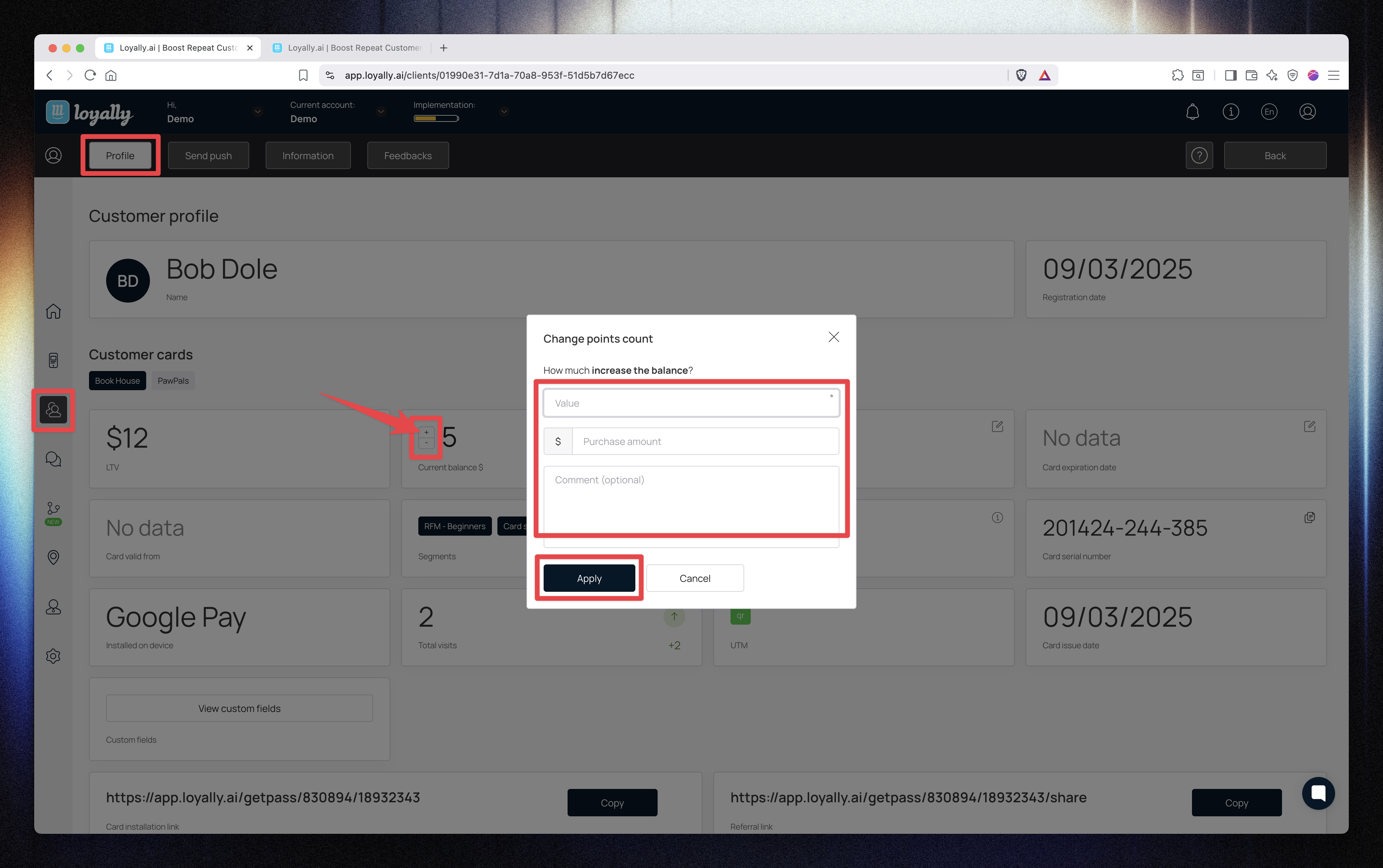
Click the “+” icon beside Current Balance.
In the popup window, enter:
Value → Amount to add to the balance.
Purchase amount → (Optional) The value of a related purchase.
Comment → (Optional) Add notes if needed.
Click Apply.
✅ Once applied:
The Current Balance increases.
The LTV and Total Visits also increase.
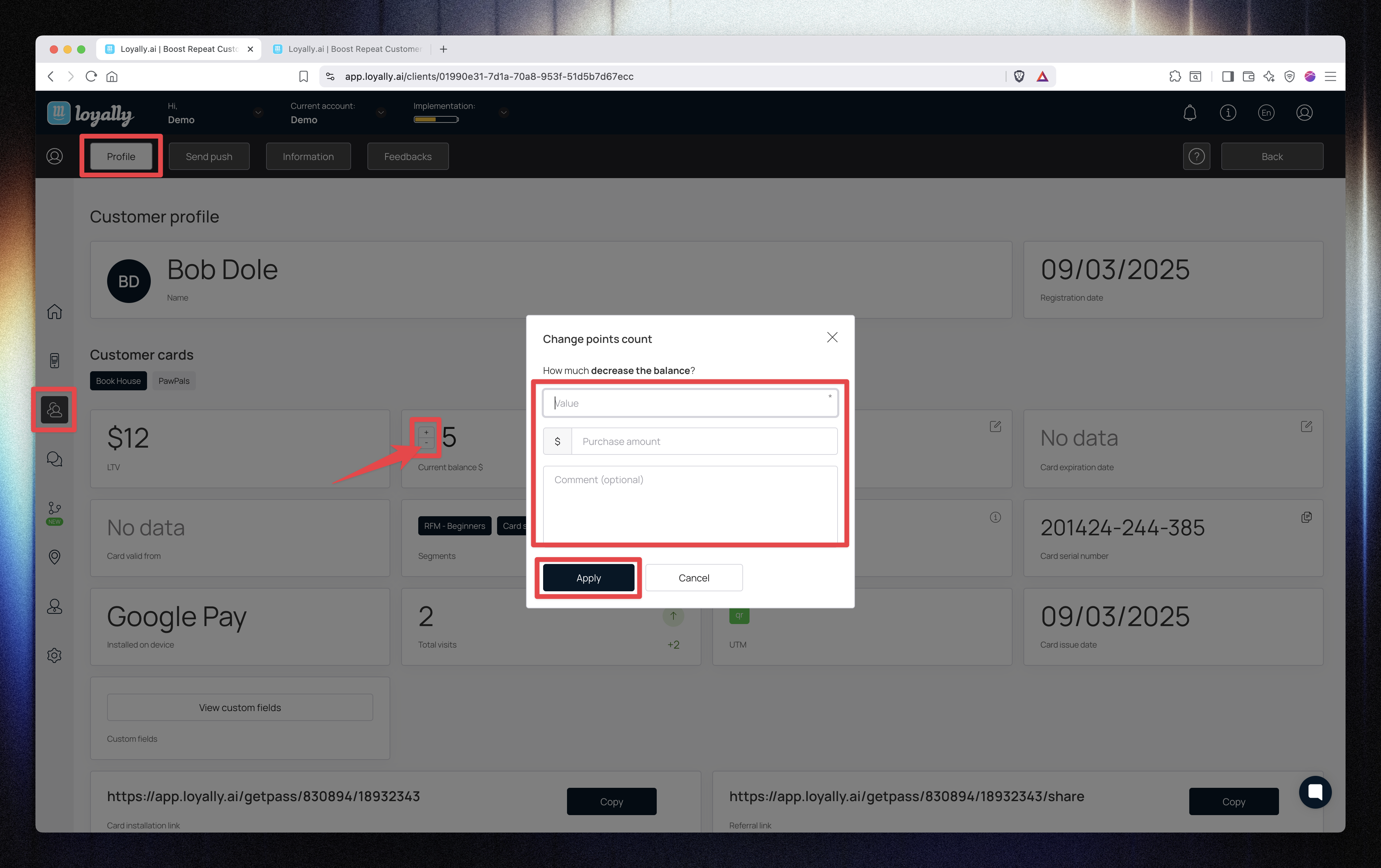
Click the “−” icon beside Current Balance.
In the Value field, enter the number of points (or amount) to remove.
(Optional) Enter a Purchase amount if relevant.
(Optional) Add a Comment.
Click Apply.
📉 When applied:
The specified amount is deducted from the Current Balance.
LTV and Total Visits remain unchanged unless a purchase amount is entered.
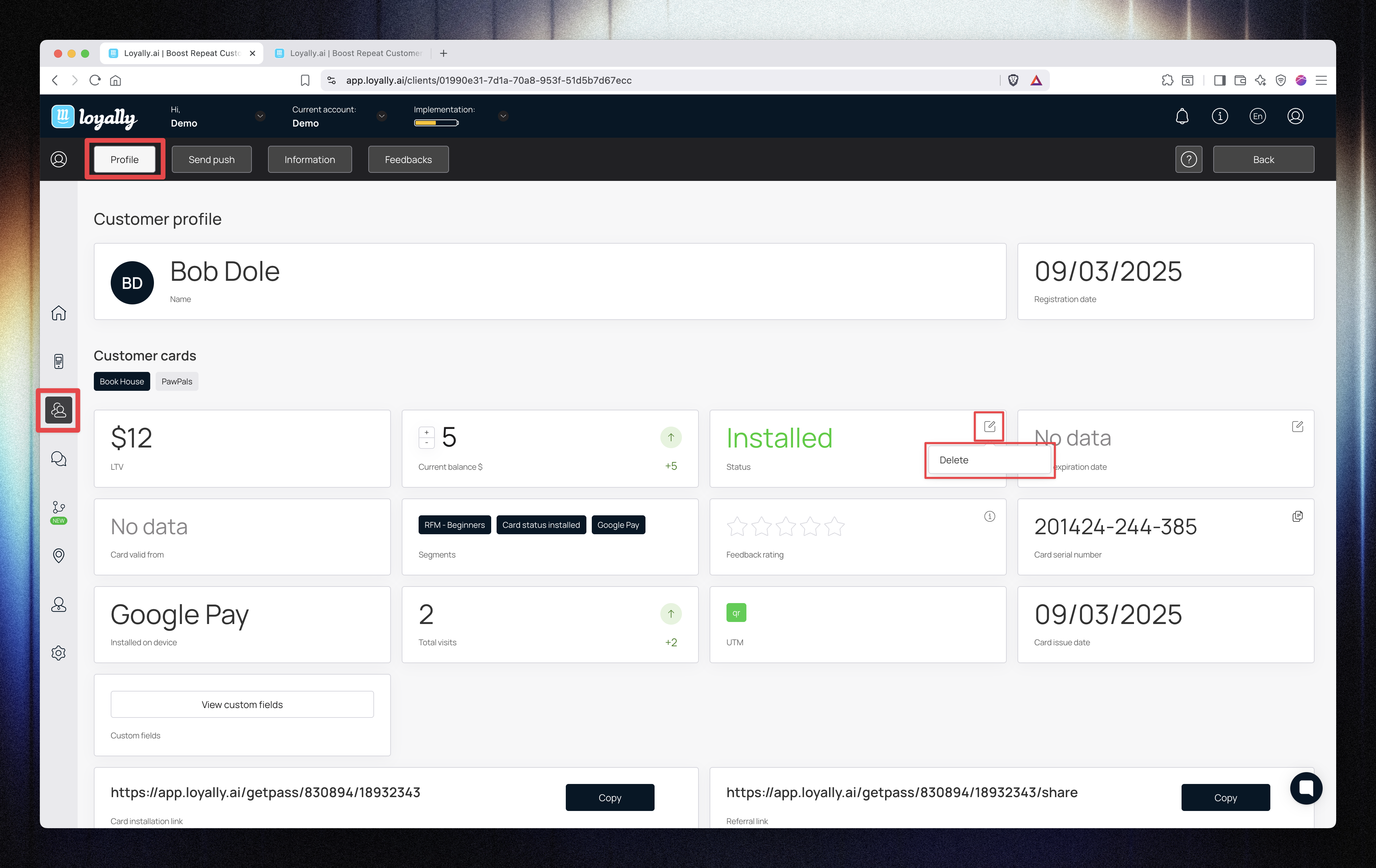
You can view and modify a customer’s card properties directly in their profile.
Field | Description |
Status | Shows if the card is Installed, Not Installed, or Deleted. |
Card Expiration Date | Displays and allows editing of the expiration date. |
Card Serial Number | Unique identifier (click Copy to copy). |
Installed on Device | Displays installation method (Apple Wallet, Google Wallet, or PWA). |
To fully remove a customer, you must first change their card status to Deleted.
Click the pencil icon beside Status.
Select Delete when the option appears.
Confirm the deletion.
⚠ Once the card status is set to Deleted, you can safely remove the customer from your CRM.
Click the calendar icon beside Card Expiration Date.
Choose a new expiration date.
Click Apply or confirm your change.
The expiration date will update immediately in the customer’s profile.
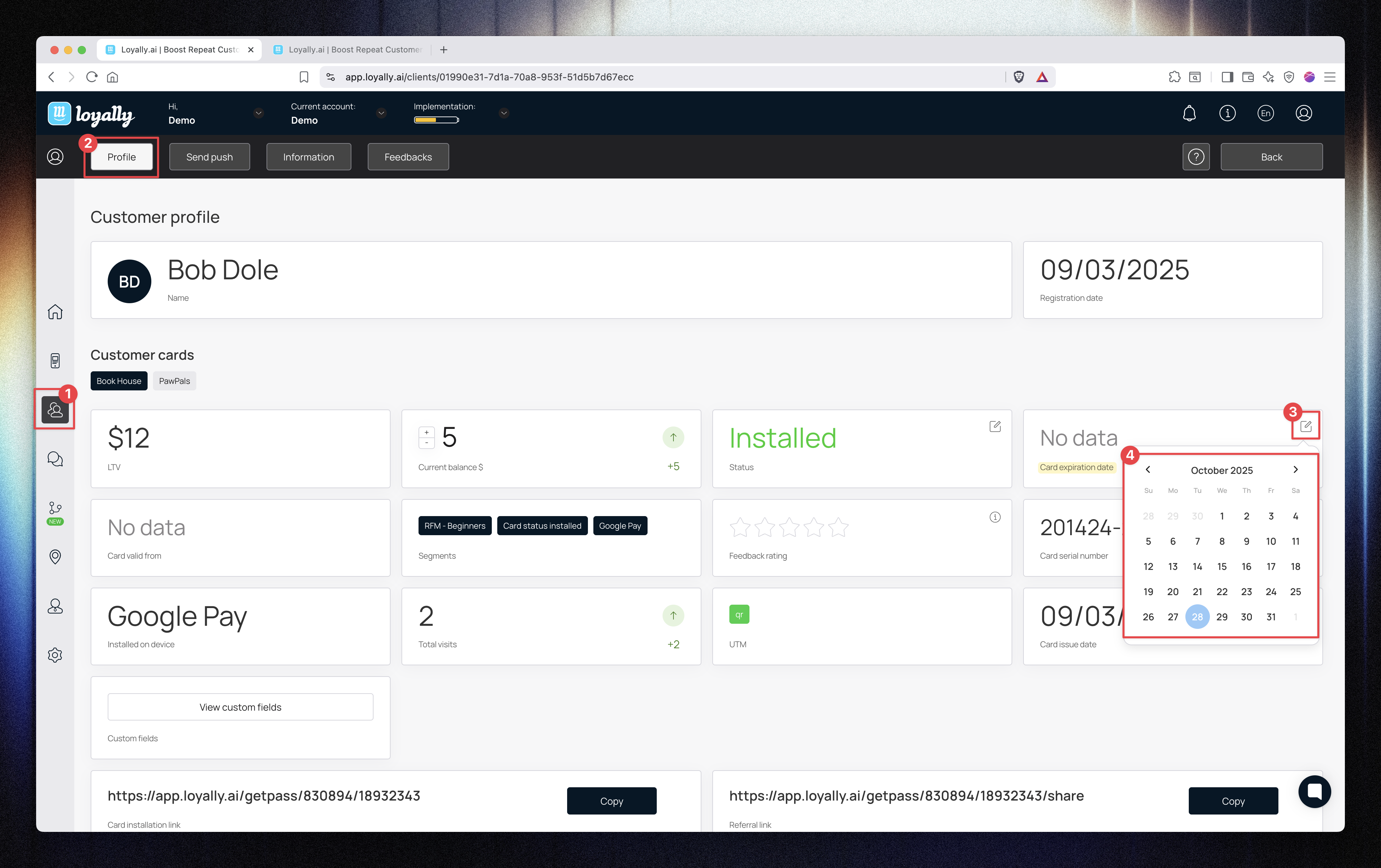
From the customer’s profile, you can easily access and copy personalized card links:
Card Installation Link → Click Copy to resend or share the customer’s card.
Referral Link → Click Copy to share the referral link for inviting others.
These links are unique to each customer and help drive re-engagement and referrals.

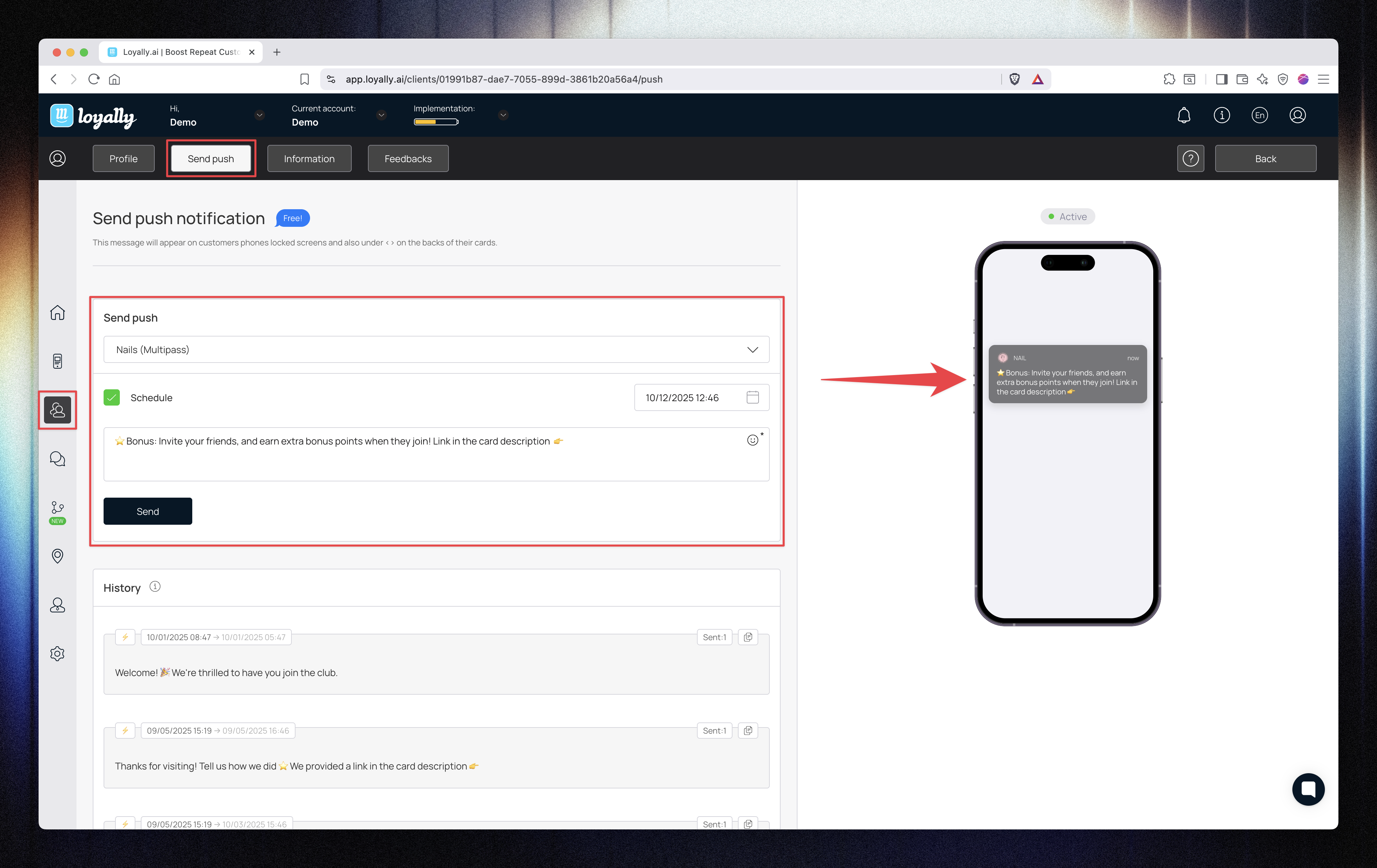
You can send a push notification directly to an individual customer.
Open the Send Push tab in their profile.
Select the card to send from.
(Optional) Schedule a date and time.
Enter your message content.
Click Send.
✅ The message will be sent only to that specific customer.
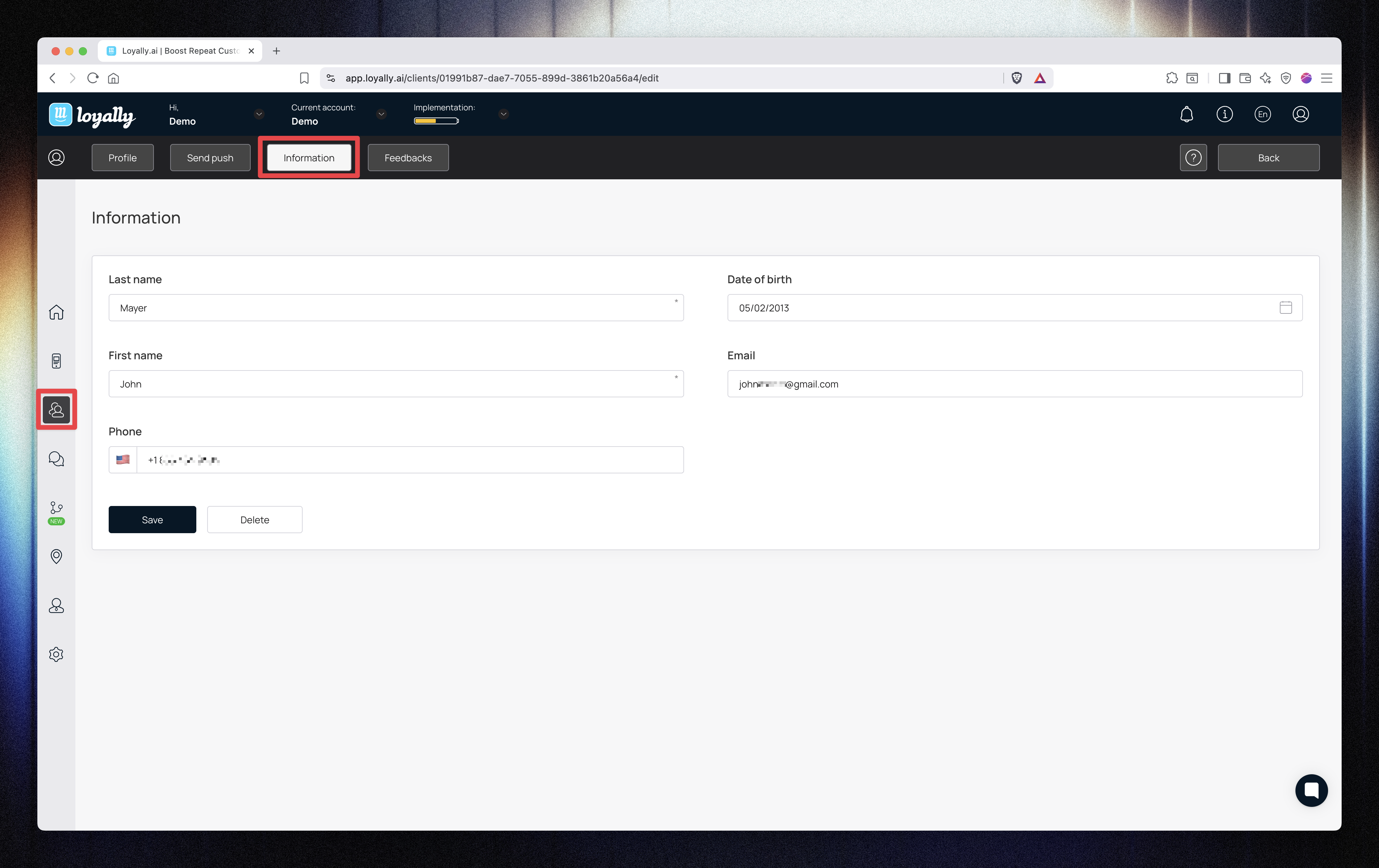
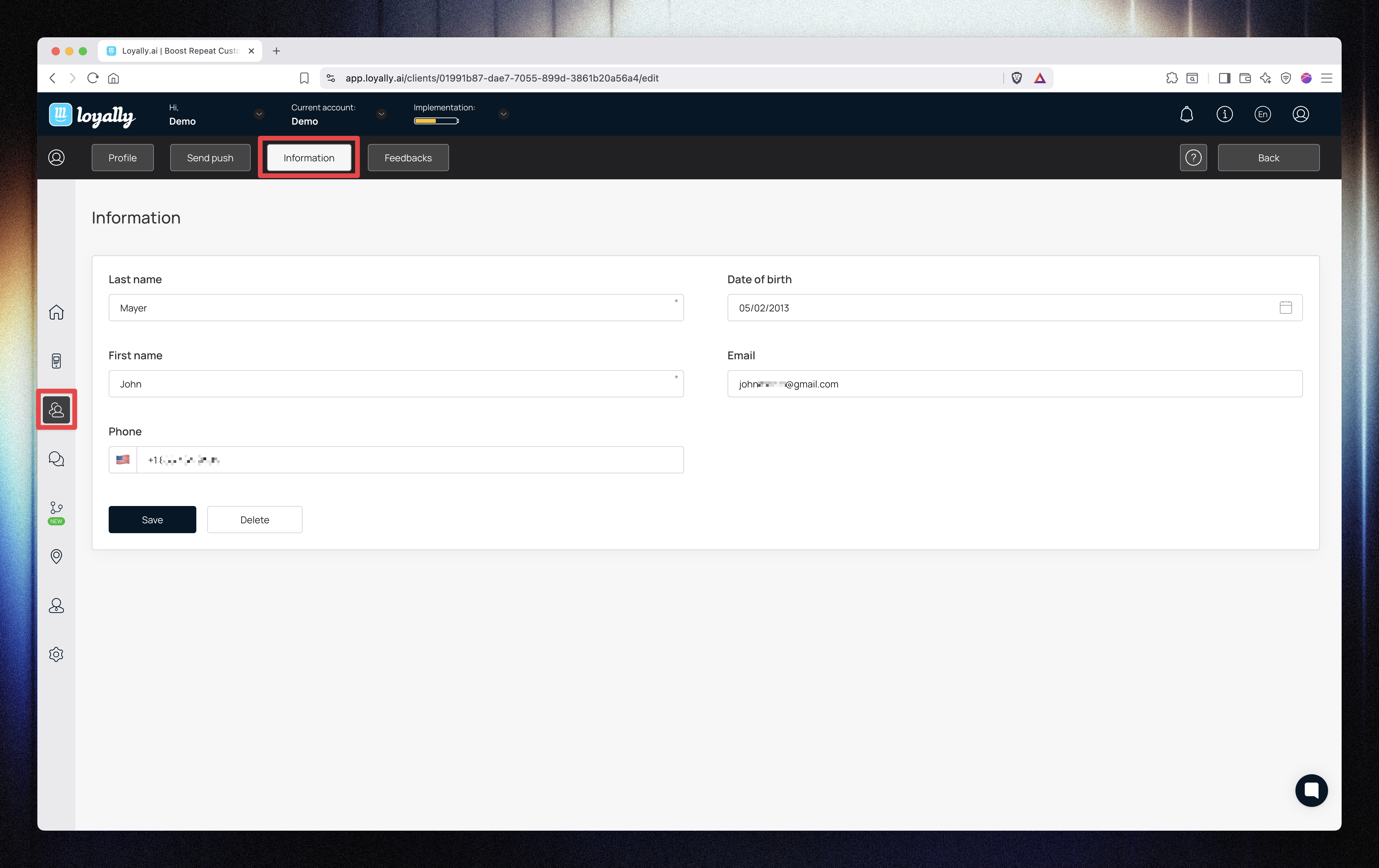
The Information tab displays the customer’s personal and contact details.
You can:
View their name, phone number, and email
Edit details if necessary
📝 Changes made here won’t affect the data stored on the customer’s actual card.
You can view and filter customer feedback from the Feedback tab.
Options include:
Filter feedback by day, week, month, year, or a custom date range.
Select Only comments to display feedback entries containing written notes.
This helps you track customer satisfaction and monitor engagement trends.
The Customer Profile (Gift Card) view gives you full control over gift card balances and customer management.
You can adjust balances, manage card details, send personalized notifications, and view all activity from one dashboard.