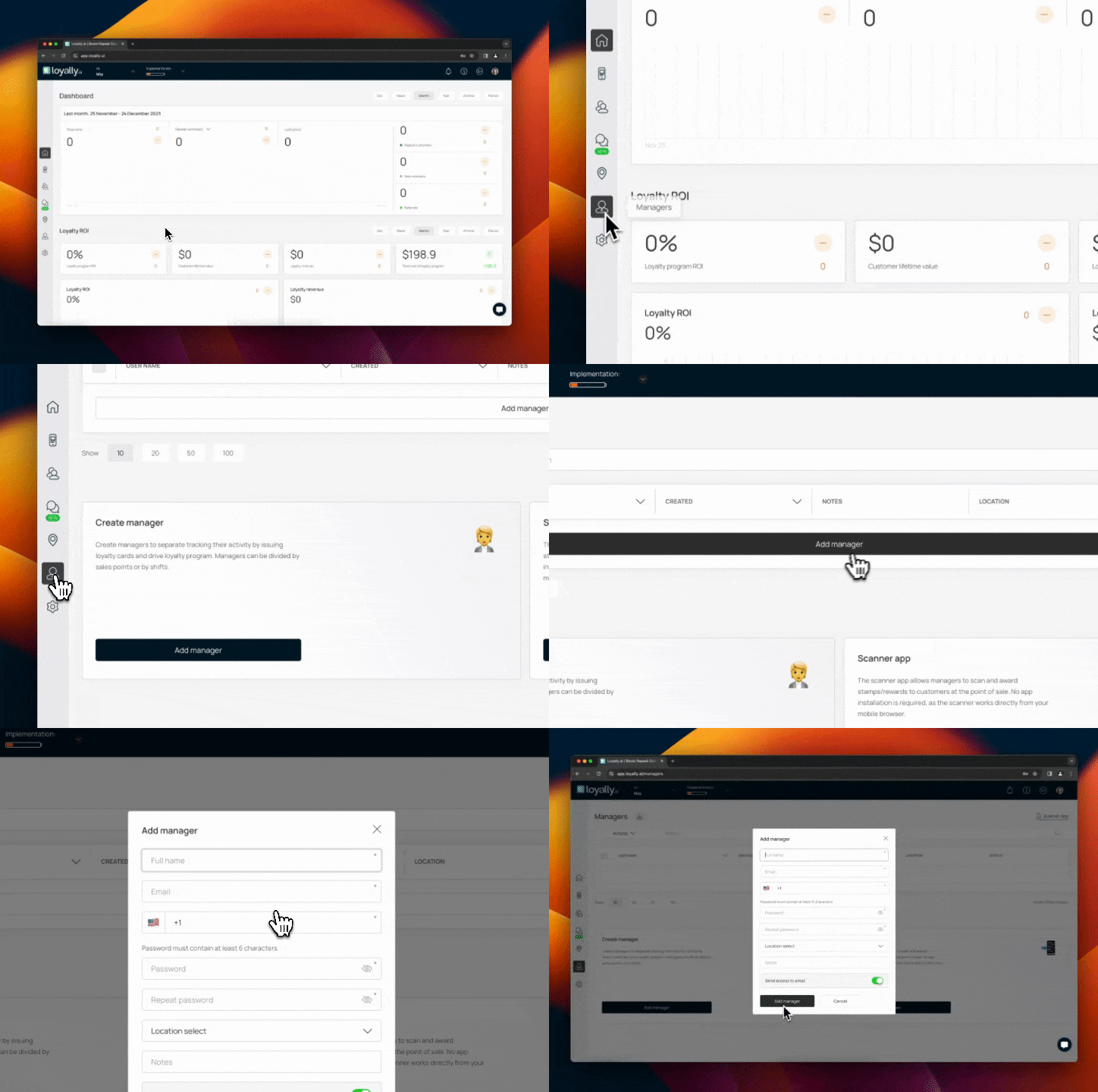
Sign in to Loyally.ai and go to 'Managers' in the Menu Panel.
Here you'll be able to add, edit, and delete your managers.
Click 'Add Manager' at the bottom of the Managers grid or under Create Manager.
Fill in the manager's details:
Full Name
Contact Number
Password (for the manager's profile)
Location (Choose the location they will manage)
[Optional], add any additional notes and toggle off 'Send access to email' if you don't wish to send an email invitation.
Click 'Save' to create the profile.
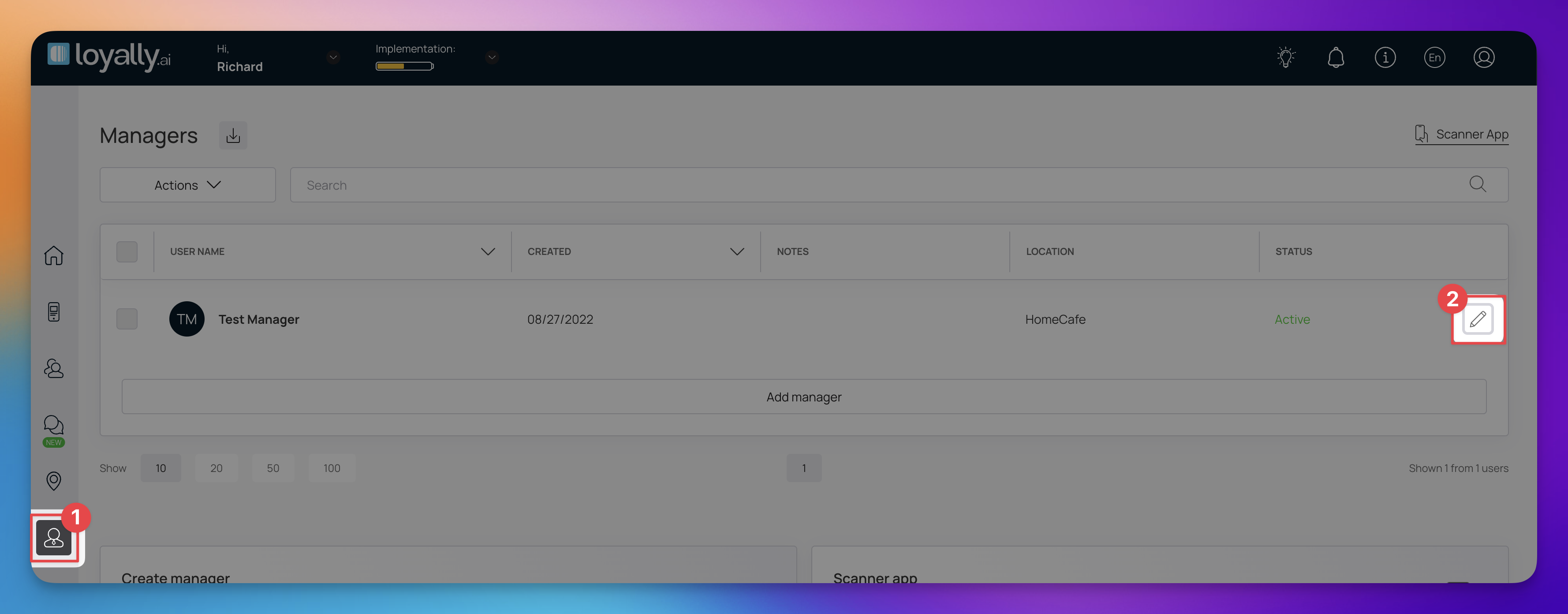
In the Managers grid, find the manager profile you want to edit and click the pencil icon.
Make the necessary changes in the editable fields in the Edit Manager popup.
Save your changes.
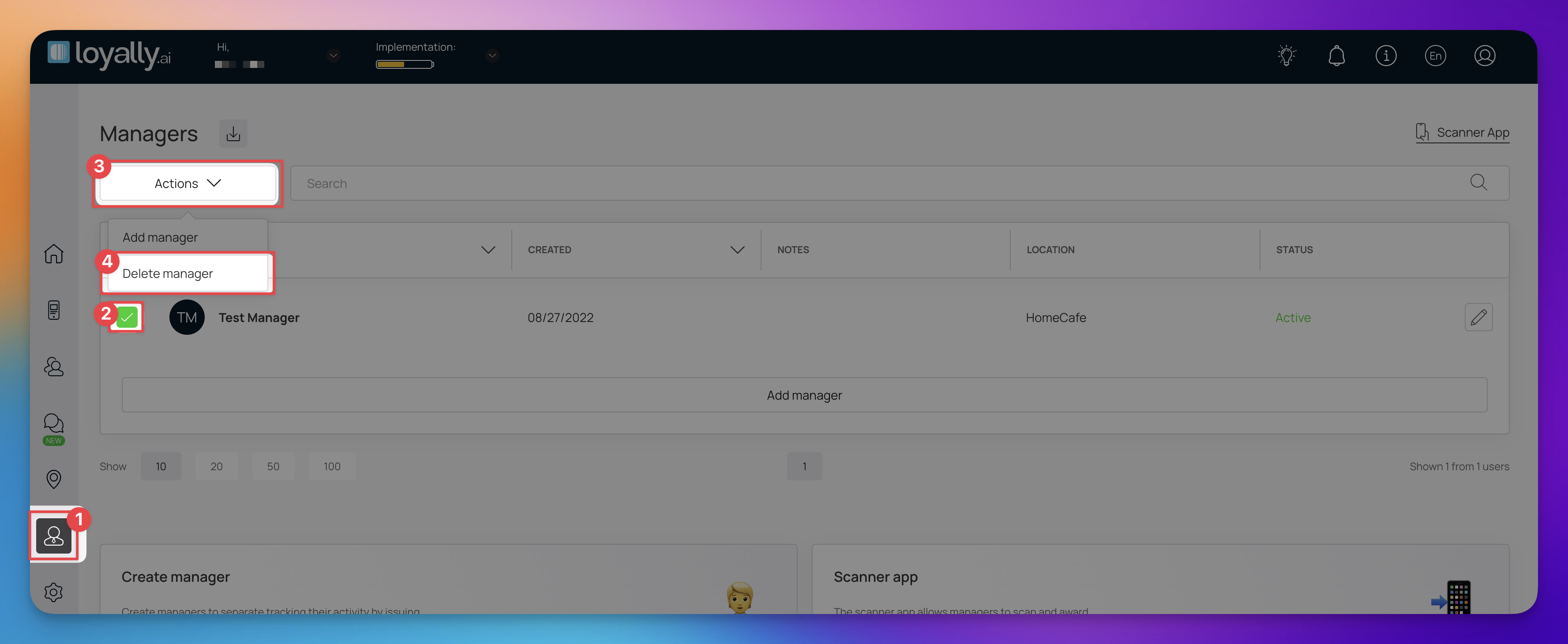
Select the manager's username in the Managers grid to view their profile.
Navigate to the Information section and click 'Delete manager'.
Confirm the deletion in the popup by clicking 'Remove'.
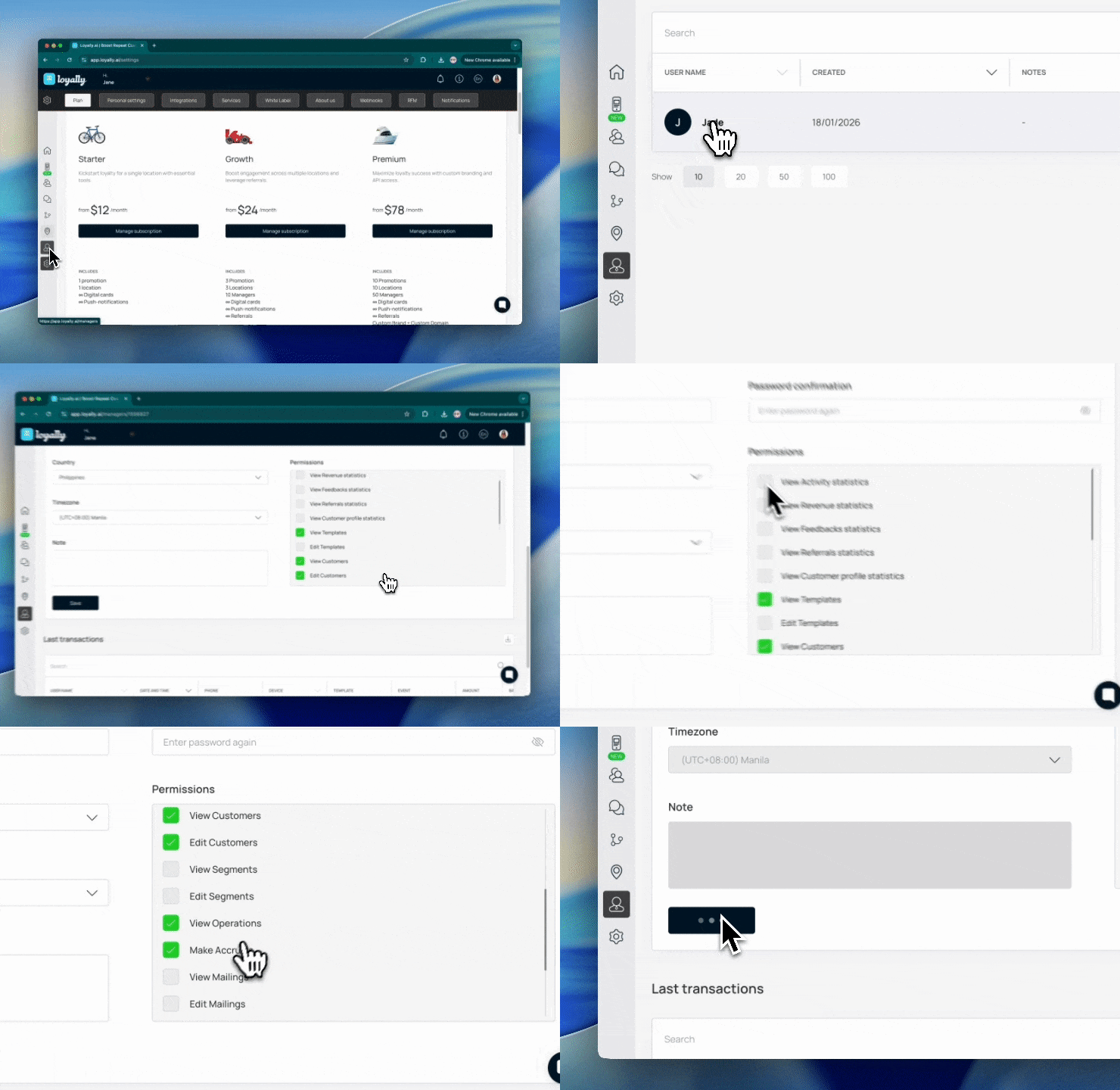
To modify a manager's access levels, follow these steps:
Navigate to the ‘Managers’ grid and click on the specific username of the manager you wish to edit.
Scroll down to locate the ‘Permissions’ section within their profile.
Review the available options and toggle or select the specific areas.
you want this manager to oversee.
Ensure you click ‘Save’ the profile to apply the new access levels immediately.
Permissions are categorized by data visibility (Viewing) and administrative actions (Editing). Below is a breakdown of the specific options you can configure:
These permissions allow managers to monitor the performance and health of your loyalty program.
View Activity statistics - General engagement metrics.
View Revenue statistics - Financial performance and ROI.
View Feedbacks statistics - Customer reviews and satisfaction scores.
View Referrals statistics - Tracking of word-of-mouth growth.
View Customer profile statistics - Demographic and behavioral data.
Control who can see or change the messaging and templates used in your program.
View/Edit Templates - Manage the look and feel of your loyalty assets.
View/Edit Mailings - Access to email campaign settings and content.
View/Edit Pushes - Control over mobile push notification delivery and content.
Manage how your team interacts with your database and customer groups.
View/Edit Customers - Access to individual customer records and the ability to modify personal details.
View/Edit Segments - Ability to view or redefine specific customer groups for targeted marketing.
Permissions related to the daily physical or digital logistics of your business.
View Operations - Oversight of system logs and operational workflows.
Make Accruals - Grants the authority to manually add points or rewards to a customer's account.
View/Edit Locations - Management of physical store data or digital branch settings.

Manager Seats
Learn how to create manager profiles
Manager Profiles
Create manager seats for your sales persons to get access to Scanner App