To access your 'Scanner App' on your Device, there is 2 simple requirements.
Any device that has 🛜 internet and 🤳 camera (e.g. mobile phone, iPhone, Android, iPad, tablet, laptop, computer with webcam, etc.)
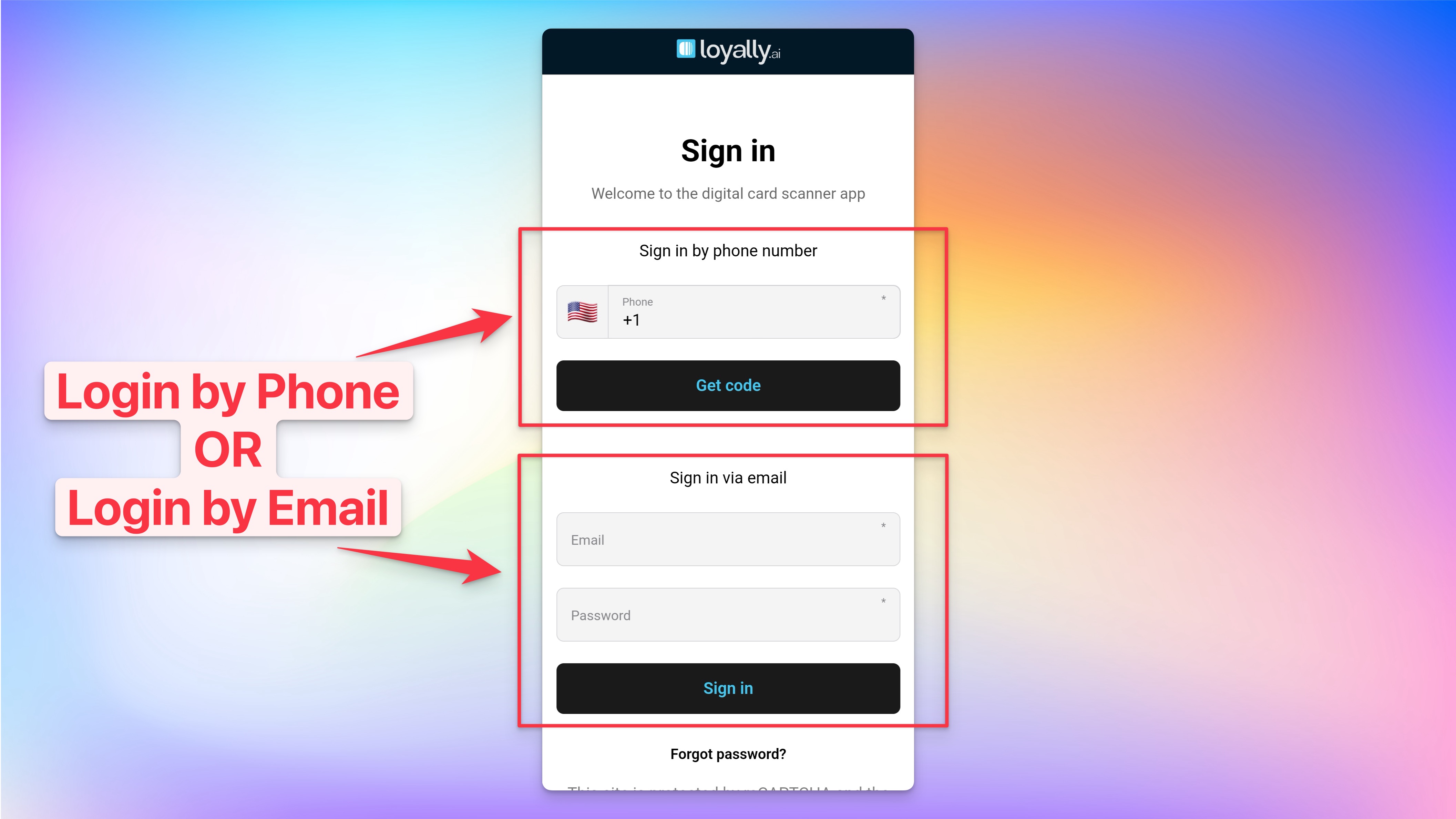
Loyally.ai users that are 'Owner' or 'Manager' profiles can login to the scanner application using their login credentials.
Add / Edit / Delete Managers
Follow a few simple steps to add/edit/delete manager profiles
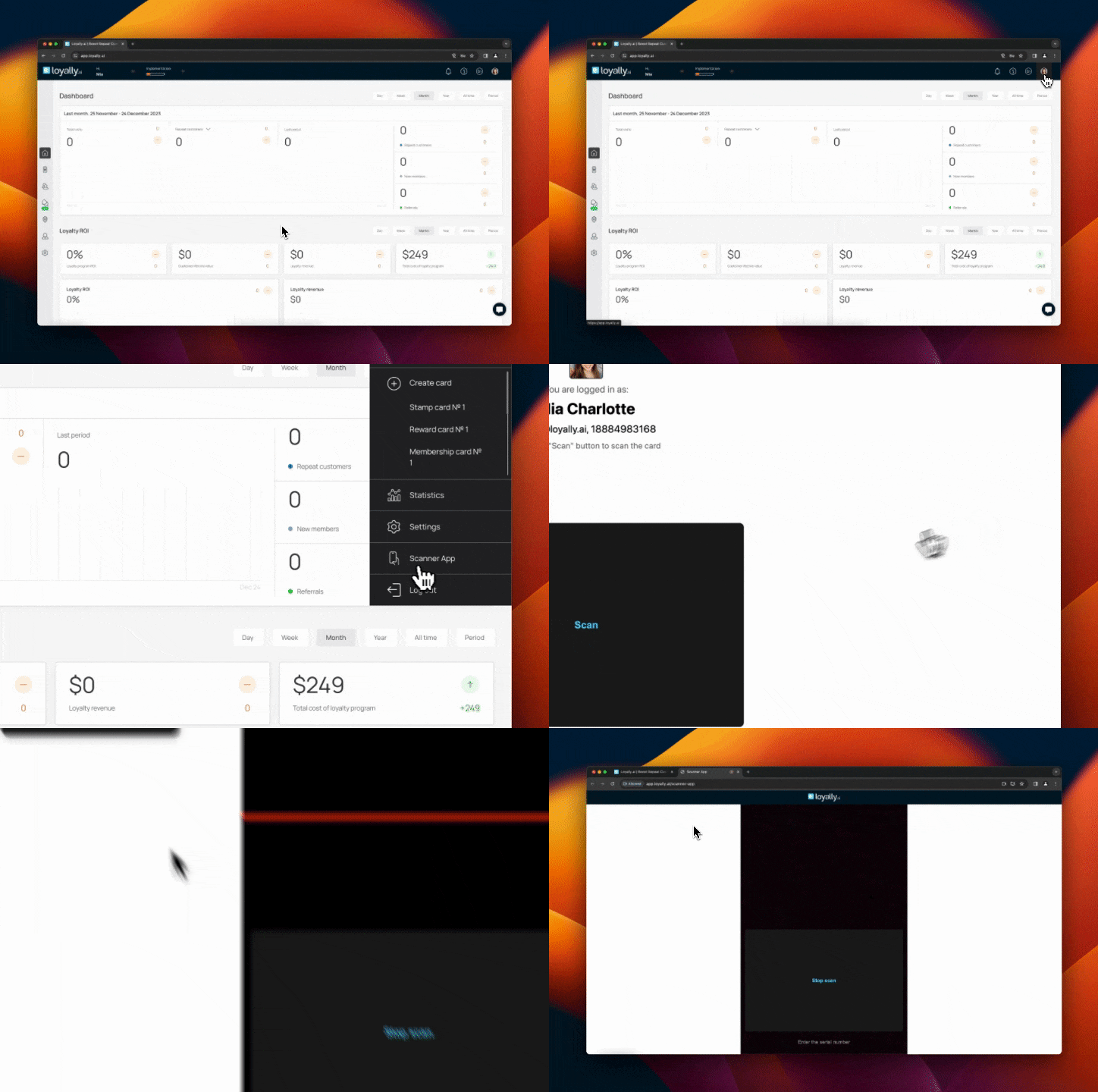
The 'Scanner App' lets you scan your customer's loyalty cards. Simply login and scan any card with your mobile device (or any device with 🤳 Camera and 🛜 Internet).
Go to app.loyally.ai/scanner-app and Sign in.
Already logged in to Loyally.ai?
Desktop: Go to app.Loyally.ai > click 'Profile' > click 'Scanner App'
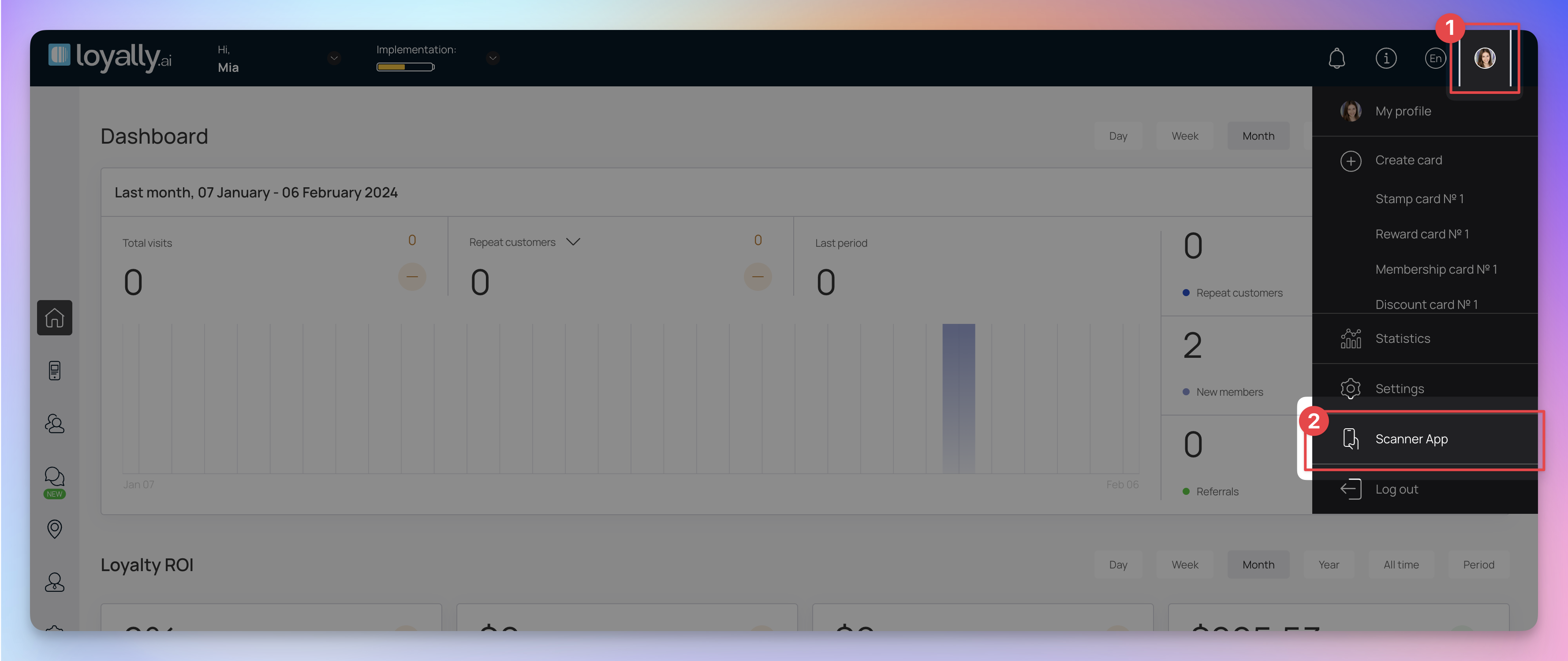
Mobile: Go to app.Loyally.ai > click 'Menu' > click 'Scanner App'
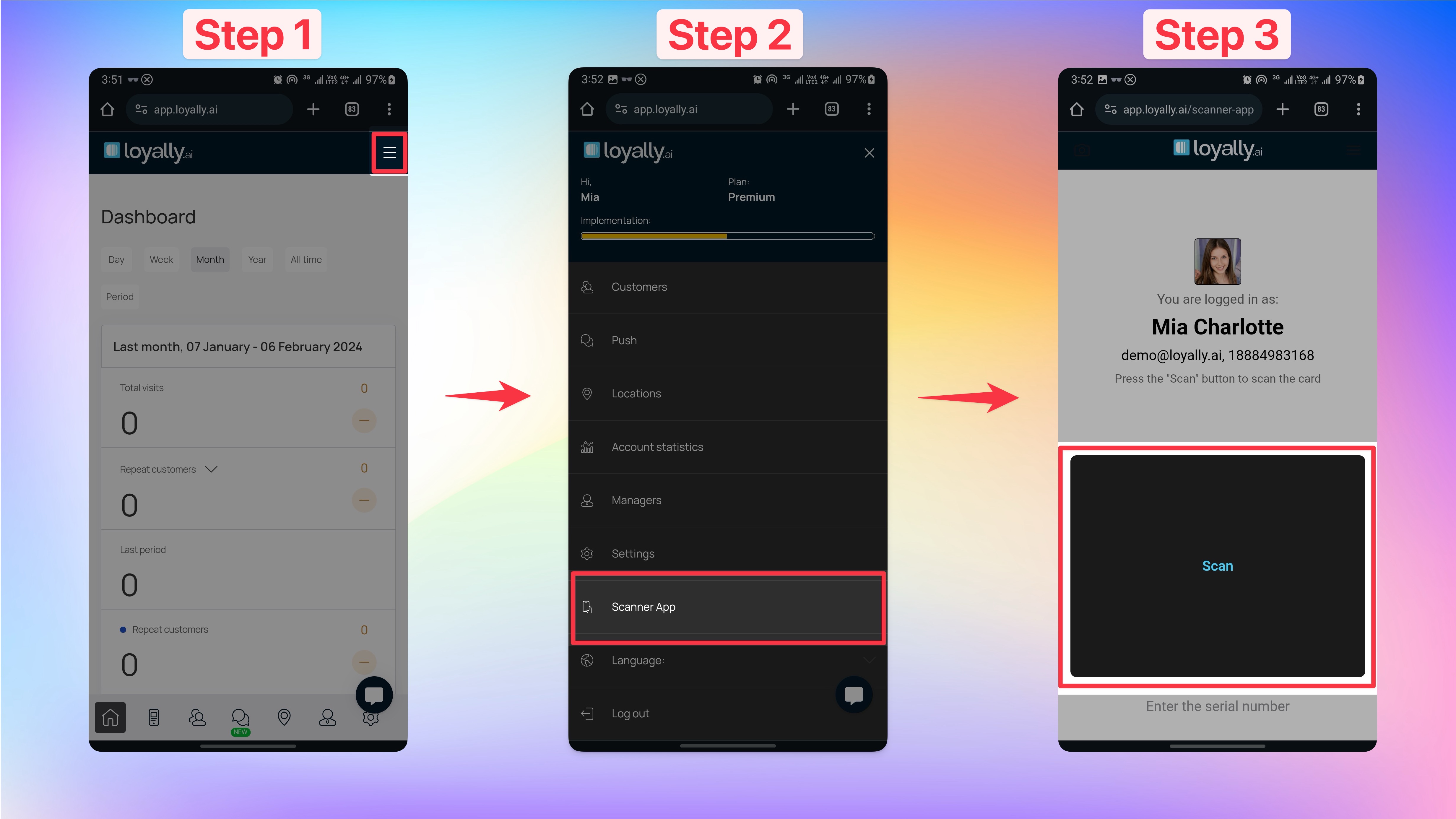
Here's how to add it to your Home screen!
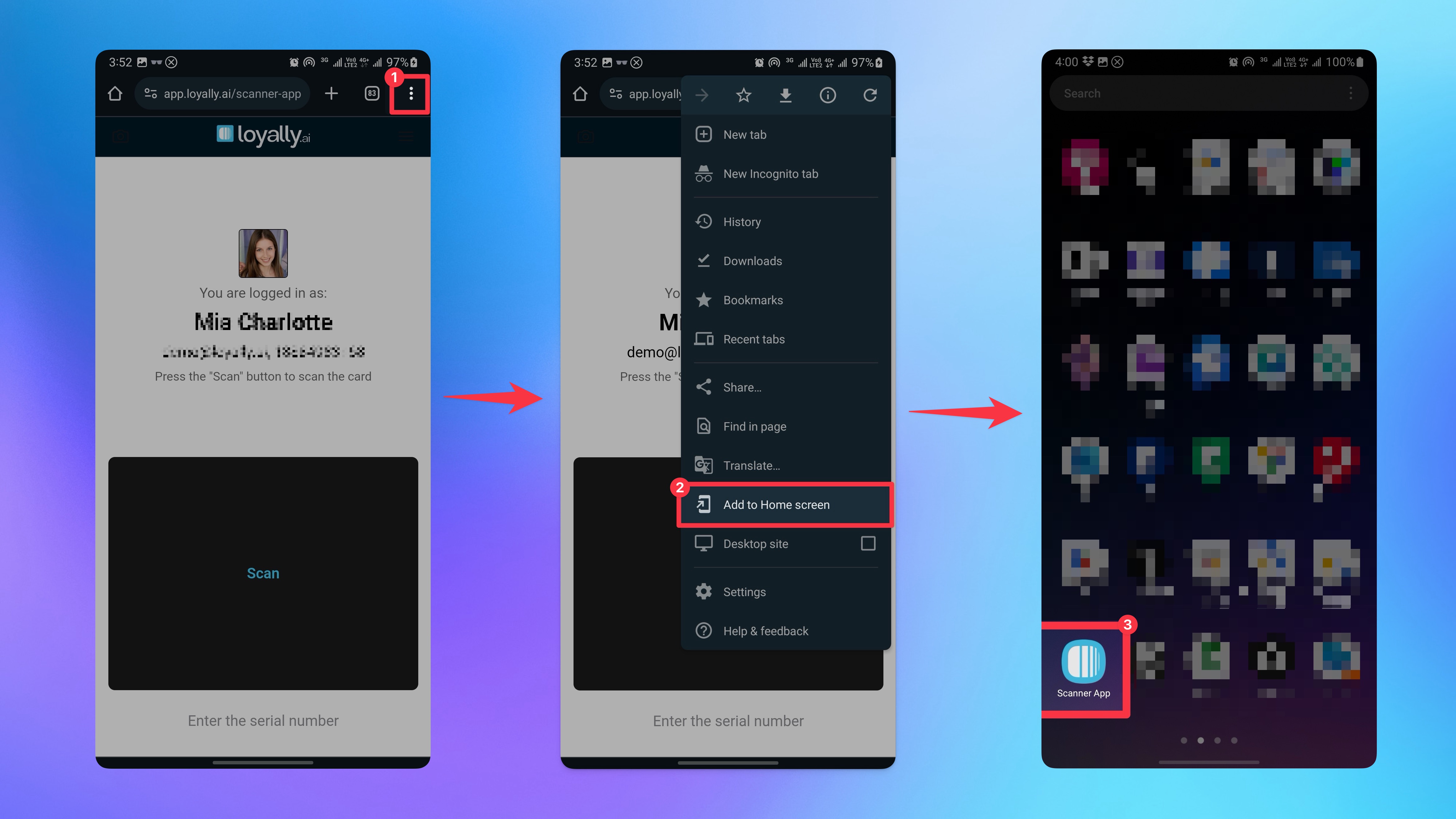
On your browser, click the 'Menu icon'.
Click 'Add to Home screen'
Done! 🎉🎉 Now you can easily access the 'Scanner App' as a dedicated web app that's one tap away.
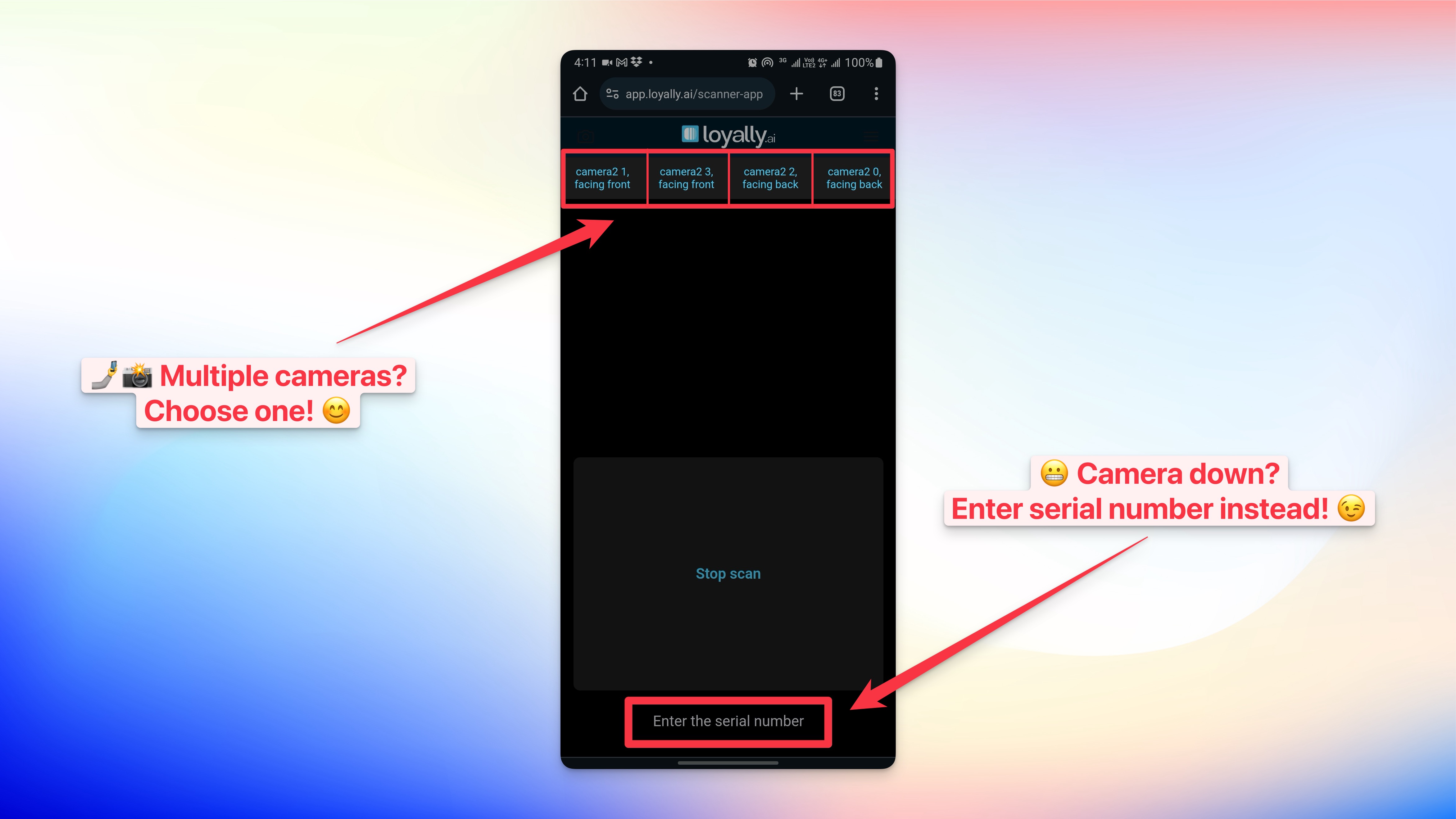
If your scanner is not working, simply choose a different camera source or 'Enter the serial number' of your customer's loyalty card.