Learn how to manage customer details and subscription settings for Membership Card programs in Loyally.
The Membership Card profile allows you to view and edit membership tiers, expiration dates, and renewal periods. Functionality depends on whether your membership card is connected to Stripe or operates as a standard (non-integrated) card.
From a customer’s Membership Card profile, you can:
View membership details, tiers, and subscription status
Change membership expiration dates
Modify membership tiers (upgrade or downgrade)
Adjust subscription periods (day, week, month, year)
Manage Stripe-connected membership settings
Identify and manage free-tier Membership v1 cards
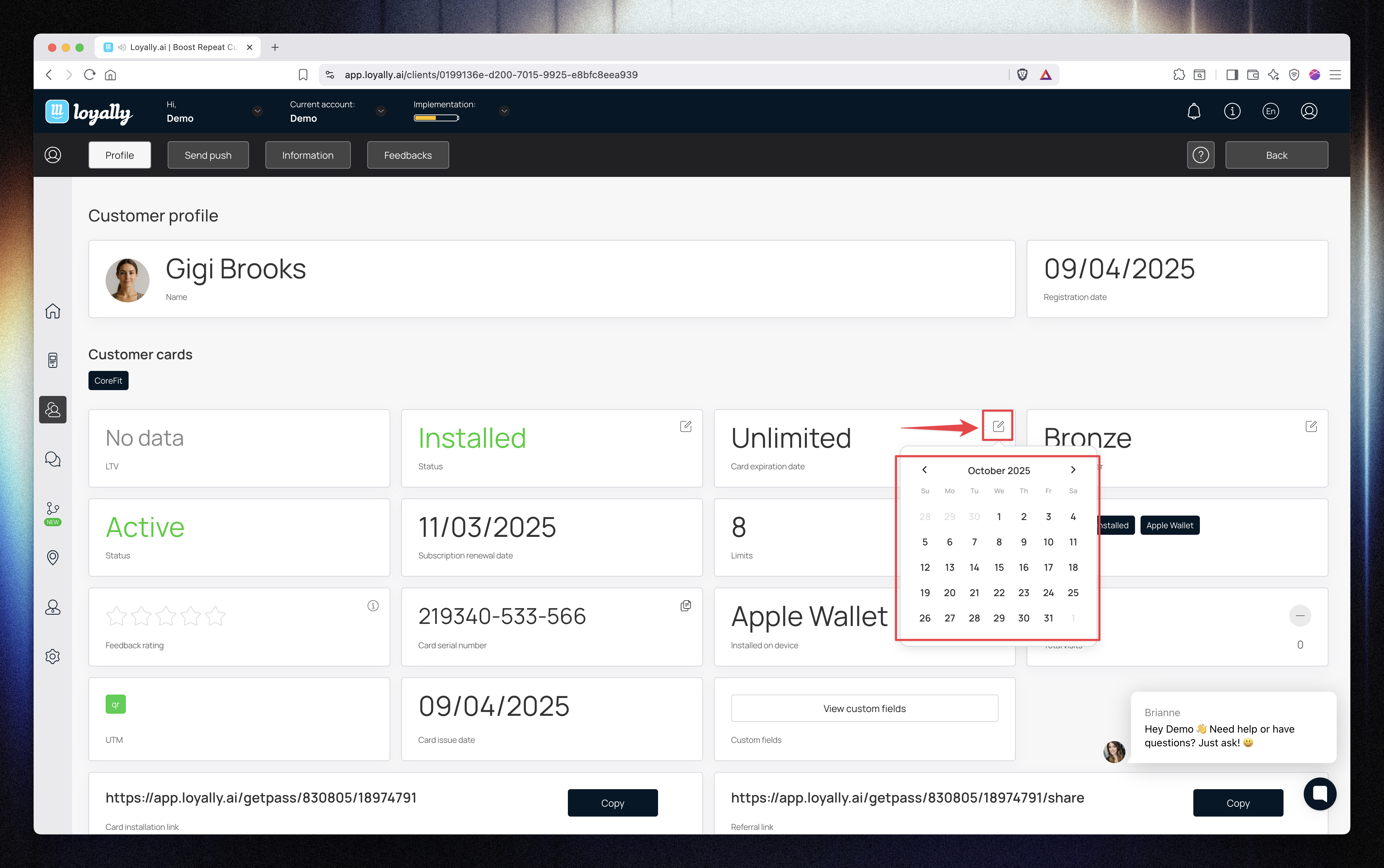
You can edit a member’s expiration date directly from their customer profile.
Open the customer’s profile in Loyally.
Locate the Membership Card section.
Click the edit (✎) icon beside Card Expiration Date.
Select a new expiration date from the calendar.
Click Apply to confirm.
✅ The new expiration date will update immediately in the customer’s profile.
Membership tiers (e.g., Bronze, Silver, Gold, Platinum) can be upgraded or downgraded.
Click the edit (✎) icon beside the Membership Tier field.
Select the desired tier from the available list.
Click Submit to save your changes.
✅ The customer’s tier and associated benefits will update instantly.

You can modify the Subscription Period for each member to define how often their membership renews.
Click the edit (✎) icon beside the Subscription Period field.
Choose a new renewal interval — Daily, Weekly, Monthly, or Yearly.
(Optional) Enable Auto-Renew Subscription if applicable.
Click Submit to confirm.
✅ The new subscription period is applied immediately, and the next billing cycle will follow the updated interval.
If your membership card is connected to Stripe, certain fields are managed exclusively through Stripe and cannot be changed from the customer profile.
Membership Tier:
Cannot be changed manually in the customer’s profile.
Customers can upgrade or downgrade directly via their Stripe payment portal or from their device.
Expiration Date:
Cannot be edited in Loyally. Stripe automatically handles billing cycles, renewals, and cancellations.

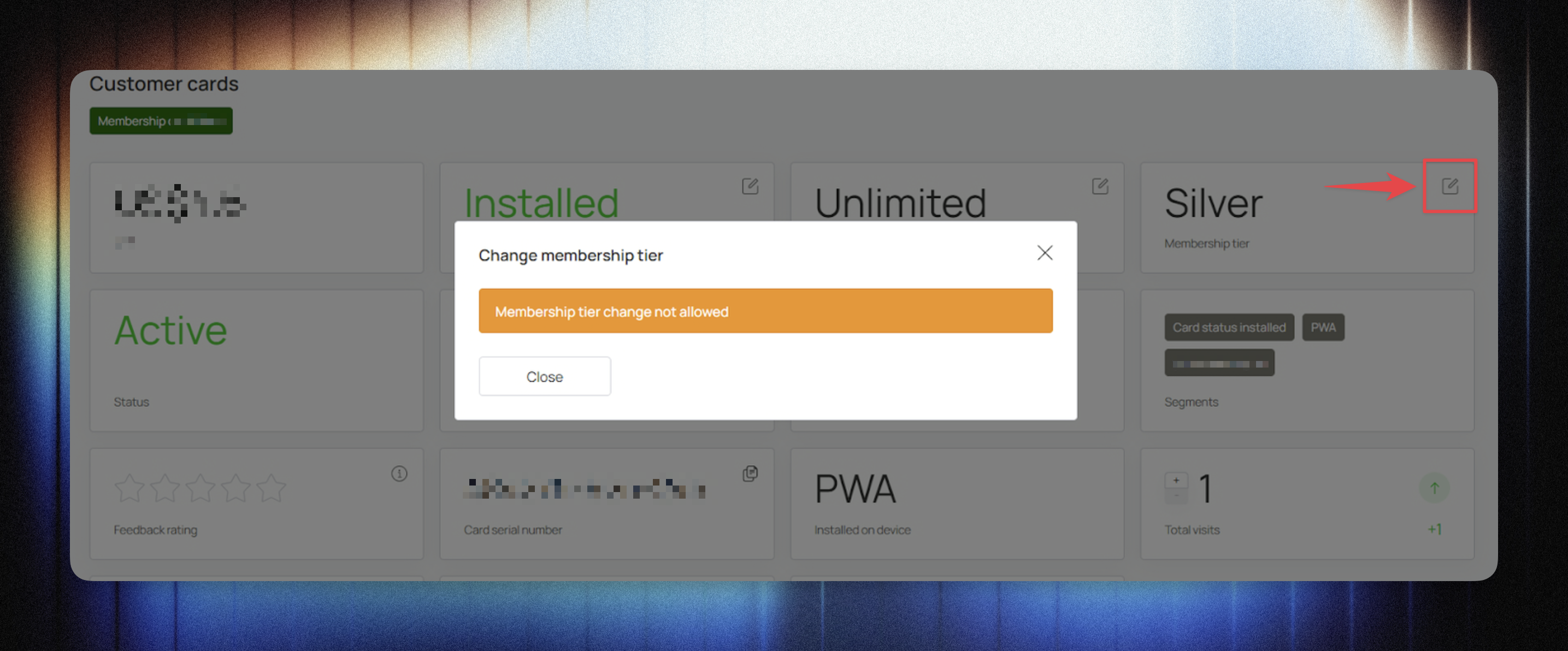
The Customer Profile (Membership Card) gives you a centralized view of each member’s subscription and tier data.
You can edit expiration dates, adjust membership periods, and view integrated payment details — all depending on your card’s setup (with or without Stripe).
To ensure a smooth experience for both you and your members, follow these recommendations when managing Membership Card profiles:
Verify Stripe Integration Before Editing: Always check if a card is Stripe-connected before attempting to make changes. Remember that for integrated cards, billing and tier adjustments must be handled within Stripe to keep data synchronized.
Communicate Tier Changes: When manually upgrading or downgrading a member's tier, it is best practice to notify the customer directly. While the profile updates instantly in Loyally, a quick follow-up ensures the member knows how to access their new benefits.
Audit Expiration Dates Regularly: For non-integrated cards, perform a monthly review of upcoming expiration dates. This allows you to proactively reach out to members for renewals before their access lapses.
Use Auto-Renew Strategically: When adjusting subscription periods, encourage the use of the Auto-Renew Subscription toggle for consistent revenue and a seamless member experience.
Check Membership v1 Status: If you encounter a "Free-tier Membership v1" card, consider migrating the user to your latest Membership Card program to ensure they have access to the most current features and integration options.
Membership Card
How to Create a Membership Card to Enhance Customer Commitment and Value Perception.
Scanner app - Membership
How to charge membership cards using Scanner App