Connect your Twilio account for direct SMS communication with your customers!
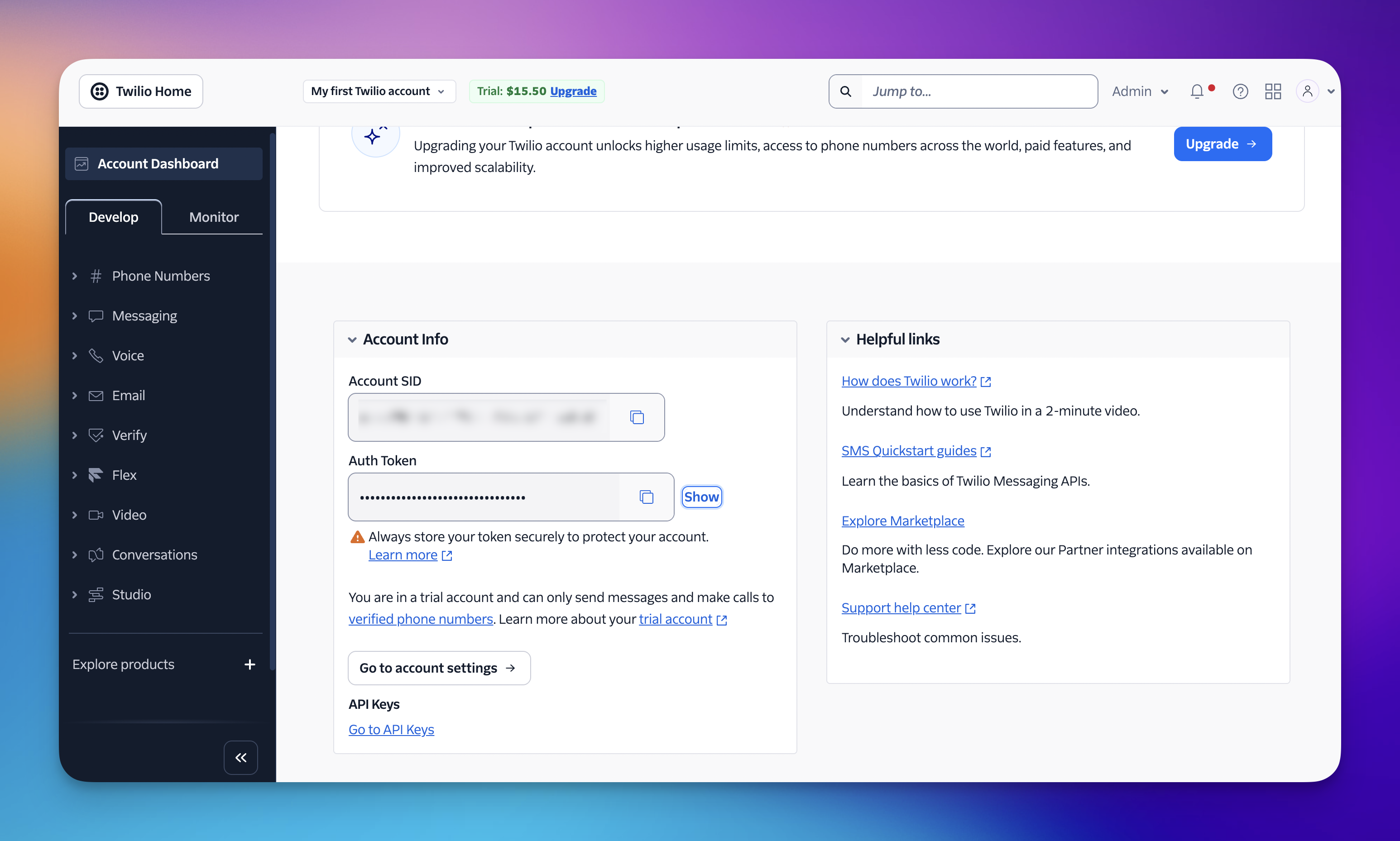
Log in to your account at console.twilio.com. If you don't have an account yet, you will need to sign up and verify your email and phone number first.
Once you are on the Console Dashboard’, scroll down to the Account Info pane. This is usually located right in the center of the home screen.
You will see two specific strings of characters:
Account SID - This is your "username." It is public-facing and identifies your account.
Auth Token - This is your "password." Copy the API key in your clipboard.
Now that you have your credentials, you must tell the app which "Sender" to use. You will either use an individual phone number or a Messaging Service.
If you are starting out or have a single local/toll-free number:
In the Twilio Console sidebar, go to Phone Numbers > Manage > Active Numbers.
Copy the number you want to use.
Format - Ensure you include the plus sign and country code (e.g., +15551234567).

If you have a Messaging Service configured for better deliverability and high-volume sending:
In the Twilio Console, go to the Messaging menu and select Services.
Select the specific service you created for this loyalty program.
Locate the Messaging Service SID (a 34-character string starting with MG).
Copy the Sender Number or Service SID in your clipboard.
Sign in to Loyally.ai and go to 'Settings' in the Menu Panel.
Navigate to 'Services' section.
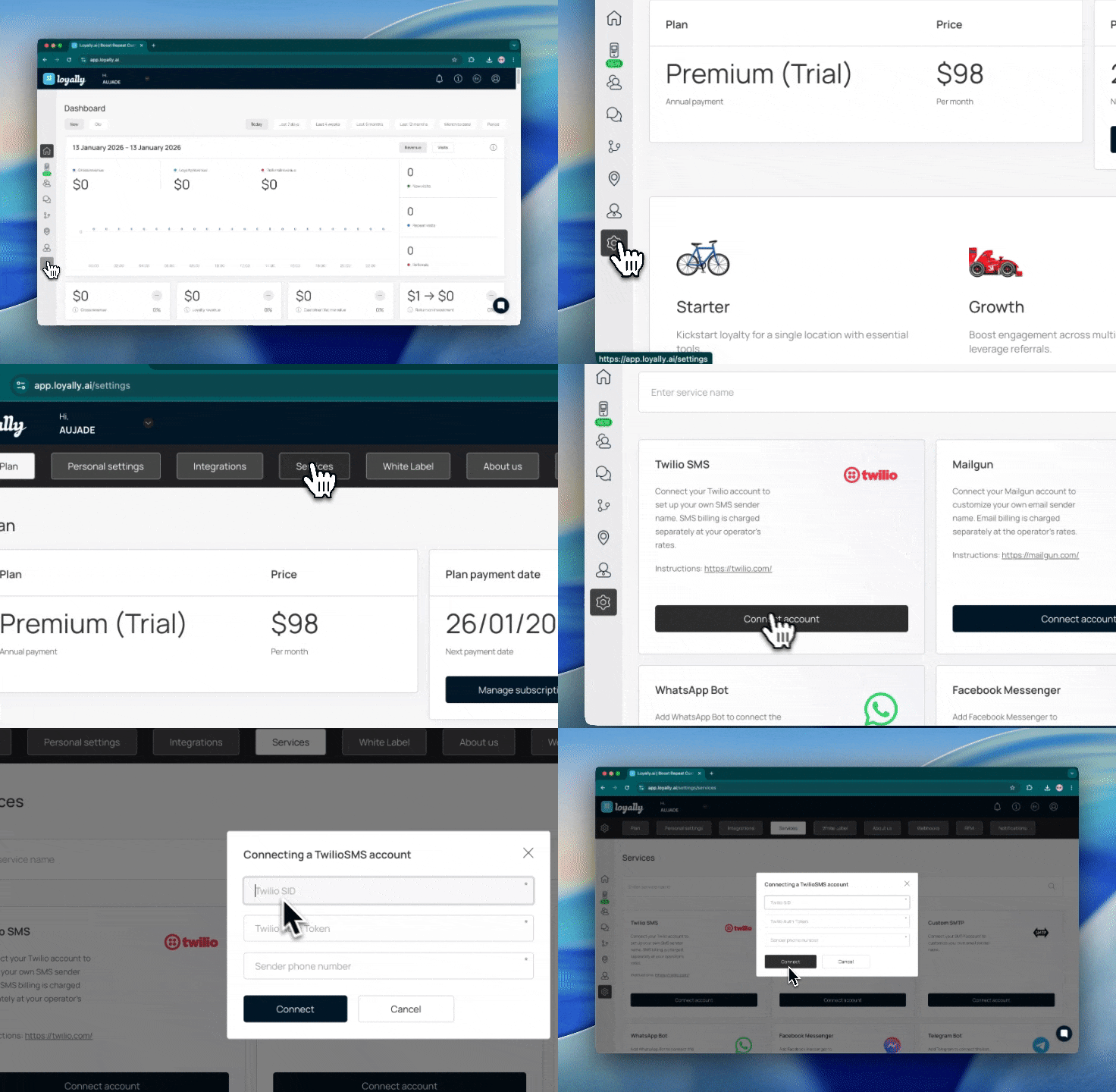
Under "Twilio SMS", click 'Connect account' fill in with the same details from your Twilio account
Twilio SID
Twilio Auth Token
Sender phone number
After filling up the details, click ‘Connect‘.
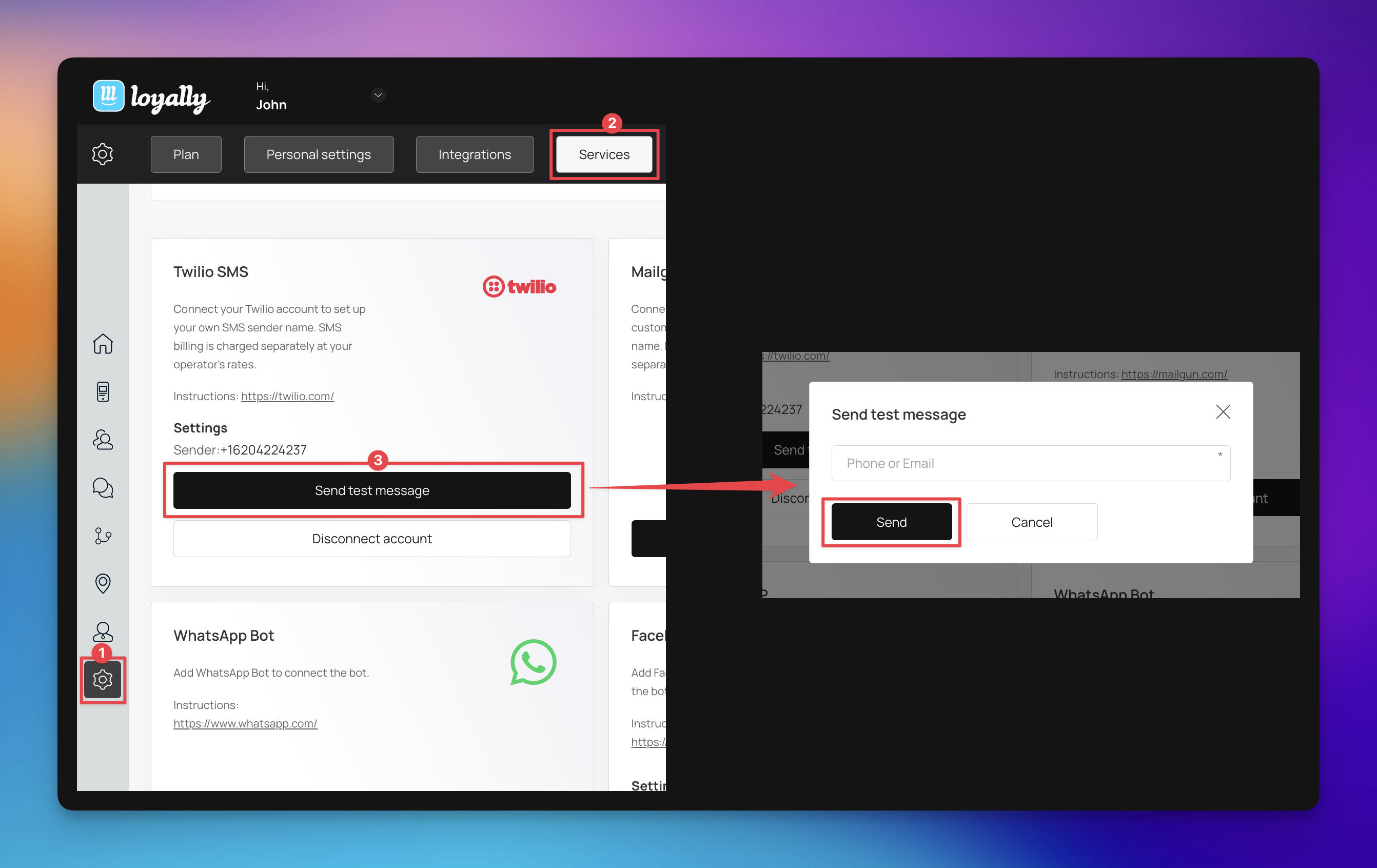
Once you have connected your Twilio account, it is a good idea to send a test message to ensure your integration is working correctly and your sender ID is properly configured.
Navigate to the ‘Settings’ gear icon located at the bottom of the left-hand sidebar menu.
Click on the ‘Services’ tab at the top of the settings page.
Twilio SMS section within your active services.
Click ‘Send test message’ button located under your Twilio settings.
A pop-up window will appear titled Send test message. Enter the Phone or Email address where you would like to receive the test.
Click the ‘Send’ button to dispatch the message.
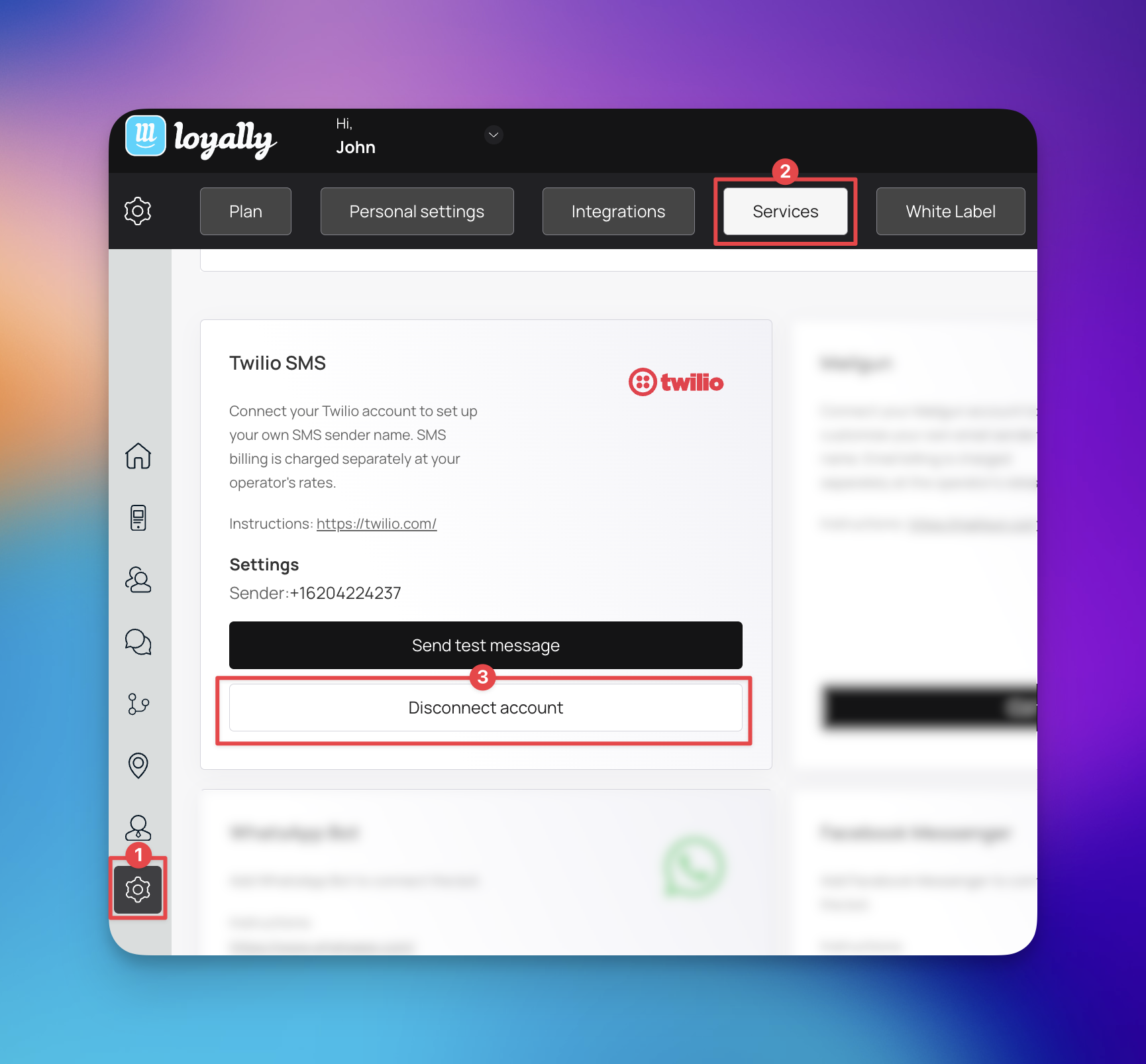
If you need to change your Twilio settings or stop using the SMS service, you can disconnect your account at any time. This will stop all automated SMS communications until a new account is linked.
Click on the ‘Settings’ gear icon located at the bottom of the left-hand sidebar menu.
Select the ‘Services’ tab from the top navigation menu.
Find the Twilio section where your current Sender number is displayed.
Click the ‘Disconnect account’ button located directly below the test message option.

Creating an SMS campaign
How to create your SMS campaign