It is frustrating when your marketing efforts don’t reach your audience. If your loyalty program members aren't receiving push notifications, the issue usually falls into one of three categories: User Permissions, Device Settings, or Campaign Configuration.
Use this guide to troubleshoot and resolve the most common delivery issues.
The most common reason a message isn't delivered is that the user has not granted permission for the app to send notifications.
Initial Opt-in: On iOS and newer Android versions, users must explicitly "Allow" notifications when they first install the app or join the program.
System-Level Toggles: Even if a user is "subscribed" in your Loyally dashboard, they may have turned off notifications in their phone's global settings.
How to check: Ask the customer to navigate to Settings > Notifications > [Your App Name] and ensure "Allow Notifications" is toggled on.
Mobile operating systems have built-in features designed to save battery and reduce "noise," which can inadvertently block your messages.
Focus & Do Not Disturb: If a user has "Do Not Disturb" or "Sleep Mode" active, notifications will be silenced or hidden until the mode is turned off.
Low Power Mode: Some devices restrict background data usage when the battery is low, which can delay or block incoming push triggers.
App Background Refresh: If a user has disabled "Background App Refresh," the app may not be able to "wake up" to receive a message.
A customer must be correctly identified and active within the Loyally system to receive targeted communications.
Uninstalled App: If a user uninstalls your loyalty app or deletes their digital wallet pass, the "push token" (the unique ID we use to find their phone) becomes invalid.
Logged Out: In some configurations, if a user logs out of their account, the link between their profile and their device is severed.
Segmentation Filters: Double-check your campaign settings. If you are sending a message to a specific segment (e.g., "VIP Members"), ensure the missing customer actually meets those criteria.
Sometimes the issue is on the "handshake" between Loyally and the mobile networks.
Invalid Push Tokens: We automatically clean our lists. If a device fails to respond to a ping multiple times, we stop sending to it to protect your deliverability rates.
Wi-Fi/Data Issues: Push notifications require an active internet connection. If a user is in a "dead zone" or behind a strict corporate firewall, the message may time out.
Staying updated with your apps is essential for timely communication and information. If you find that you are missing alerts or messages, you may need to adjust your notification settings.
Because Android versions vary slightly by manufacturer (like Samsung, Google Pixel, or OnePlus), the steps below cover the most common paths for modern devices.
If you aren't receiving any notifications at all, check the global settings to ensure your phone isn't in a restricted mode.
Open your phone's Settings app.
Tap Apps (or Apps & notifications > See all apps).
Find and tap Google Wallet.
Tap Notifications.
Ensure the toggle for Allow notifications is turned On.
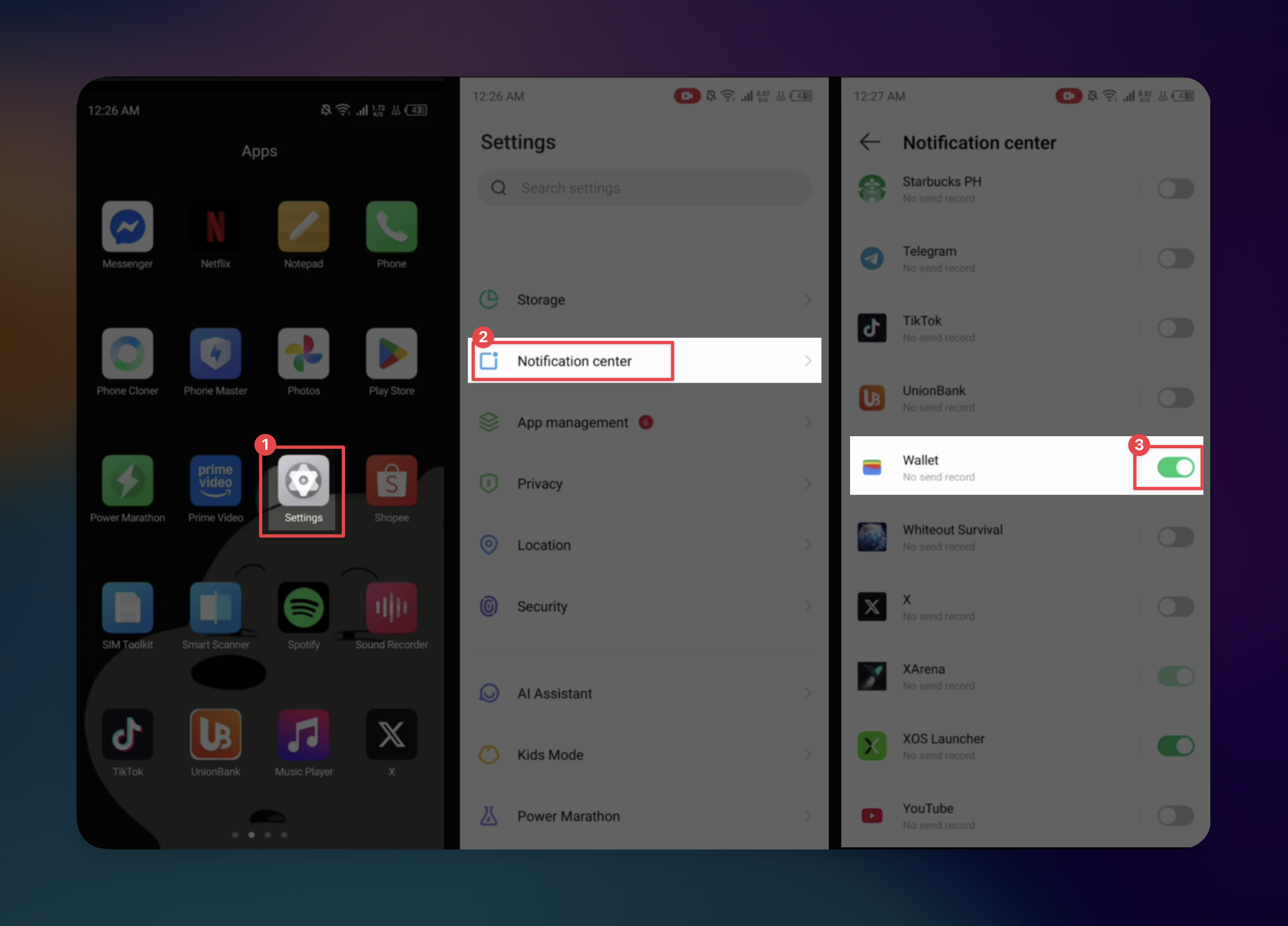

Staying connected requires your apps to communicate with you in real-time. Whether it is an urgent email or a calendar reminder, managing your notification settings ensures you never miss a beat.
Open the Settings app on your iPhone.
Scroll down and tap Notifications.
Under the Notification Style list, find and select the app you wish to modify.
Toggle the Allow Notifications switch to the On position (it will turn green).
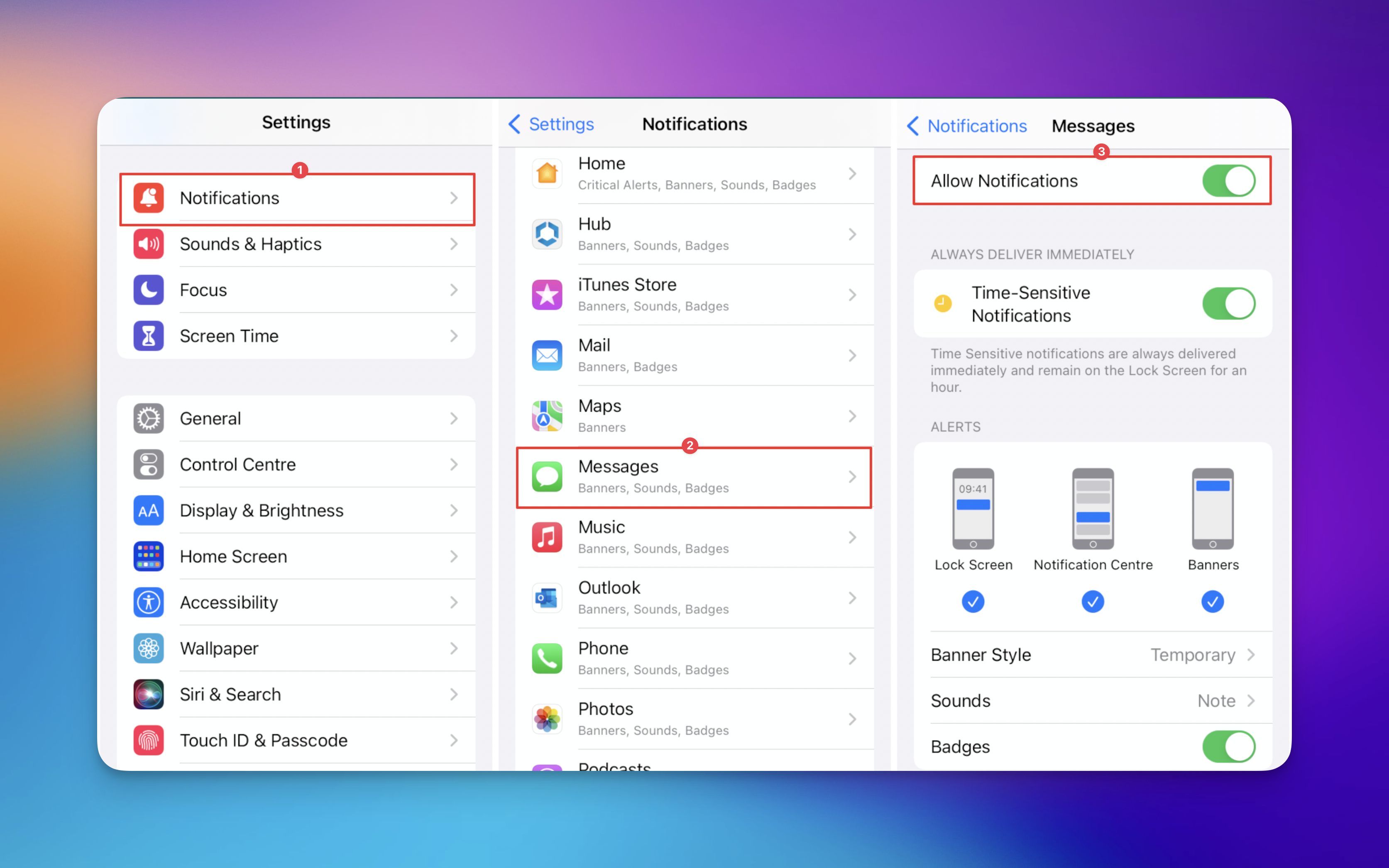
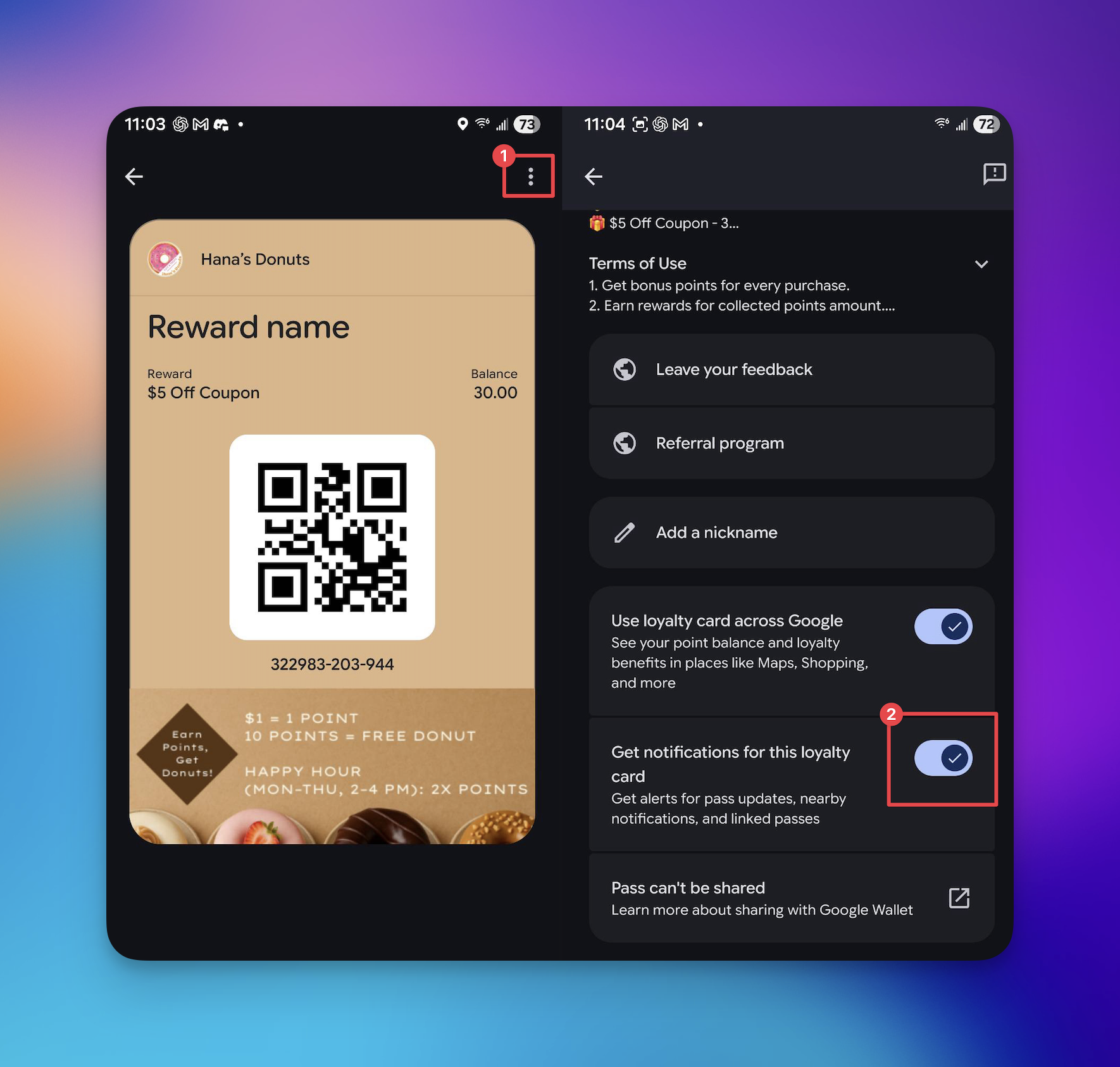
If you didn’t select the "Allow Notifications" option when you first added your card to Google Wallet, you can easily enable them at any time to ensure you never miss a reward or point update.
Open the Google Wallet app and tap on the loyalty card you wish to update.
Tap the three-dot menu icon (vertical ellipsis) located in the top-right corner of the screen.
Scroll down to locate ‘Get notifications for this loyalty card’ and move the toggle switch to the On position.

Marketing Push
Push Section
How does PUSH notifications work?
Learn more about how push-notifications work on devices