The 'Settings' module lets you adjust the app and your profile settings.
Sign in to Loyally.ai and go to 'Settings' in the Menu Panel.
This takes you to the Settings module where you can access the following:
The Settings page is organized into seven main tabs. Each tab contains specific tools to help you customize your experience and manage your account’s data flow.
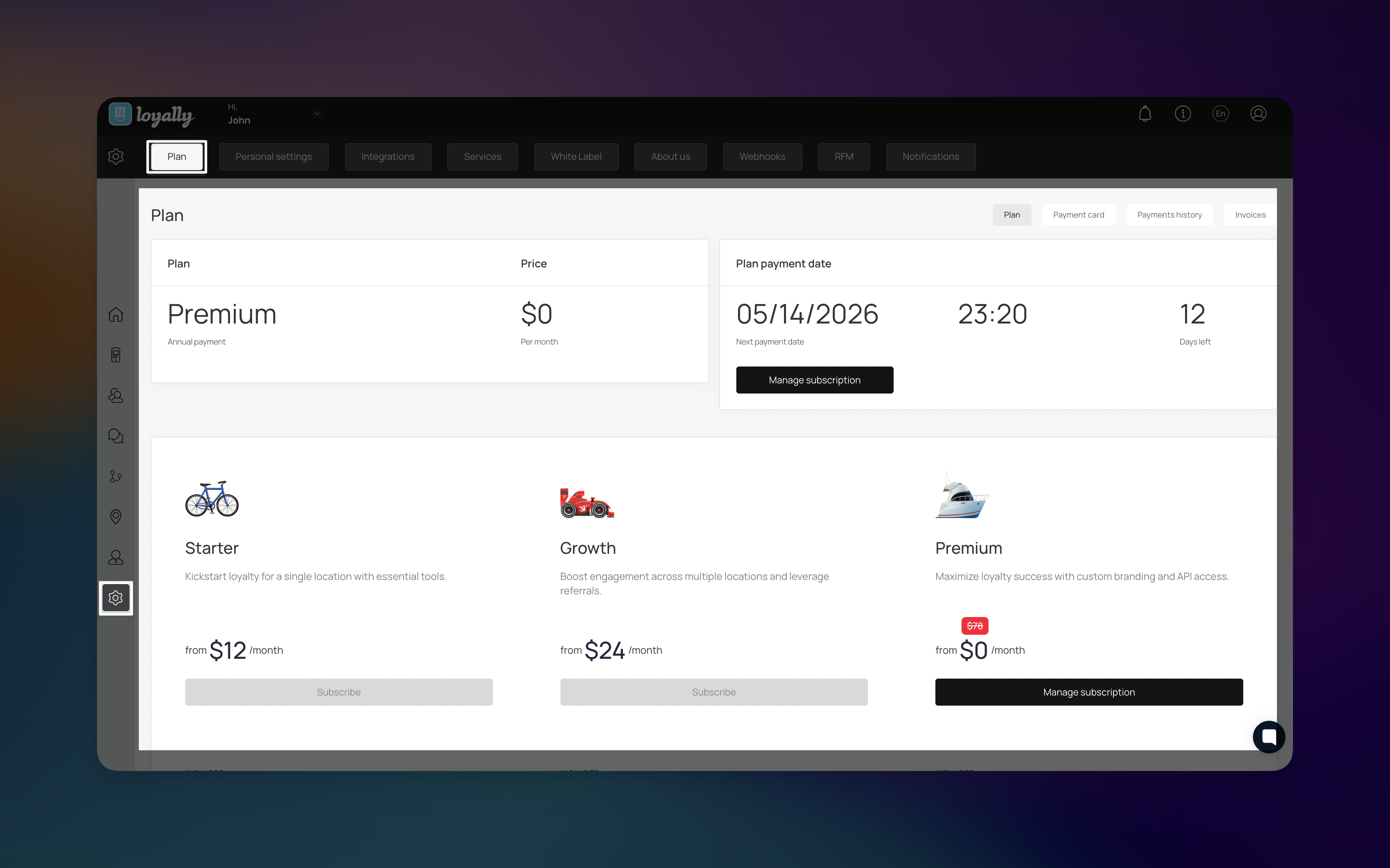
This tab houses your subscription and billing details. Use this section to view your current plan, check usage limits, or upgrade your account. You can also manage payment methods and download past invoices here.
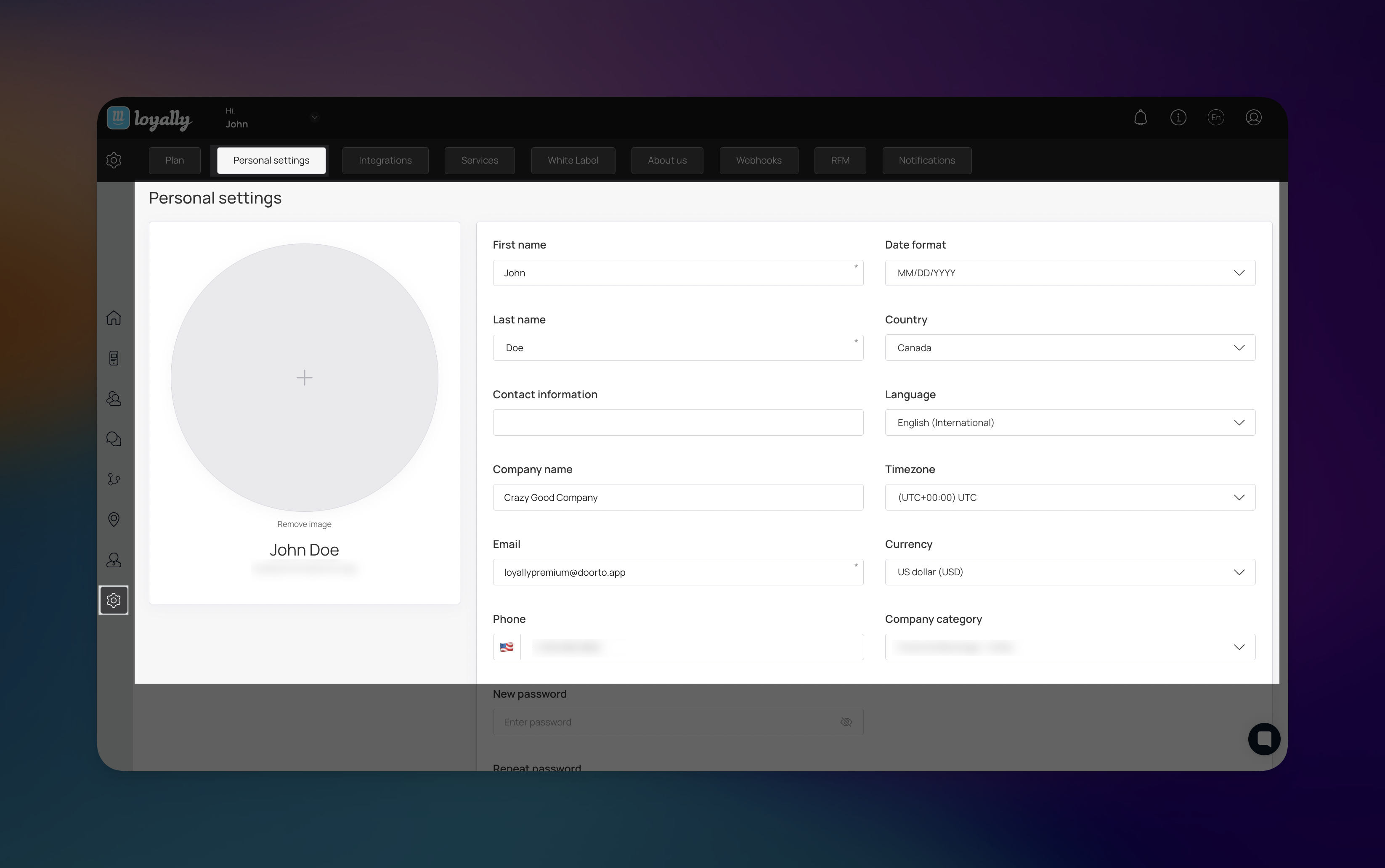
Manage your individual user profile in this tab. Here, you can update your name, change your login email, or reset your account password.
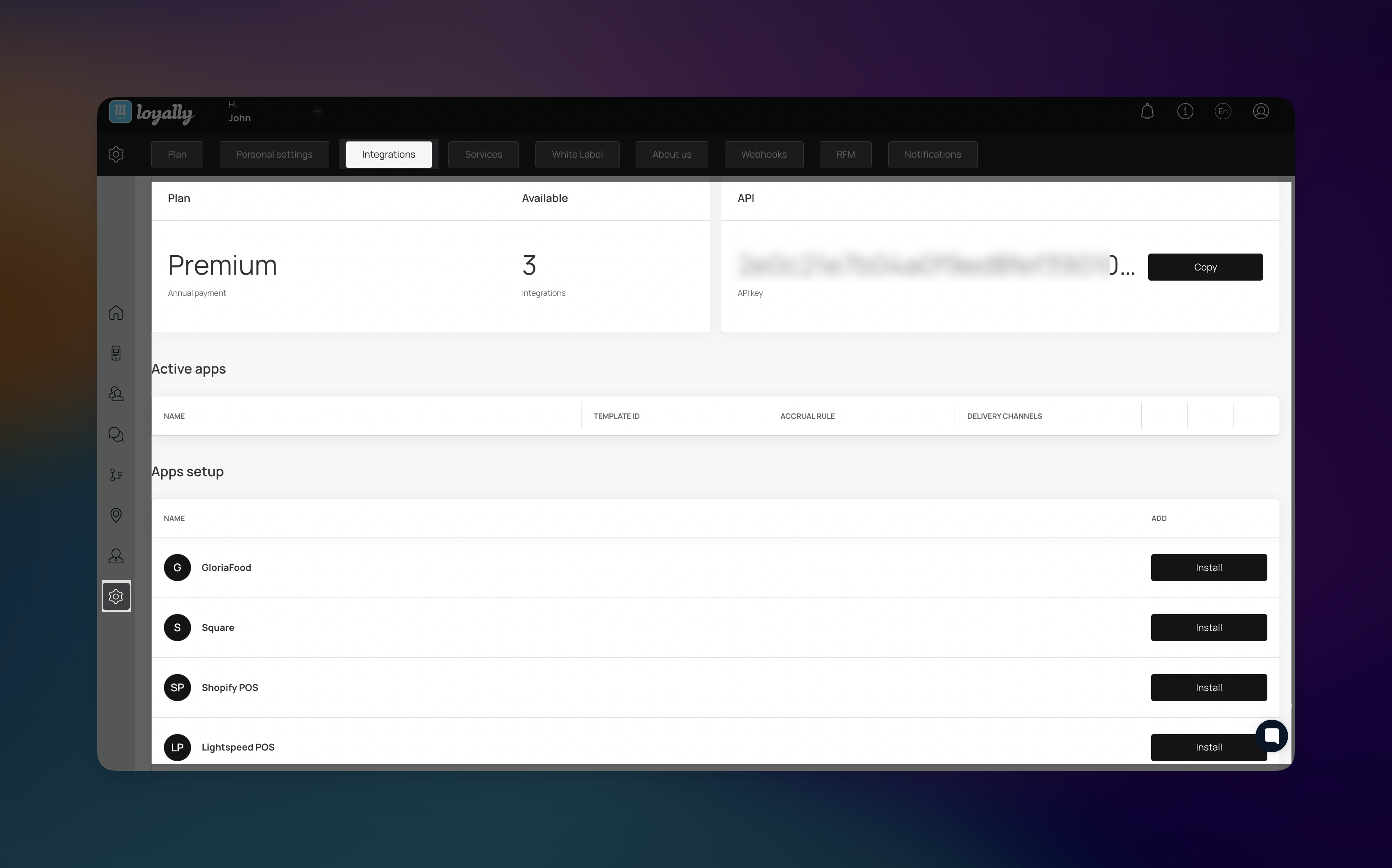
Use this tab to connect Loyally.ai with your existing tech stack through the ready-made integrations listed there: GloriaFood, Square, Shopify POS and Lightspeed POS (Retail X-Series only).
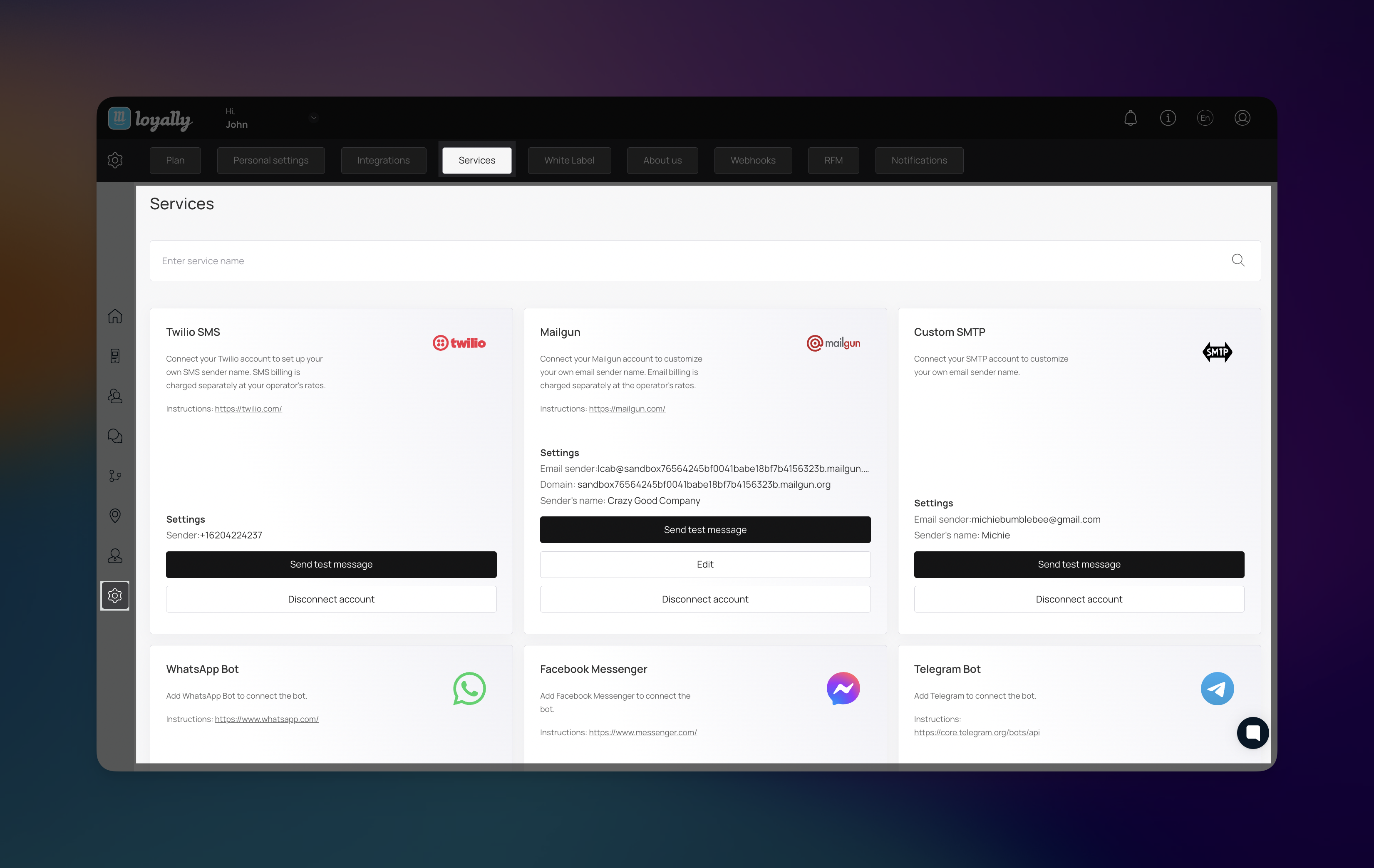
The Services tab allows you to configure the communication channels used to interact with your customers. By connecting your own accounts for SMS, email, and messaging bots, you can maintain full control over your sender identity and branding across all loyalty notifications and marketing campaigns.
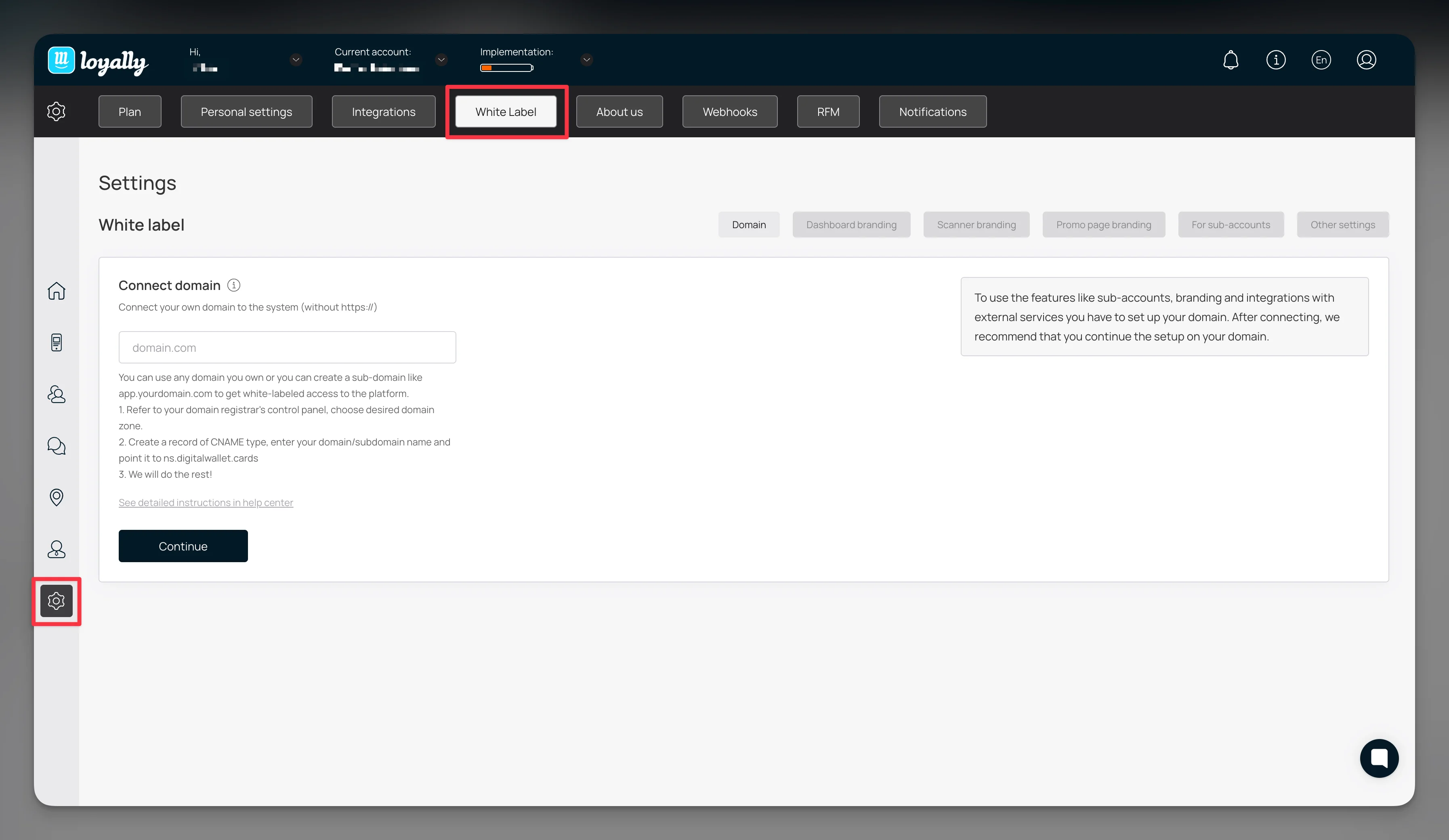
On the Premium and Enterprise plans, this tab allows you to customize the platform's appearance. You can upload your own company logo, set up a custom domain, and adjust the interface colors to match your brand identity.
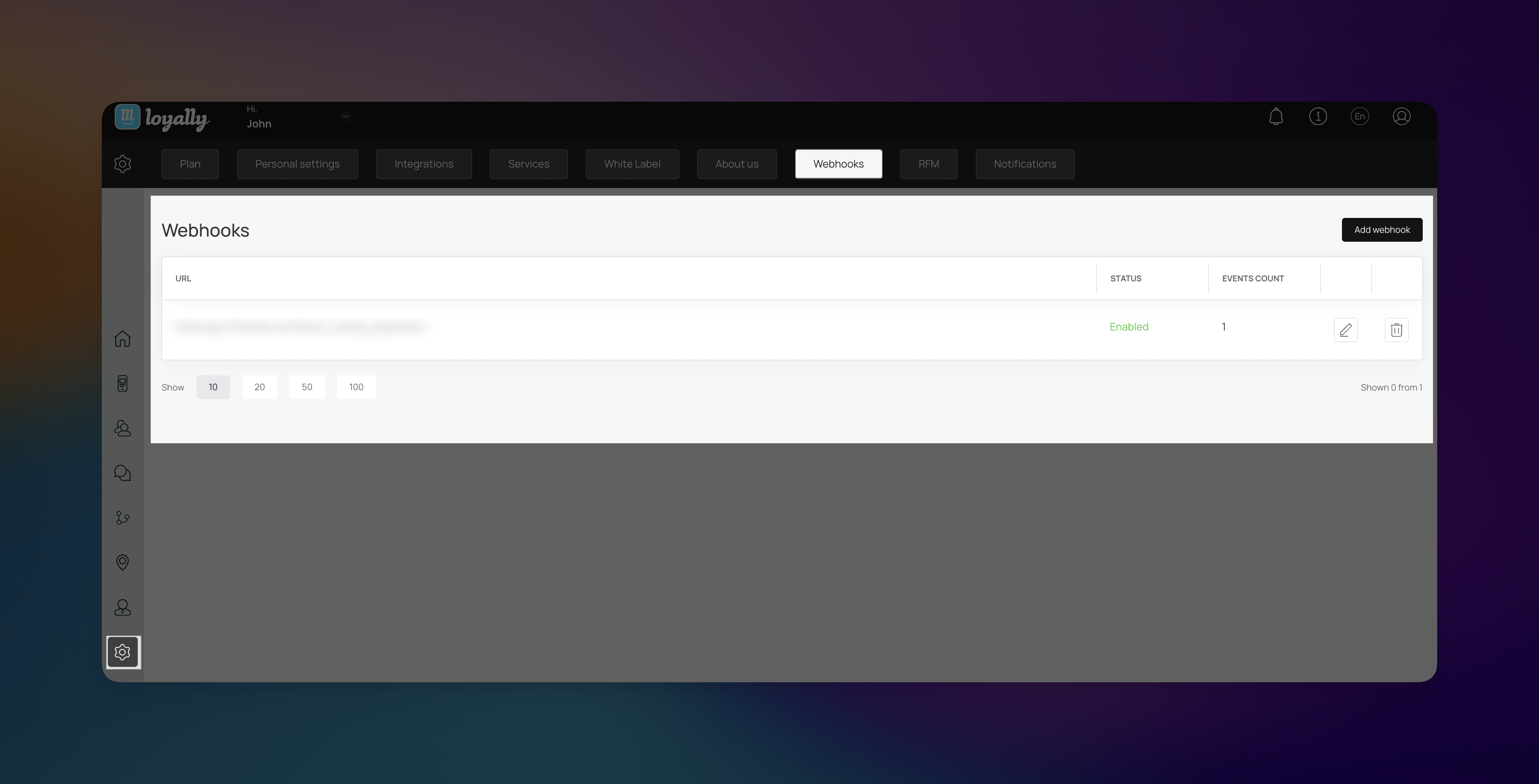
This is a technical tab, included on the Premium plan, used to set up real-time data notifications. You can create and manage webhook URLs that send automated alerts to external servers whenever specific actions like a new lead or a completed purchase that occur within your account.

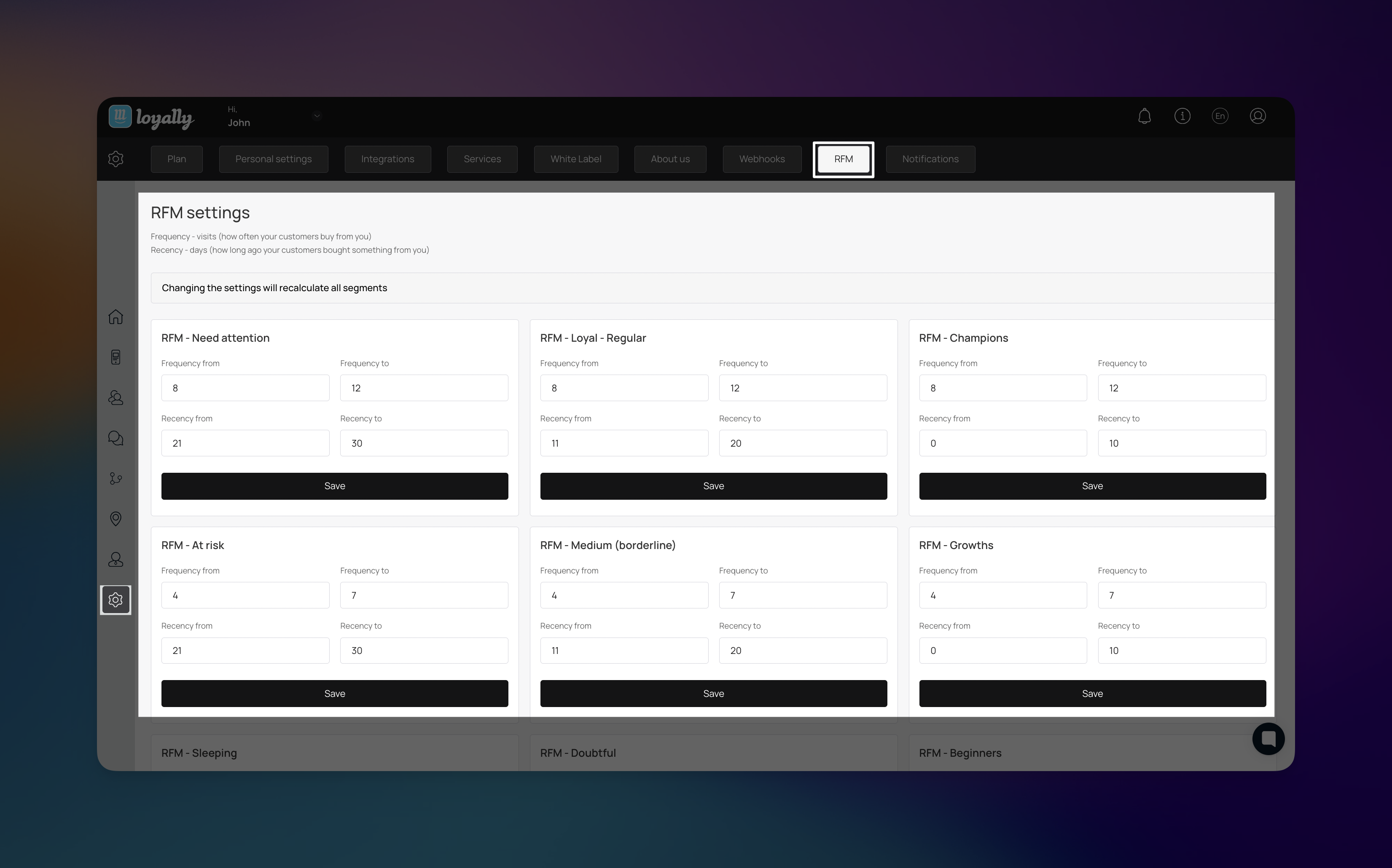
The RFM (Recency, Frequency, Monetary) tab is where you define how Loyally.ai segments your customers based on their purchasing behavior. By adjusting these parameters, you can automatically categorize your audience into specific groups, allowing for highly targeted marketing campaigns that re-engage slipping customers or reward your top fans.
By effectively managing these seven tabs within the Settings module, you can ensure your Loyally.ai account is secure, personalized, and fully integrated with your business workflows.
Keeping your profile information current and monitoring your plan usage will help you maintain a seamless experience for both your team and your customers.
How do I change my account password?
You can update your password within the Personal Settings tab: type the new password in New password and Repeat password, then click Save.
Can I use my own domain for the dashboard?
Yes. If you are on the Premium or Enterprise plan, you can navigate to the White Label tab to configure a custom domain (e.g., dashboard.yourbrand.com).
What happens if I hit my plan limits?
Loyally.ai will notify you via email as you approach your limits. You can check your current status in the Plan tab. Each plan sets how many locations, manager logins and active promotions you can have (Starter: 1 location, owner only, 1 promotion; Growth: 3, 10 and 3; Premium: 10, 50 and 10), and you can upgrade there when you need more.
Do I need a developer to set up Integrations?
The ready-made integrations (GloriaFood, Square, Shopify POS and Lightspeed POS) are "plug-and-play" and do not require coding. However, setting up the Webhooks tab typically requires technical knowledge or a developer's assistance.
Can I add multiple email addresses to one profile?
Each profile is tied to a single primary login email found in Personal Settings. If you need to grant access to other team members, this is usually handled through a separate "Team" or "Users" module rather than the general settings tabs.
Using Kiosk Mode in the Loyally Scanner App
Learn how to enable and configure Kiosk Mode in the Loyally Scanner App to automate customer check-ins, stamp accrual, and reward redemptions with minimal staff interaction.
Integrations
See how the integrations work