Kiosk Mode in the Loyally Scanner App allows you to streamline customer check-ins and reward redemptions with minimal staff interaction.
When enabled, the app automatically:
Performs actions like auto-accruing stamps, redeeming coupons, or discharging visits.
Waits for a short, customizable delay (in seconds) before allowing the next scan.
Returns to the scanning screen automatically.
This setup is ideal for cafés, gyms, barbershops, and retail counters where customers can scan their loyalty cards themselves — with only light staff supervision.
When you enable Kiosk Mode, the app:
Switches into a dedicated scanning interface (camera view).
Automatically performs the configured loyalty operations (e.g. adds 1 stamp or redeems a coupon).
Waits for the specified delay (in seconds) before allowing the next scan.
Resets automatically — ready for the next customer.
This creates a fast, hands-free experience for staff while keeping the flow efficient.
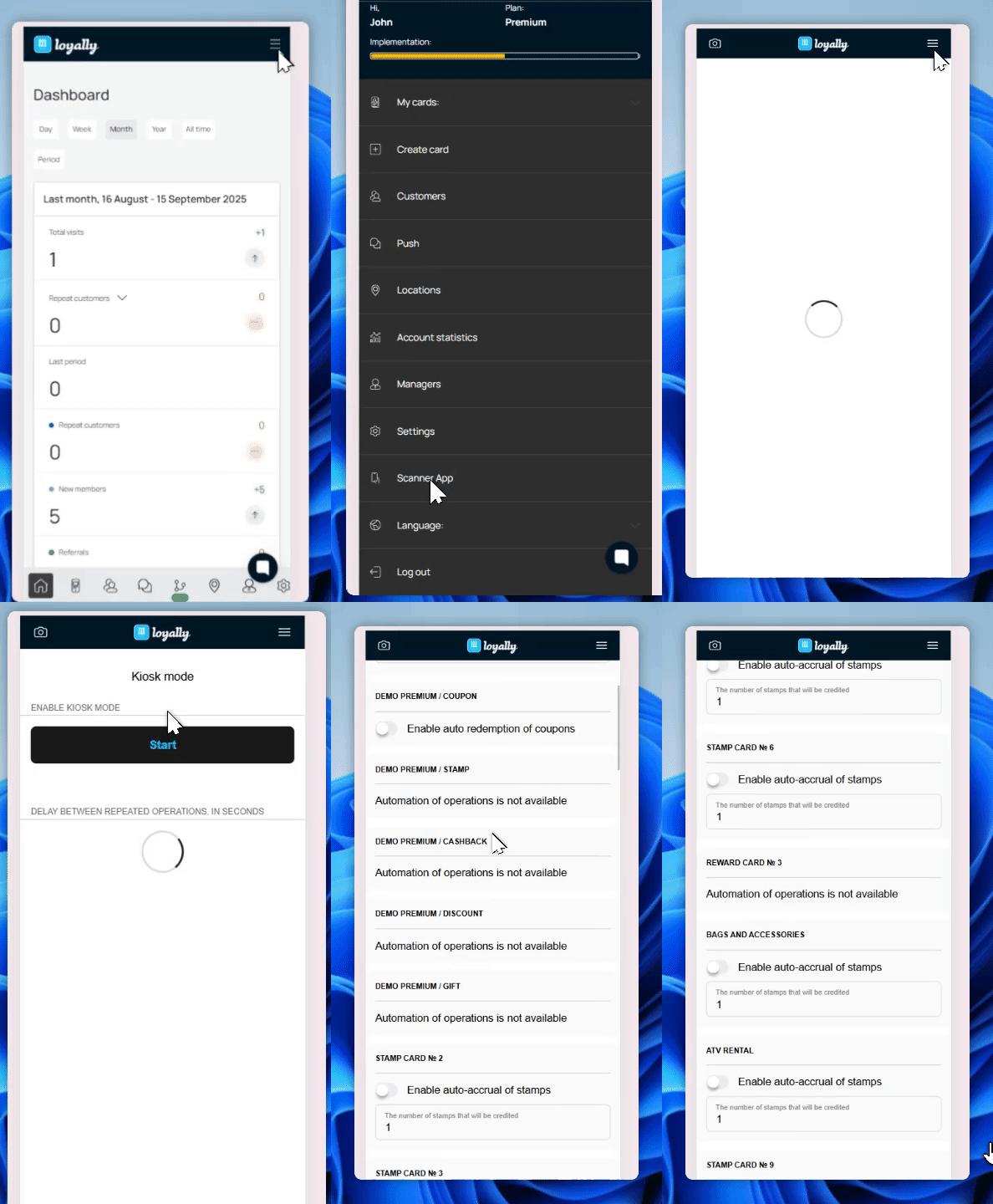
Log in to your Loyally account.
Click your profile menu (top-right corner).
Select “Scanner App” from the dropdown menu.

Tap the menu icon (☰) in the top-right corner.
Select “Kiosk Mode.”
Set your delay time (in seconds) between scans.
Click Start to launch the scanner in Kiosk Mode.
Once active:
The camera view will open and display a “Stop” button at the bottom.
Tap Stop anytime to exit Kiosk Mode.
Use the Delay setting to control how quickly the app resets between scans.
This helps prevent repeated or accidental scans.
For example:
If you set a 10-second delay, the scanner will pause for 10 seconds after each scan before allowing another scan. This helps prevent accidental double-scans.
You can enable or disable automatic actions for each loyalty card type you manage in Kiosk Mode. Automation determines which operations (stamps, visits, points, etc.) happen automatically after a QR code is scanned.
Cards that use visit-, stamp-, or point-based mechanics:
Stamp cards — Visit or Stamp mechanics
Reward cards — Visit or Points mechanics
Multipass cards
Membership cards
Coupon cards
Cards that use spending or product-based mechanics:
Stamp cards — Expense or Product mechanics
Reward cards — Expense or Product mechanics
Cashback cards
Discount cards
Gift cards
Template Type | Option | Description |
Stamp | ✅ Enable auto-accrual of stamps | Automatically adds the set number of stamps per scan. |
Multipass | ✅ Enable auto-discharge of visits | Automatically deducts one visit per scan. |
Coupon | ✅ Enable auto-redemption of coupons | Redeems an active coupon automatically. |
Membership | ✅ Enable auto-discharge of visits | Automatically deducts one visit per scan (e.g. gym entry). |
Reward | ✅ Enable auto-accrual of points | Adds the specified number of points per scan. |
Discount | 🚫 Automation of operations is not available | Manual processing required. |
Cashback | 🚫 Automation of operations is not available | Manual processing required. |
Gift | 🚫 Automation of operations is not available | Manual processing required. |
Automation works for simple scan-based actions (visits, stamps, points).
Automation does not work for spend- or product-based actions (cashback, discounts, gifts).
Stamp cards can also trigger auto reward redemption if configured in the template.
Set the delay between 5–10 seconds for smooth operation.
Use auto-accrual for fast check-ins (stamps, visits).
Keep a staff member nearby for reward redemptions or customer questions.
Mount the device securely on your counter with Guided Access (iOS) or App Pinning (Android) enabled.
Keep the app connected to Wi-Fi for real-time synchronization.
Issue | Likely Cause | Solution |
Scanner doesn’t open | Camera permissions not granted | Enable camera access in your browser or device settings |
Scans too quickly reset | Delay set too short | Increase delay (e.g., 8–10 seconds) |
Auto actions not working | Automation toggle disabled | Enable the desired automation for your card type |
Can’t exit scanner view | Forgot how to exit | Tap Stop to return to settings |
Device goes to sleep | Screen timeout active | Disable screen sleep in system settings |
The Scanner App explained
Learn how the scanner app works
Login in the scanner app
Fill in your registered credentials and a tap on the Sign In button. You are into the scanner application
Manager Profiles
Create manager seats for your sales persons to get access to Scanner App
Scanner app - Stamp
How to charge stamp cards using Scanner App