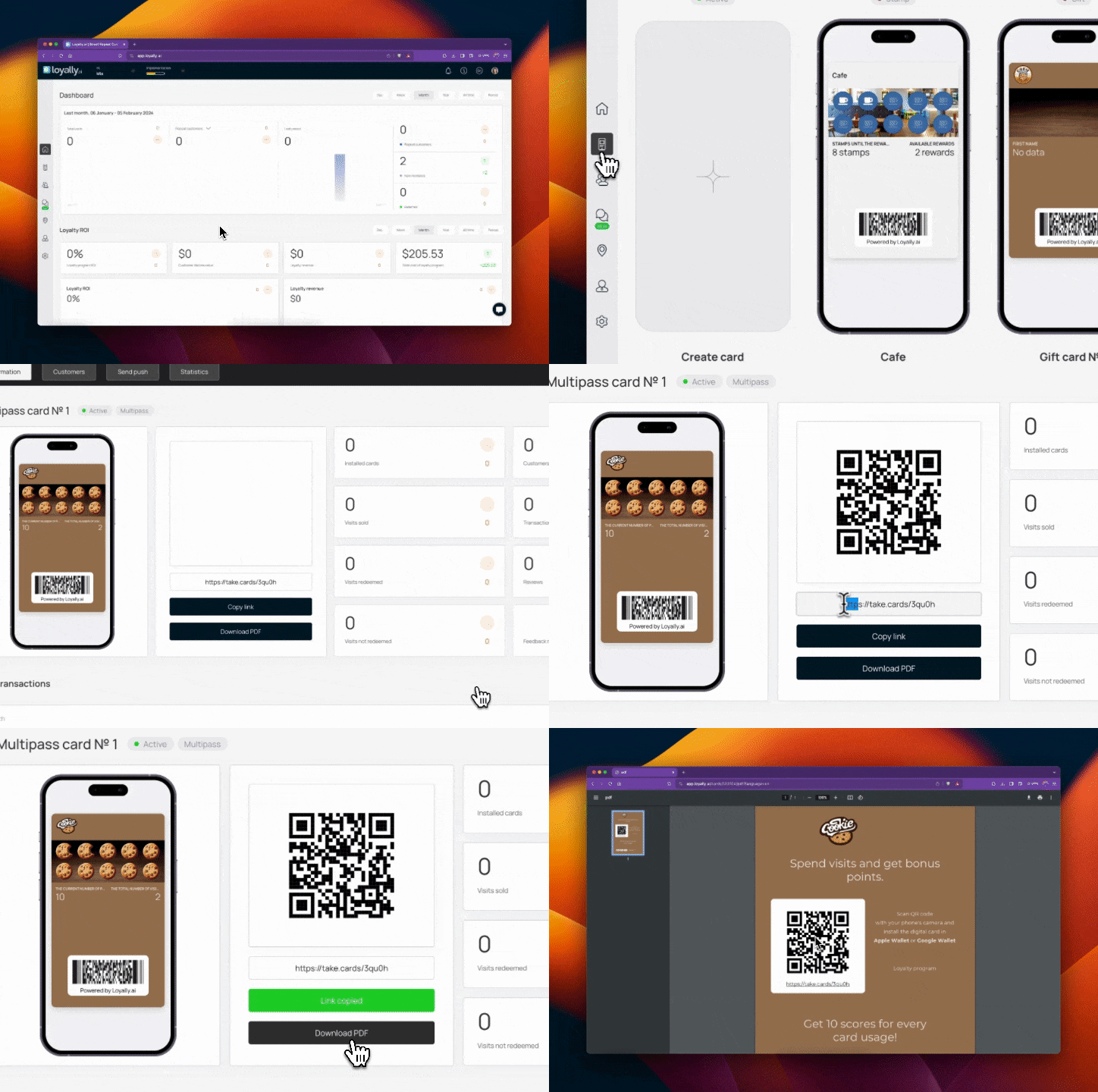
Go to app.Loyally.ai > 'Cards' > Choose a card to 'Open'
Choose Installation Method:
Scan QR Code: Customers scan the QR code.
OR
Direct Link: Share the generated link to install.

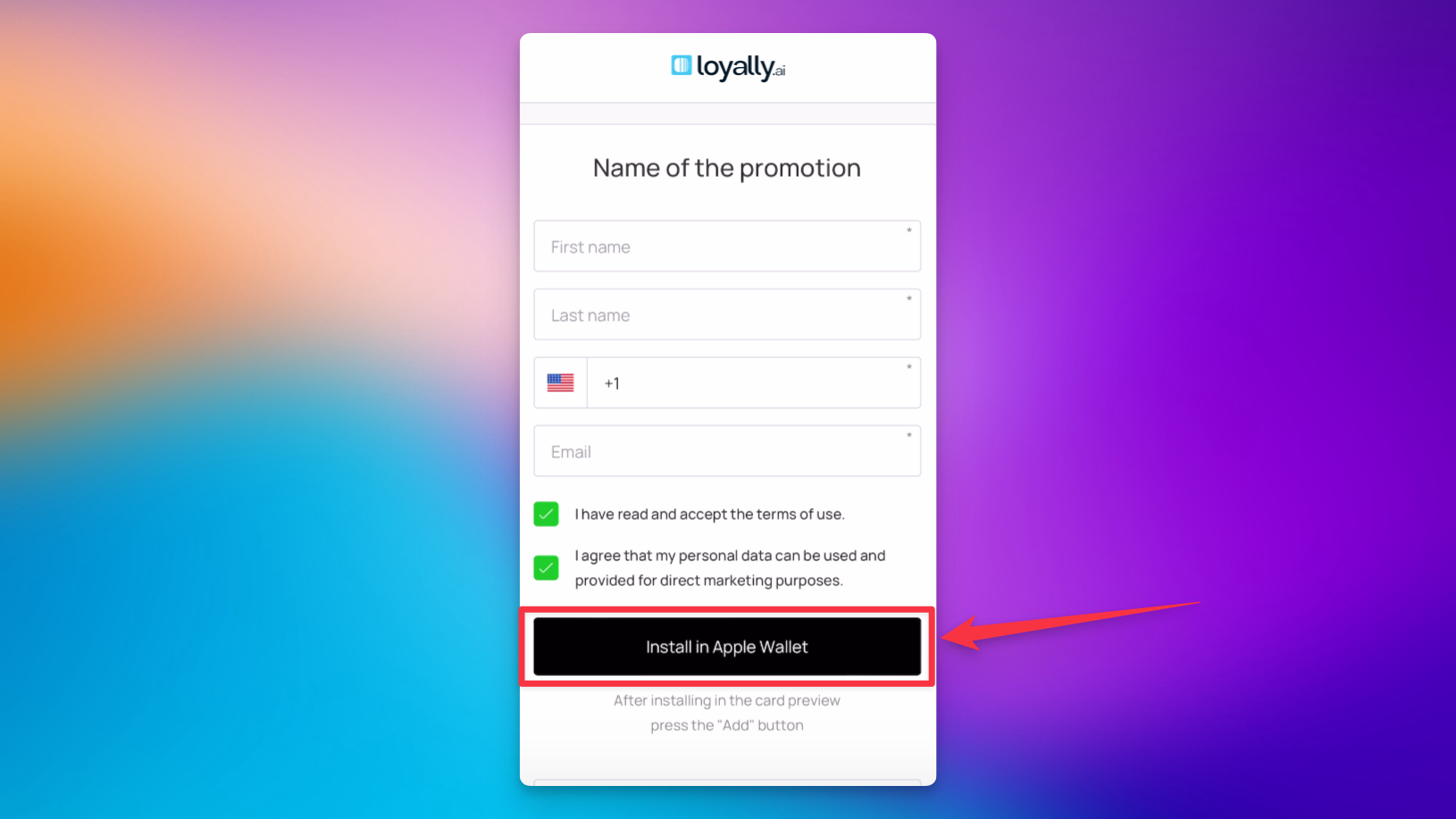
Customers complete the form with their:
First Name
Last Name
Contact Number
Tap 'Install in Apple Wallet' and then press 'Add' to finalize.
Once installed, your customers can find your card at any time by opening the Apple Wallet app. They can tap the "..." icon on the card to view their points history, read your privacy policy, or toggle "Allow Notifications" to receive updates about rewards and points.
Missing 'Add' Button: Ensure the customer is using the native Safari browser. Third-party browsers or in-app social media browsers (like Instagram or Facebook) can sometimes block Wallet integrations.
Expired Links: If a link isn't working, verify that the card is still marked as "Active" in your Loyally.ai dashboard.
Update Delays: If you change a customer's point balance and it doesn't reflect immediately, ask the user to pull down on the card in Apple Wallet to refresh it.
To maximize the number of customers installing your card, consider these placement ideas:
At Checkout: Place a physical "Scan to Join" sign near the point of sale.
Email Signatures: Add the Direct Link to your business email signature.
Post-Purchase SMS: Send an automated text with the link immediately after a customer makes their first purchase.
Install Loyalty Card on Android - Google Wallet
Learn how to install a digital loyalty card on Android devices via Google Wallet
Install Loyalty Card on Android - PWA
Learn how to install a digital loyalty card on Android devices via PWA (Progressive Web App)