Running a loyalty program shouldn't mean you’re glued to a dashboard all day. To help you stay on top of your business while you're actually running it, Loyally uses automated alerts to keep you and your customers updated.
By taking five minutes to configure your preferences, you can ensure that the right data hits your inbox or your phone exactly when you need it.
Before you can customize how you receive updates, you need to navigate to the correct section of your administrative portal. These three steps will take you directly to your preference center:
Log in to your Loyally dashboard.
Navigate to the ‘Settings‘ in the menu panel.
Select the ‘Notifications’ tab.
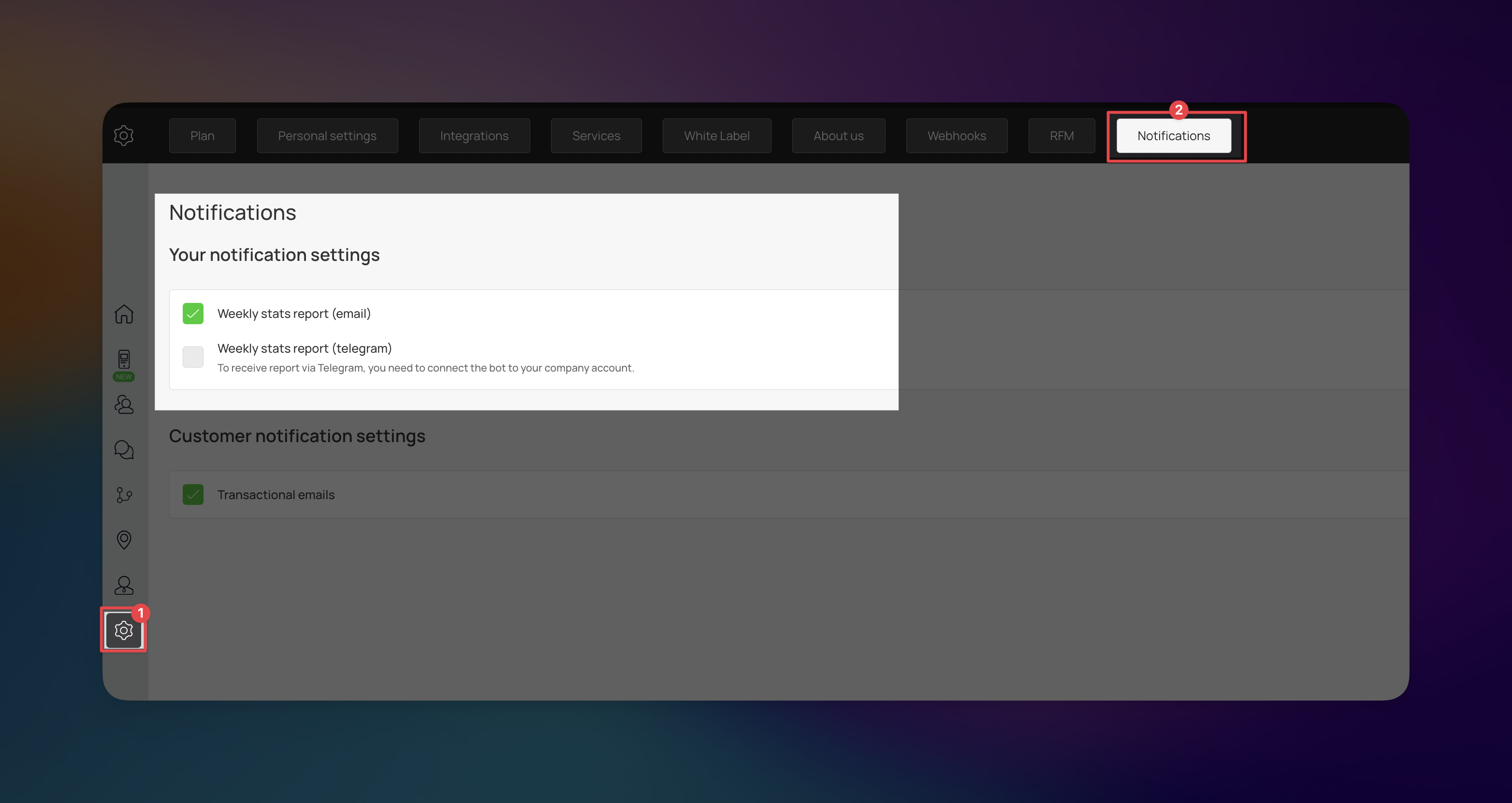
Loyally.ai automatically compiles your key performance indicators (KPIs) from the previous seven days into a concise summary. To ensure you stay informed your way, you can choose to receive these reports via two different channels:
Weekly Stats Report (Via Email) - Switch this on to get a summary delivered to your inbox every Monday morning. It’s the easiest way to see your progress at a glance.
Weekly Stats Report (Via Telegram) - If you’re rarely at a desk, the Telegram is a better move. It sends a mobile-optimized version of your report directly to your phone.

Link your telegram account to loyally.ai via a Telegram Bot integration, so you can send automated loyalty messages, updates, promotions, and customer notifications directly in Telegram.
How to connect it:
In Telegram, open @BotFather → run /start then /newbot to create your bot and get the API token.
In Loyally: Settings → Services → Connect Telegram Bot.
Paste the token and click Connect.

This is where you control the automated communication your customers receive. These alerts are essential for building trust; they confirm that your system is working and that their points are being tracked accurately.
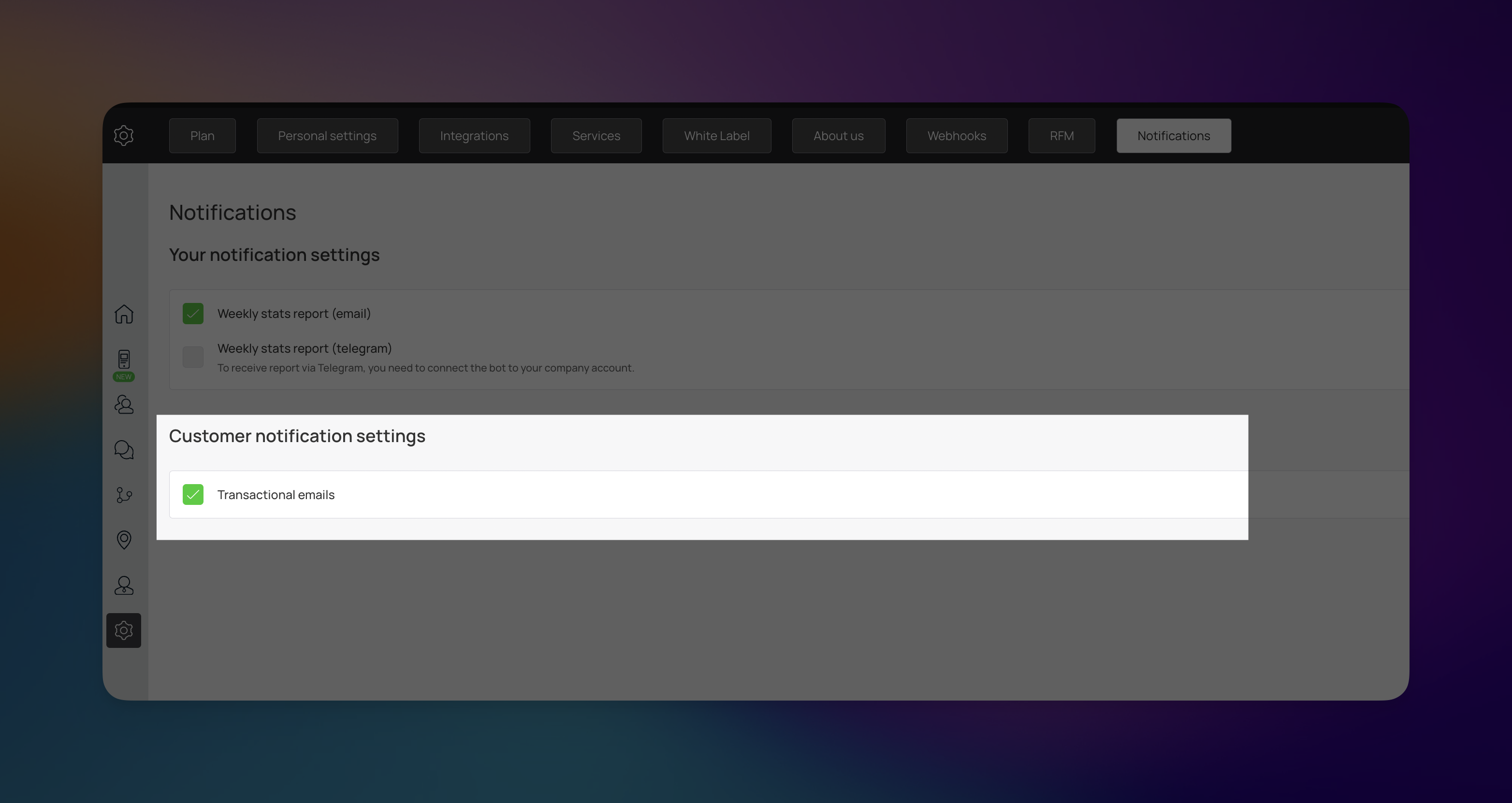
Transactional emails are different from marketing blasts. They are "event-based" messages sent automatically when a customer interacts with your program. By keeping these enabled, you ensure your customers aren't left guessing after a purchase or a sign-up.
While you can toggle these off, we generally advise against it. If transactional emails are disabled, customers won't receive automated confirmation of their rewards. This often leads to an increase in support questions at the point of sale and can slow down your checkout line while staff manually verify point balances.
Personal Settings
See how you can tweak personal settings
Settings
General account settings