As your business grows, managing a loyalty program shouldn't be a one-person job. The Managers dashboard allows you to delegate tasks, track staff performance, and ensure your customers are being rewarded across every location without needing your direct oversight for every transaction. Manager logins depend on your plan: Starter is owner only (no manager logins), Growth includes 10 managers and Premium includes 50.
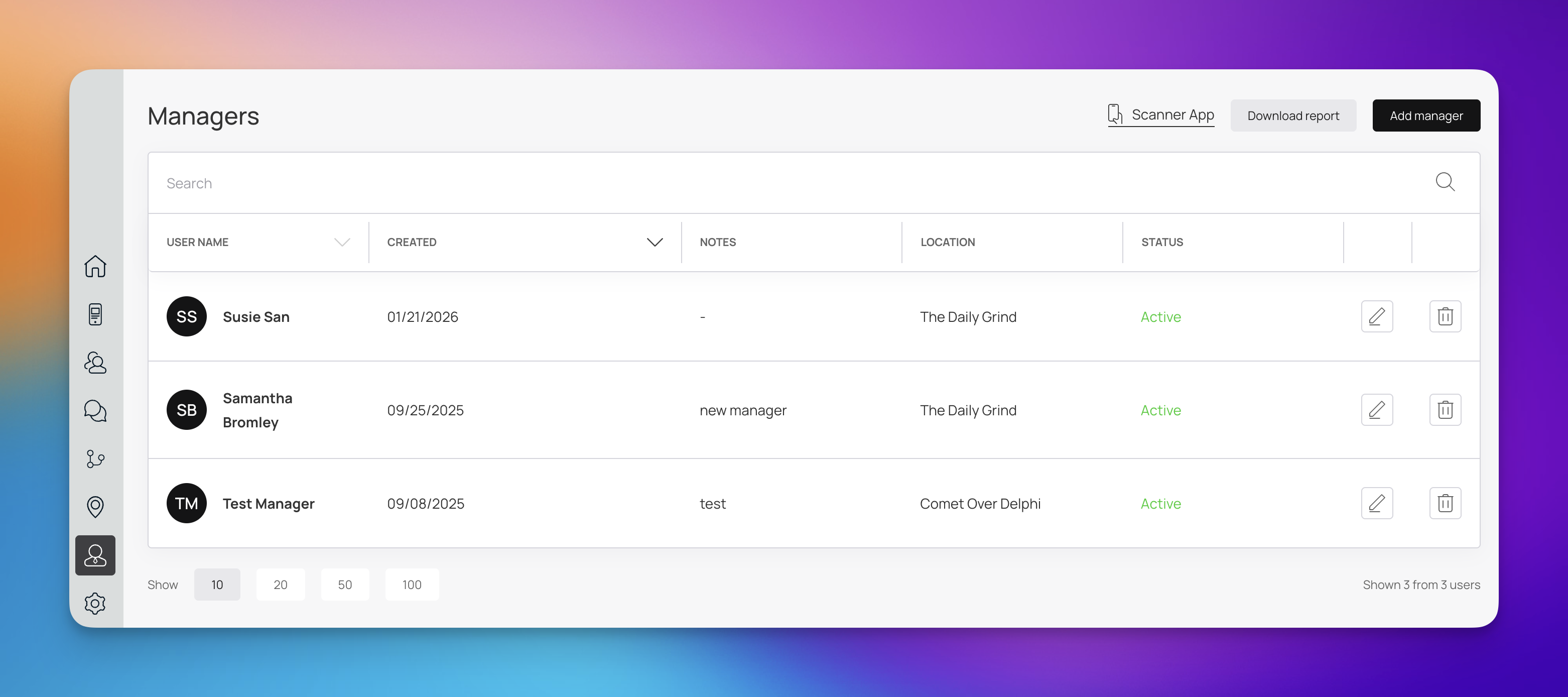
Distributing responsibility through Manager accounts is a key step in professionalizing your loyalty strategy. Here is why it matters:
Location-Specific Oversight: As seen in your dashboard, managers can be assigned to specific locations (e.g., The Daily Grind or Comet Over Delphi). This ensures that the right people are overseeing the right branches.
Security and Accountability: Instead of sharing one master login, individual manager accounts allow you to see who is performing actions and when.
Operational Efficiency: Managers can handle day-to-day tasks like manual point adjustments or scanning customer cards, freeing you up to focus on high-level marketing and growth.
Staff Training & Testing: You can create "Test Manager" accounts (as shown in your dashboard) to train new hires in a safe environment before they interact with real customer data.
The Managers screen provides a bird's-eye view of your authorized staff.
Feature | Description |
User Name | Displays the full name and initials of your manager. |
Created Date | Tracks when the manager was added to the system. |
Notes | A space for internal reminders (e.g., "New manager" or "Night shift lead"). |
Location | Shows which specific storefront or branch this manager is assigned to. |
Status | Indicates if the manager's access is currently Active or disabled. |
Adding a New Manager: Click the ‘Add Manager’ button in the top right corner. You will be prompted to enter their name, assign them to a location, and set their login credentials.
Editing Information: Use the ‘pencil icon’ on the right side of a manager’s row to update their details or change their assigned location.
Removing Access: If a staff member leaves, click the trash icon to revoke their access immediately.
Reporting: Click ‘Download Report’ to export a list of all current managers for your internal HR or security audits.

Manager Seats
Learn how to create manager profiles
Manager Profiles
Create manager seats for your sales persons to get access to Scanner App
Add / Edit / Delete Managers
Follow a few simple steps to add/edit/delete manager profiles