The Mailings section is the primary workspace in Loyally.ai for building and sending customer communications. This area handles everything from standard email and SMS campaigns to mobile push notifications. Use this space to reach your entire customer base or target a specific segment.
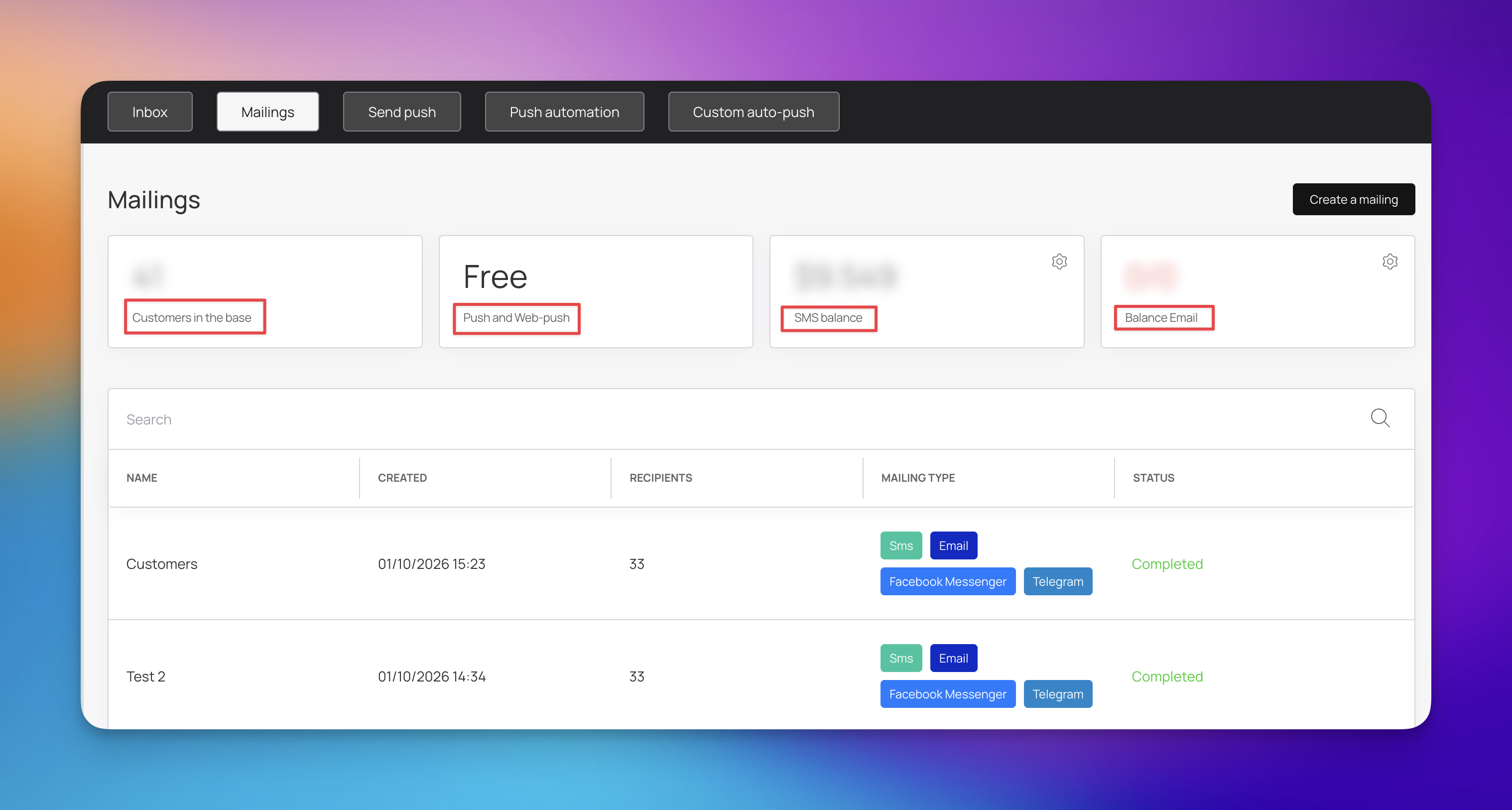
The top of the screen provides a live look at your messaging resources:
Customers in the base: The total size of your current audience.
Push and Web-push: Your current status for app-based notifications.
SMS balance: Your remaining credit for text campaigns.
Balance Email: The volume of emails you have left to send.

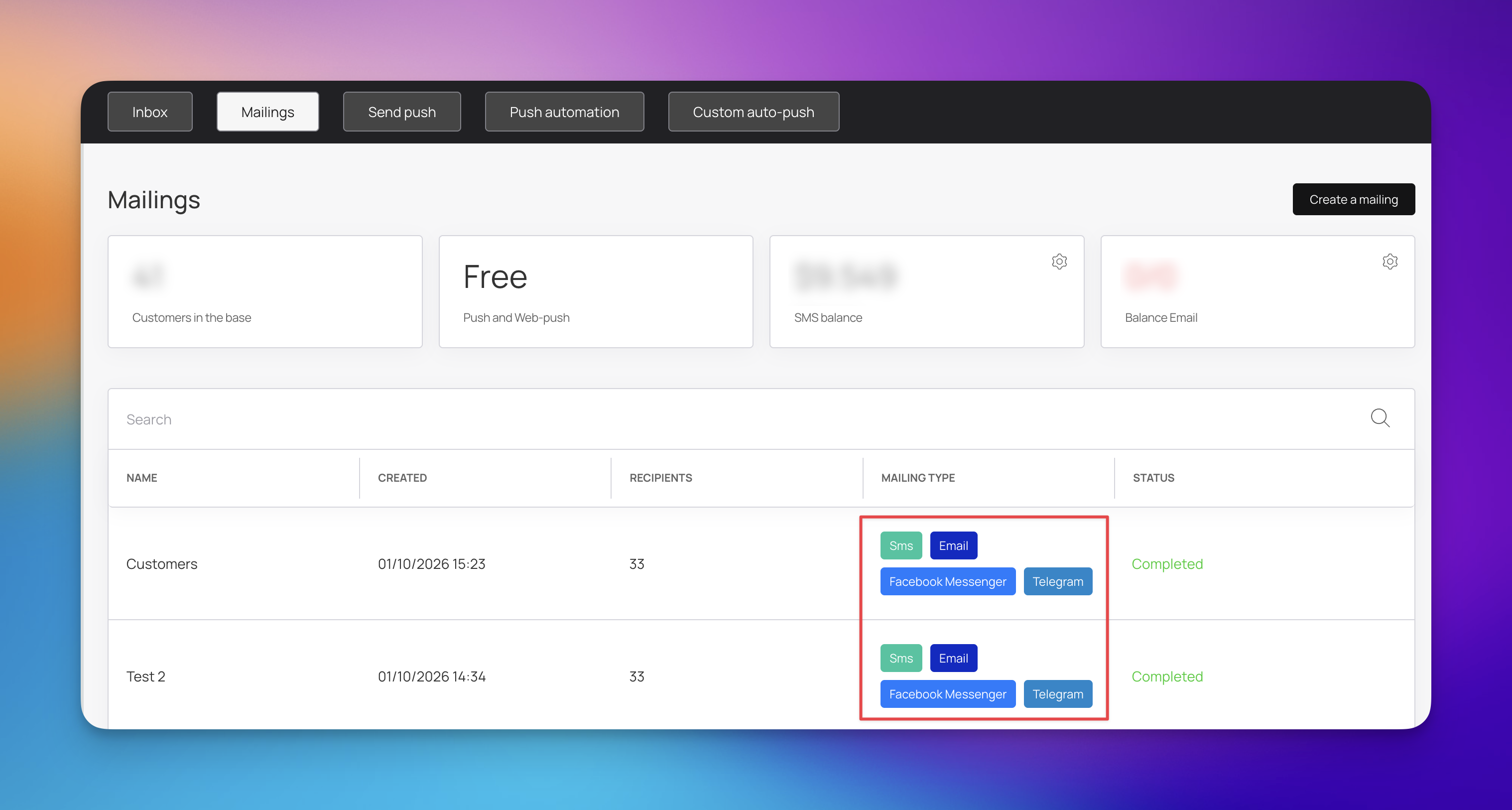
You can mix and match different platforms to stay connected with your users:
Direct Messaging: Send campaigns via SMS and Email.
Social Apps: Message customers through Telegram and Facebook Messenger.
Mobile Alerts: Use the Send push, Push automation, and Custom auto-push buttons to trigger notifications on customer devices.
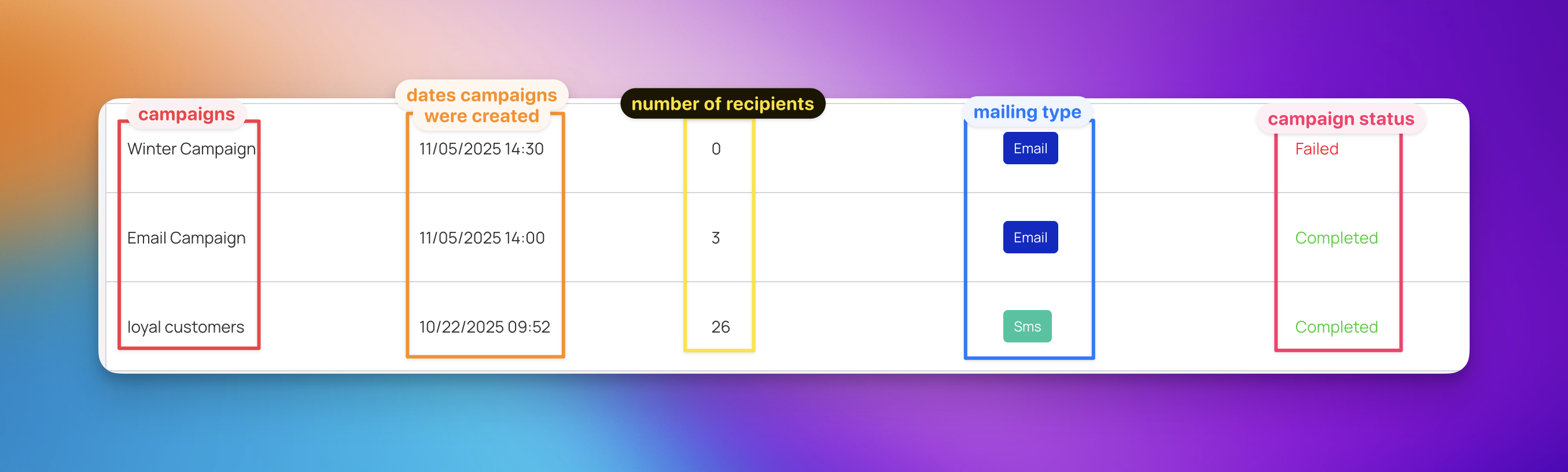
The central table serves as a full history of your activity. For every campaign, you can see:
Created Date: Exactly when the mailing was set up.
Recipients: The number of people who received the message.
Mailing Type: Icons showing which channels were used (e.g., SMS, Email, or Messenger).
Status: Confirmation that a campaign is "Completed" or still in progress.
Clicking into a campaign, such as one sent to "loyal customers," opens a detailed performance breakdown. This view allows you to track exactly how your message landed:
Recipients: The total number of customers included in the mailing.
Received: The count and percentage of messages successfully delivered to your audience.
Unsubscribed: The number of people who opted out of future communications after this mailing.
Clicked: How many customers interacted with a link in your message.
Complained: Tracks if any customers marked the message as spam.
Stored: Shows messages that are saved or queued.
Date of mailing & Sending time: The specific schedule used for the dispatch.
Current status: Displays if the campaign is "Completed" or still processing.
Mailing type: Confirms the channel used, such as Sms, Email, or social messengers.
Segments: Shows the specific customer group targeted for the outreach.
Mailing text: Displays the exact message content, including any personalization tags like {{customerFirstName}}.

{{customerFirstName}}, always send a test message to yourself first to ensure the data is pulling correctly and the formatting looks professional.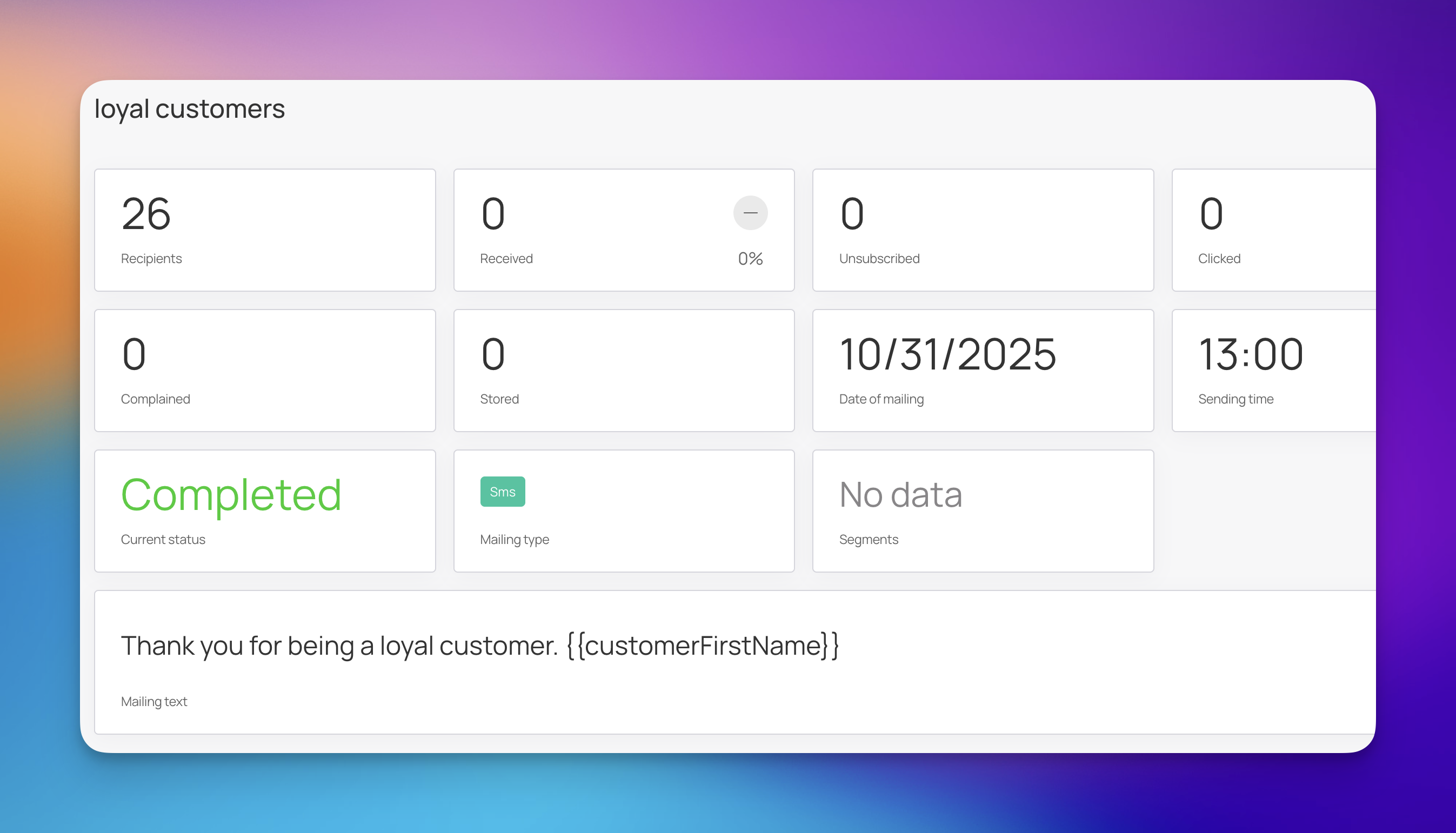
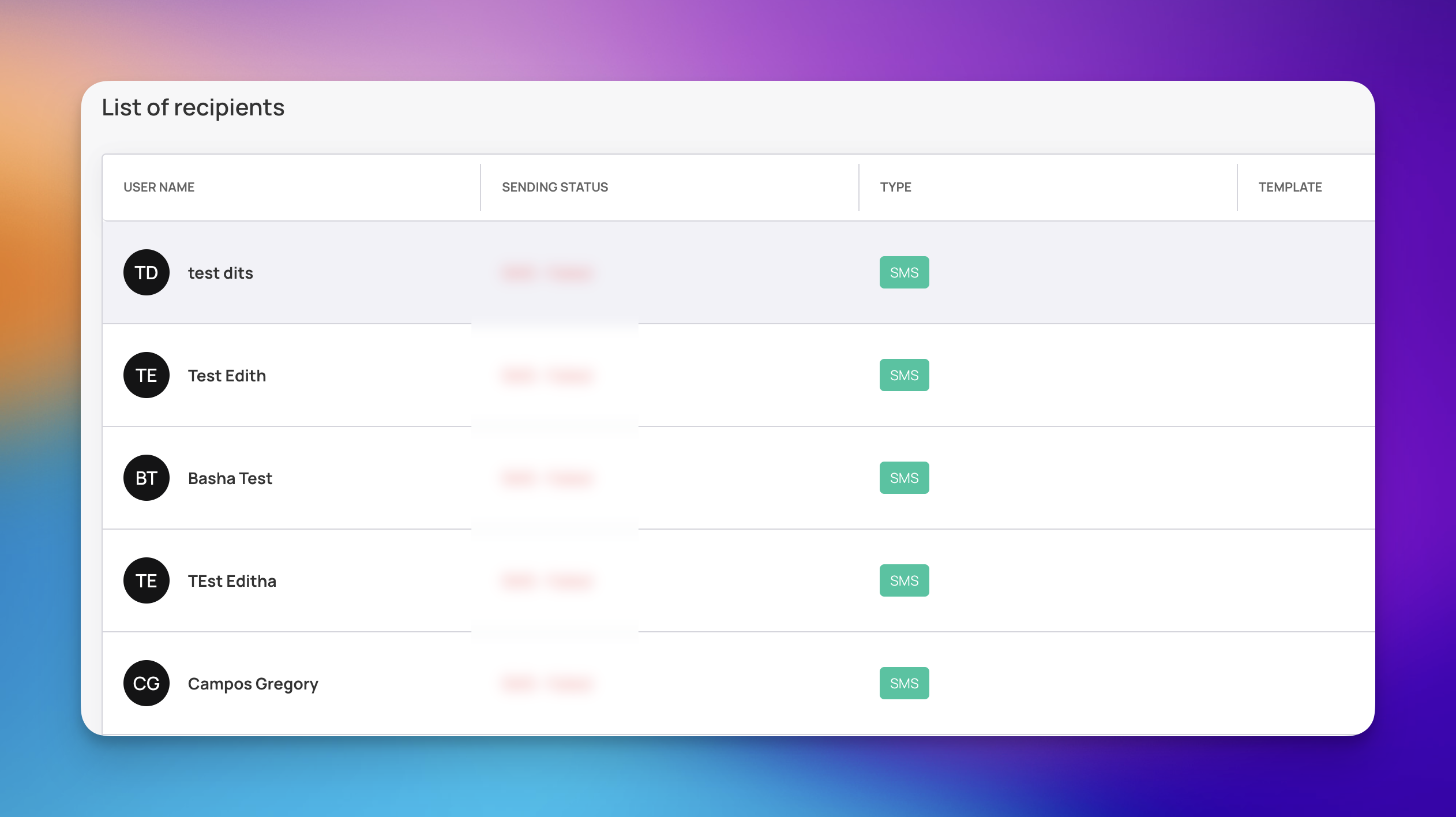
When you scroll down within a campaign's details, you will find the List of recipients. This table allows you to audit the delivery status for every individual customer in that mailing:
User Name: The name of the specific customer.
Sending Status: A real-time update on delivery, such as "SMS - Failed" or "Delivered".
Type: The channel used for that specific user (e.g., SMS).
By reviewing these metrics and individual recipient statuses, you can identify which messages resonate most with your audience and address any delivery issues. This history ensures you have a clear record of all past interactions, helping you stay organized as you grow your loyalty program.
To start a new communication, use the buttons at the top of the dashboard:
Create a mailing: For standard manual campaigns.
Send push: For a quick mobile notification.
Push automation: To set up messages that send automatically based on customer behavior.
Custom auto-push: For tailored automated triggers.
Effective communication is the foundation of a successful loyalty program. By using the Mailings section to its full potential, you can keep your customers informed, engaged, and returning to your business. If you encounter any issues with delivery statuses or need help setting up your first automated sequence, our support team is available to assist you.
Creating an email campaign
How to create your email campaign
Creating an SMS campaign
How to create your SMS campaign
Promotions
Step-by-step guide to setting up time-limited offers, events, and campaigns that appear directly on your customers’ digital loyalty cards.